Create a Sales Invoice
A Sales Invoice is the bill that you send to a customer. When you submit it, ERPNext records the amount that the customer owes (the receivable), the sales income, and the taxes in the General Ledger. If you select Update Stock, the same invoice also records the goods that leave the warehouse.
Create the invoice from a Sales Order or a Delivery Note when those documents exist. Create it directly for a service, or for an immediate sale of stock without a Delivery Note.
Prerequisites
- A Customer with a billing address, a contact, and a currency.
- An Item for each product or service, with an income account.
- A selling Price List, if you want ERPNext to fetch rates.
- A Sales Taxes and Charges Template, if tax applies.
- A Payment Terms Template, if the customer pays in instalments.
- A warehouse with stock, if the invoice updates stock.
Create a Sales Invoice directly
- Open the Sales Invoice list and select Add Sales Invoice.
- Select the Company and the Customer. ERPNext fetches the customer's address, contact, currency, price list, and receivable account from the defaults.
- Check the Posting Date and the Payment Due Date. The posting date sets the accounting period. The due date decides when the invoice becomes overdue.
- In the Items table, add each product or service, and check the quantity, rate, and amount.
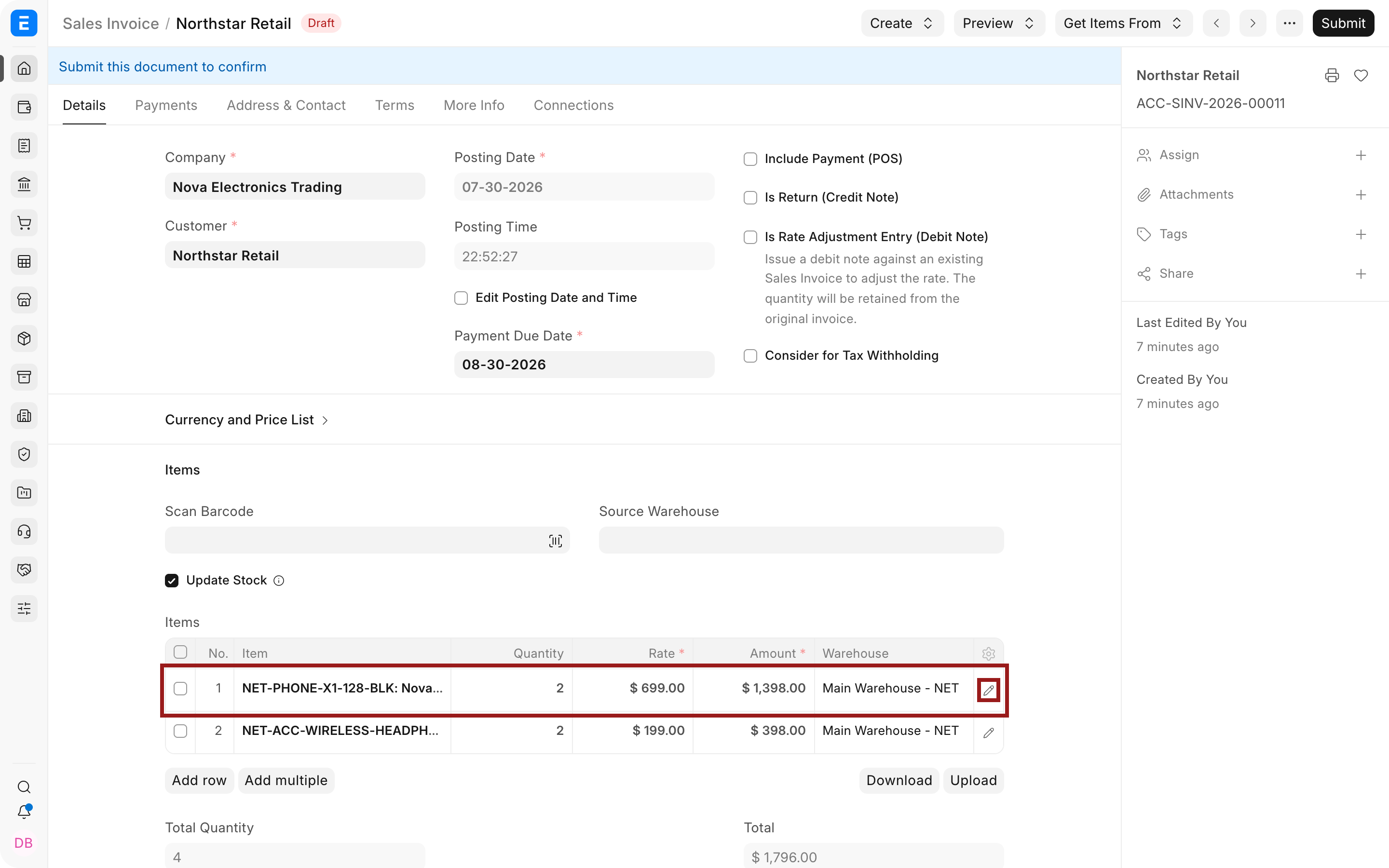
- To see the fields that the table does not show, select the edit icon at the end of the row. Here you can change the UOM, the Income Account, the Cost Center, the Project, the Warehouse, serial and batch numbers, and deferred revenue settings.
- Select a Sales Taxes and Charges Template, or add rows to the Sales Taxes and Charges table. Check the tax amount and the Grand Total.
- In the Payments tab, check the Payment Schedule and allocate any customer advances.
- Check the addresses, the customer's purchase order details, the terms, and the totals.
- Save the invoice, and then select Submit. ERPNext posts the ledger entries.
In the Items table, a dot before the item code shows stock availability: green means in stock, red means out of stock.
Create a Sales Invoice from another document
When you create the invoice from an earlier document, ERPNext copies the items, quantities, rates, taxes, addresses, and references. It also updates the billed percentage of the earlier document.
From a Sales Order
Open a submitted Sales Order, select Create, and then select Sales Invoice. Keep only the lines and quantities that are ready to bill. You can create several invoices from one order. Learn more about partial fulfilment of a Sales Order.
From a Delivery Note
Open a submitted Delivery Note, select Create, and then select Sales Invoice. Use this route when the stock has already left the warehouse. Do not select Update Stock on the invoice, because the Delivery Note has already updated the stock ledger.
With Get Items From
In a new Sales Invoice, select Get Items From, and then select Sales Order, Quotation, Delivery Note, or Timesheet. Use Timesheet to bill hours and rates from Timesheets.
Choose the stock flow
| Situation | What to do |
|---|---|
| A Delivery Note already moved the stock | Create the invoice from the Delivery Note. Leave Update Stock clear. |
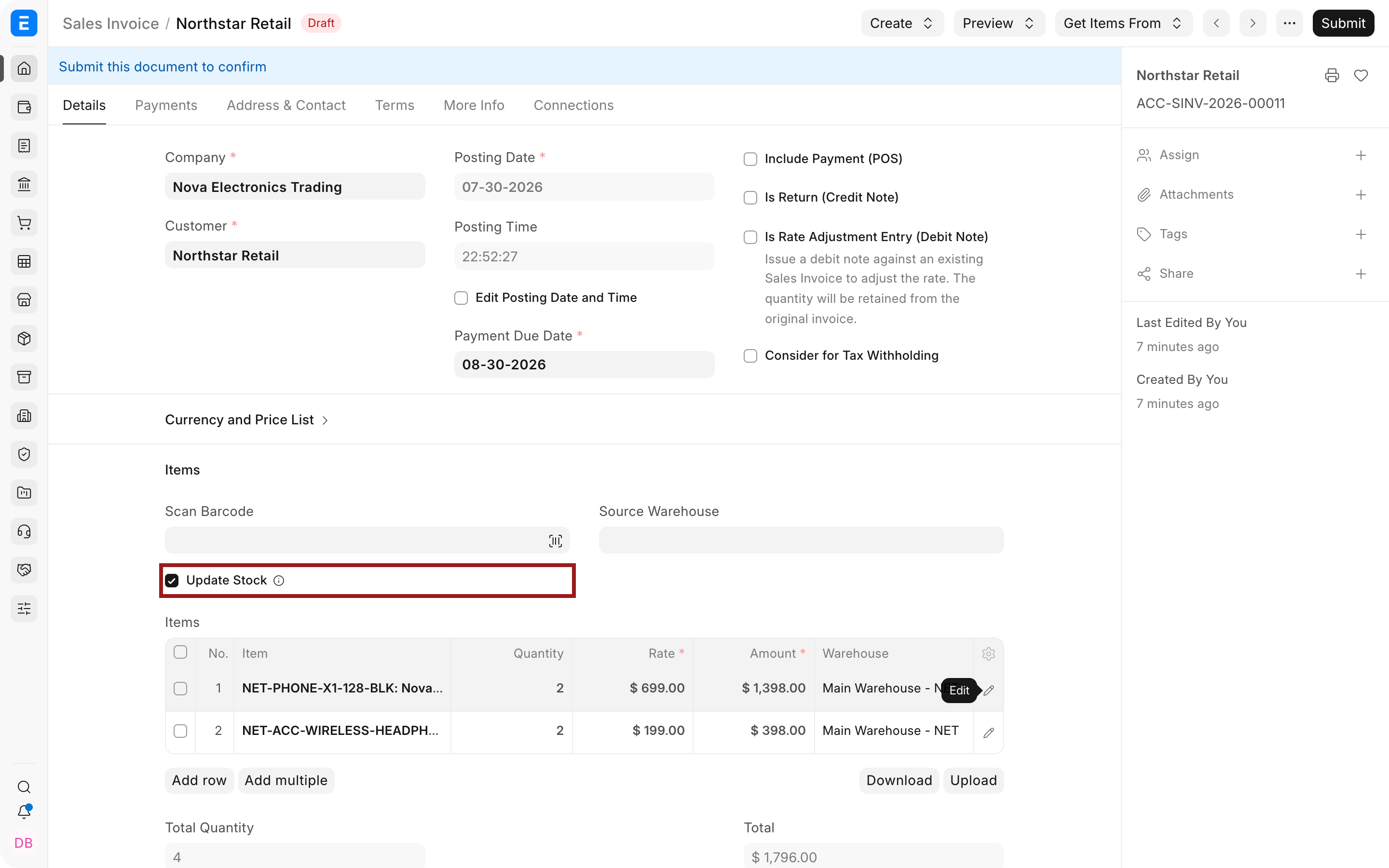
| A counter sale, or no Delivery Note | Select Update Stock, and set the Warehouse on every stock item. |
| Services only | Use non-stock items. Leave Update Stock clear. |
With Update Stock selected, one document updates both the stock ledger and the General Ledger. Do not select it when a Delivery Note has recorded the same goods.
For recurring bills, use a Subscription or Auto Repeat.
Important fields
| Field | What it controls |
|---|---|
| Customer | The party that you bill. It supplies the address, contact, currency, price list, tax, and account defaults. |
| Posting Date | The date on which the invoice affects the accounts. A closed accounting period or frozen accounts can block a past date. |
| Payment Due Date | The date used for ageing and for the Overdue status. A payment terms template can calculate it. |
| Currency and Exchange Rate | The invoice currency and its conversion to the company currency. |
| Update Stock | Posts the item quantities to the stock ledger on submit. |
| Rate and Price List Rate | The price that you charge, and the reference price from the price list. Pricing rules and discounts can change the rate. |
| Warehouse (item row) | The source warehouse when Update Stock is selected. |
| Income Account (item row) | The income account credited for the item. The default comes from the Item or the Item Group. |
| Cost Center, Project, and other accounting dimensions | Tag the income for management reports. Learn more about accounting dimensions. |
| Sales Taxes and Charges | Calculates tax, shipping, or other charges, and posts each amount to its account. |
| Debit To | The receivable account debited for the customer. |
| Payment Terms Template and Payment Schedule | Split the invoice into due dates and amounts. |
| Allocate Advances Automatically (FIFO) | Applies the customer's advance payments to the invoice, oldest first. Check every allocation before you submit. |
| Is Return (Credit Note) | Makes the invoice a credit note. Learn how to create a credit note. |
| Is Rate Adjustment Entry (Debit Note) | Issues a debit note against an existing Sales Invoice to change the rate. The quantity stays the same as on the original invoice. |
| Customer's Purchase Order and Customer's Purchase Order Date | The customer's order reference, for matching. |
| Terms | The terms and conditions printed on the invoice. |
What happens when you submit
A normal invoice creates these General Ledger entries:
| Account | Debit | Credit |
|---|---|---|
| Customer's receivable account | Grand Total | |
| Income accounts | Net amount of the items | |
| Tax and charge accounts | Tax or charge amount |
If Update Stock is selected and perpetual inventory is enabled, ERPNext also posts stock ledger entries and the cost of goods sold. Learn more about the ledger effect of the selling cycle.
Collect payment and next steps
After you submit, the Create menu offers:
- Payment: creates a Payment Entry. The payment reduces the outstanding amount of the invoice.
- Payment Request: sends the customer a request for payment.
- Return / Credit Note: creates a credit note against the invoice.
- Dunning: creates a payment reminder when a payment is overdue.
- Invoice Discounting: borrows against the invoice.
To see the ledger entries, select View, and then select Accounting Ledger.
To cancel an invoice, first cancel or unlink its payments, returns, and stock transactions.
Sales Invoice status
| Status | Meaning |
|---|---|
| Draft | Saved, not submitted. No ledger effect. |
| Unpaid | Submitted, with an outstanding amount that is not yet due. |
| Overdue | The due date has passed, and an amount is still outstanding. |
| Partly Paid | A payment or credit reduced the outstanding amount, but did not clear it. |
| Paid | The outstanding amount is zero. |
| Credit Note Issued | A submitted credit note against the invoice brought its outstanding amount to zero. |
| Return | The document is itself a submitted credit note. |
| Unpaid and Discounted, Partly Paid and Discounted, Overdue and Discounted | The invoice is part of a disbursed Invoice Discounting. |
| Internal Transfer | The invoice is for an internal customer that represents the same company. |
| Cancelled | The invoice was cancelled, and its ledger entries were reversed. |
Troubleshooting
The Sales Order billed percentage does not change
The invoice items have no link to the Sales Order. Create the invoice from the Sales Order, or use Get Items From, so that each row keeps its Sales Order reference.
The customer paid, but the invoice is still outstanding
Check that the Payment Entry is submitted and allocated to this invoice. If the payment has no invoice reference, allocate it with Payment Reconciliation.
The tax or the rate is wrong
Check the customer's Tax Category, the Item Tax Template, the Sales Taxes and Charges Template, the price list, the pricing rules, and the posting date. Check the calculated rows before you submit.
ERPNext reports insufficient stock
Check Update Stock, the Warehouse on each row, the available and reserved quantity, and the serial or batch numbers. If a Delivery Note has already delivered the goods, clear Update Stock.
The invoice posts to the wrong account or cost center
Open the item row and check the Income Account, the Cost Center, the Project, and other accounting dimensions. Correct the defaults on the Item or the Item Group so that later invoices are right.
Frequently asked questions
Can I invoice a customer without a Sales Order?
Yes, unless Is Sales Order required to create Sales Invoice/Delivery Note? is set in Selling Settings.
Do I need a Delivery Note?
No. Use a Delivery Note when delivery needs its own control or proof. For a direct stock sale, select Update Stock on the invoice. Services need neither.
How do I correct a submitted invoice?
For a return or a reduction, create a credit note. For a rate increase, use Is Rate Adjustment Entry (Debit Note). To replace the invoice, cancel it and amend it after you handle the linked documents.
Can I bill in another currency?
Yes. Select the currency and check the exchange rate. The receivable account must allow that currency if you keep the balance in it.