Send statements of accounts to customers
A statement of accounts shows a customer the invoices, payments, and balance on their account for a period. Use the Process Statement Of Accounts form to create statements for many customers at once. Each customer gets their own PDF, based on the General Ledger or the Accounts Receivable report, with an optional ageing summary. You can send the statements now, or on a schedule.
Prerequisites
- An outgoing Email Account.
- A billing email on each customer's Contact. If Send To Primary Contact is selected (the default), each customer also needs a primary contact email.
- The invoices and payments to show are submitted.
Create a statement process
- Open the Process Statement Of Accounts list and select Add Process Statement Of Accounts.
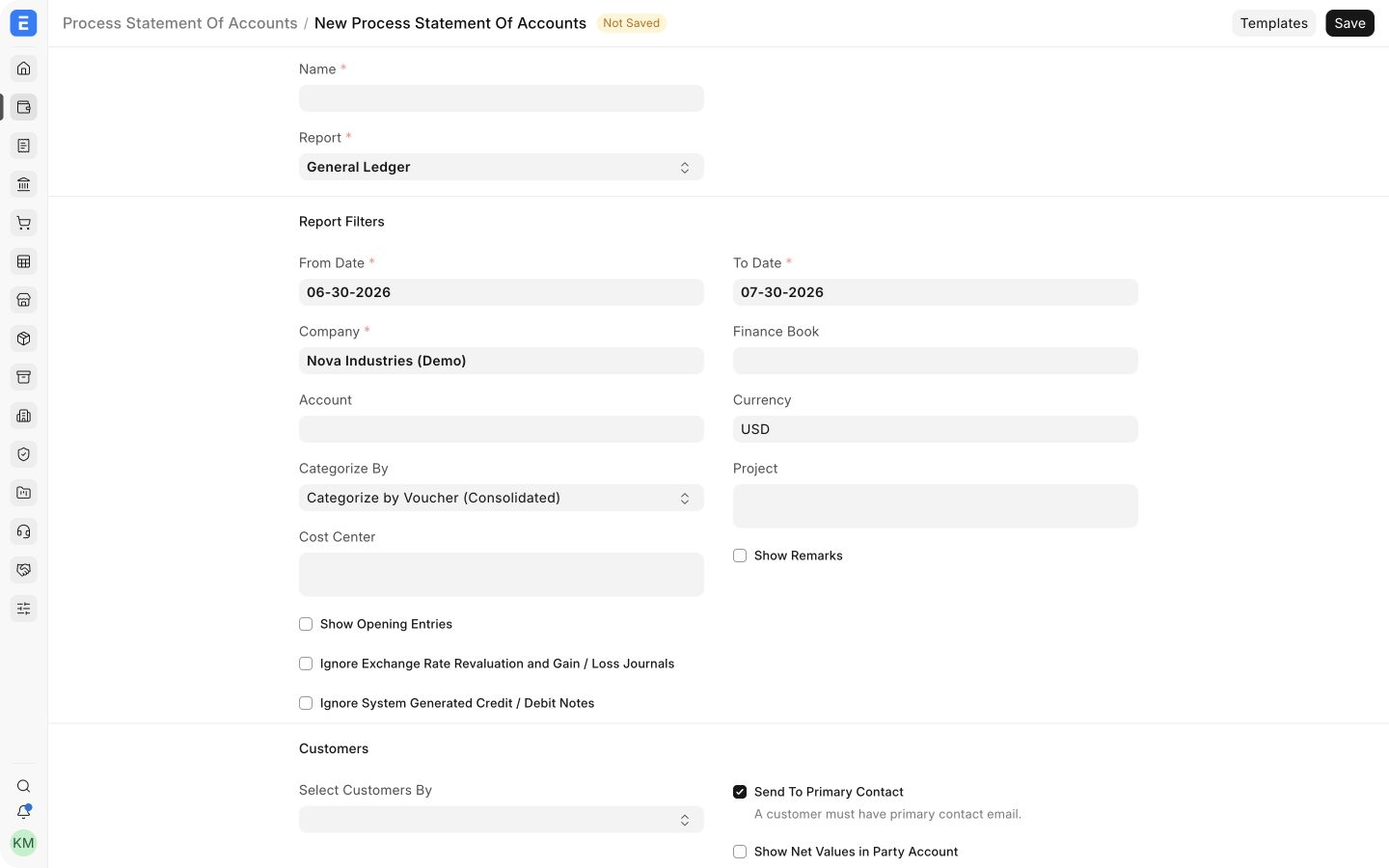
- In Report, select General Ledger or Accounts Receivable.
- Select the Company, and set the filters that you need.
- Add the customers (see the next section).
- Set the print and email options.
- Save. ERPNext asks for a name for the document. Enter a name that you will recognize, for example "Monthly statements - retail".
Report filters
| Report | Main filters |
|---|---|
| General Ledger | From Date and To Date, Account, Currency, Cost Center, Project, Finance Book, Categorize By, Show Net Values in Party Account |
| Accounts Receivable | Posting Date, Account, Payment Terms Template, Territory, Sales Partner, Sales Person, Based On Payment Terms, Show Future Payments |
Both reports also offer Ignore Exchange Rate Revaluation and Gain / Loss Journals, Ignore System Generated Credit / Debit Notes, and Show Remarks.
Select the customers
Add customers one by one in the Customers table. To add a group of customers, select a value in Select Customers By (Customer Group, Territory, Sales Partner, or Sales Person), select the Recipient, and then select Fetch Customers.
The table shows the Billing Email and the Primary Contact Email that ERPNext uses for each customer.
Set the print and email options
| Field | Use |
|---|---|
| Print Format, Letter Head | The layout of the PDF. |
| Orientation | Landscape for wide ledgers, Portrait for short statements. |
| Page Break After Each SoA | Starts each customer's statement on a new page in the combined PDF. |
| Include Ageing Summary | Adds the ageing of the outstanding amount. Ageing Based On sets Due Date or Posting Date. |
| Terms and Conditions | Text printed on the statement. |
| Enable Auto Email | Sends the statements on a schedule. |
| Frequency | Daily, Weekly, Biweekly, Monthly, or Quarterly. |
| Filter Duration (Months) | How many months each scheduled statement covers. |
| Start Date | The date of the first scheduled statement. |
| Sender | The email account that sends the message. |
| PDF Name, Subject, Body | The file name and the email text. All three accept Jinja values. |
| CC To | Other people who get a copy. |
Send the statements
After you save, two buttons appear:
- Download: downloads one combined PDF, so you can check it before you send.
- Send Emails: queues one email for each customer, with that customer's PDF.
With Enable Auto Email selected, a daily scheduled job sends the statements on each scheduled date. After each run, ERPNext moves the dates forward by the Frequency. Saving the document alone does not send anything, and the background scheduler must be running.
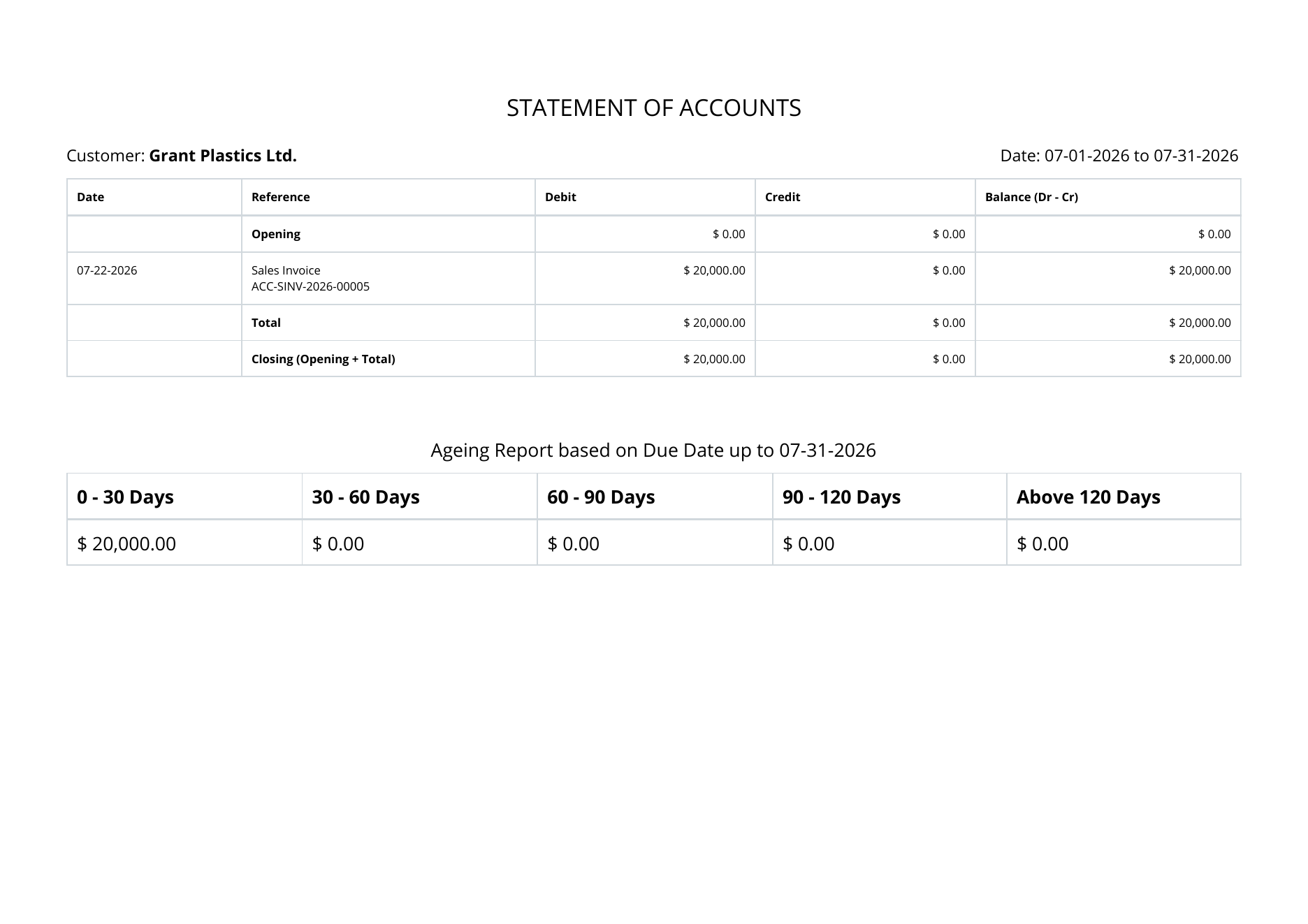
Each PDF contains only that customer's entries: the opening balance, each invoice and payment in the period, and the closing balance. With Include Ageing Summary, it also shows how much is current and how much is in each overdue range.
Personalize the email with Jinja
In PDF Name, Subject, and Body, use doc for fields of the Process Statement Of Accounts document, and customer for fields of the customer. For example, a subject:
Statement of Account for {{ customer.customer_name }}And a body:
Hello {{ customer.customer_name }},
Please find your statement from {{ doc.from_date }} to {{ doc.to_date }} attached.
Test with a small group of customers before you enable automatic email for everyone.
Troubleshooting
A customer is missing from the list
Check the customer's billing contact and its email address. If Send To Primary Contact is selected, check the primary contact email too. Also check the value in Select Customers By.
"No Records for these settings."
No ledger entries match the filters. Check the company, dates, currency, and account. Only submitted entries are included.
The emails do not arrive
Check the outgoing Email Account and the Email Queue list. For scheduled emails, check that the scheduler is running.