Reconcile payments with invoices
Sometimes a payment is recorded in ERPNext without a link to the invoice that it pays. For example, a customer pays before you create the invoice, or you record a receipt from the bank statement without an invoice reference. The invoice then stays outstanding, and the payment stays unallocated.
The Payment Reconciliation tool links such a payment, journal entry, or credit note to one or more outstanding invoices of the same party. It does not post the money again. It changes which invoice the existing amount settles, and it reduces the invoice's outstanding amount.
Payment reconciliation is not bank reconciliation. To match ledger entries with bank statement lines, see Reconcile a bank account.
Prerequisites
- The invoices and the payments are submitted.
- They belong to the same company and party, and post to the same receivable or payable account.
- The invoice still has an outstanding amount, and the payment still has an unallocated amount.
Reconcile a payment
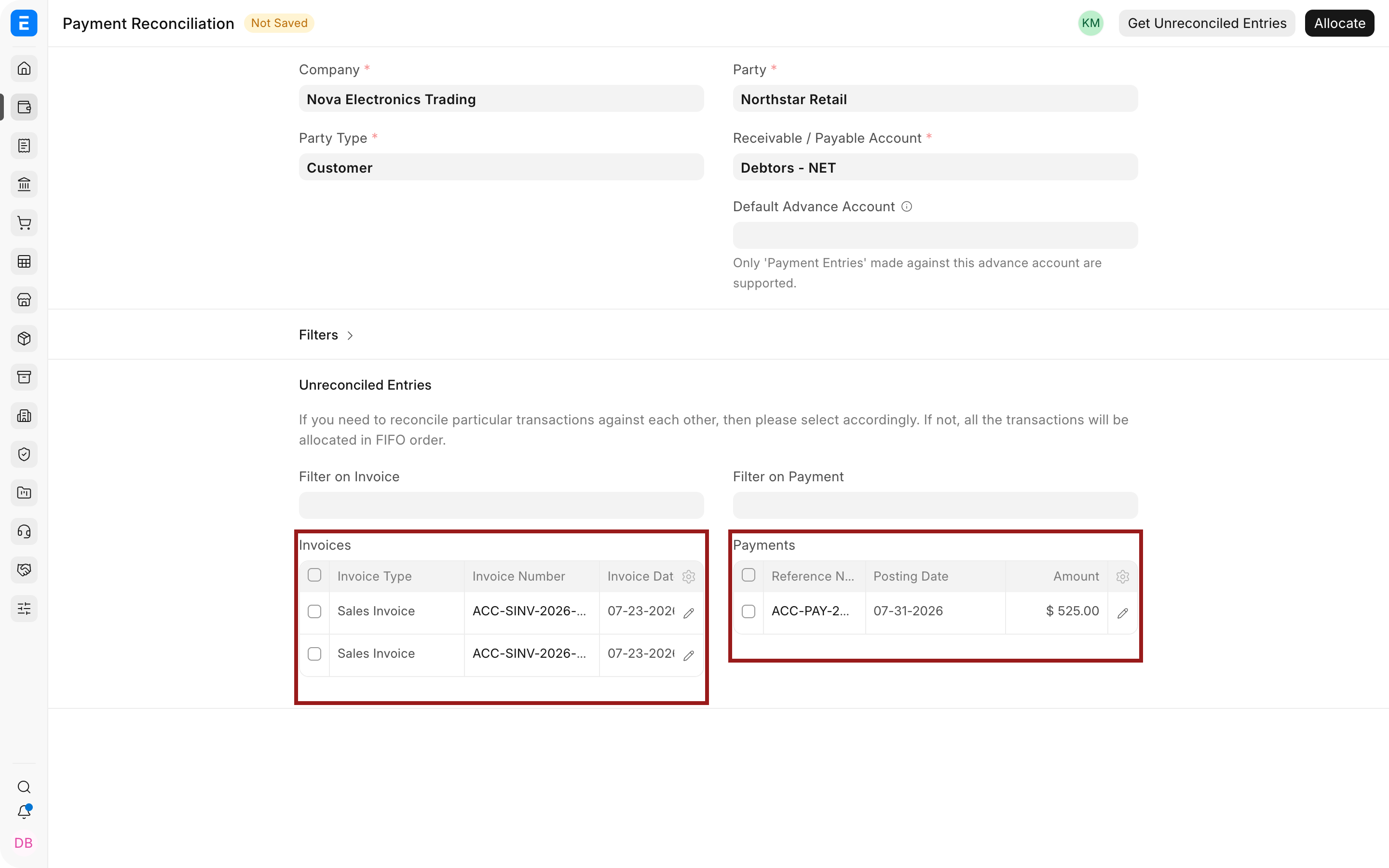
This example uses a customer, Northstar Retail, with an outstanding Sales Invoice of 746 and an unallocated Payment Entry of 525.
1. Load the unreconciled entries
- Open Payment Reconciliation.
- Select the Company, the Party Type (for example Customer), and the Party.
- Check the Receivable / Payable Account. ERPNext fills it from the party's default account.
- If the company books advances in a separate account, select it in Default Advance Account. See Book advances in a separate party account.
- Optional: narrow the results in the Filters section (see below).
- Select Get Unreconciled Entries.
The Invoices table on the left lists the documents with an outstanding amount: Sales Invoices, Purchase Invoices, and Journal Entries. The Payments table on the right lists the documents with an unallocated amount: Payment Entries, Journal Entries, and credit or debit notes.
2. Allocate
- Select the invoice in the Invoices table, and the payment in the Payments table.
- Select Allocate.
ERPNext adds rows to Allocated Entries. For each pair, it allocates the smaller of the payment amount and the invoice's outstanding amount.
If you select no rows, ERPNext allocates all payments to all invoices in first-in, first-out (FIFO) order: the oldest payment to the oldest invoice. Select the rows yourself when the customer's remittance advice says which invoice each payment is for.
3. Review and reconcile
- Check each row in Allocated Entries: Reference Name (the payment), Invoice Number, Allocated Amount, and Difference Amount.
- To apply only part of a payment, lower the Allocated Amount. The rest stays unallocated for later.
- Select Reconcile.
ERPNext shows "Successfully Reconciled" and reloads the unreconciled entries.
In the example, the invoice's outstanding amount drops from 746 to 221. The Payment Entry now lists the invoice under Payment References, its Total Allocated Amount is 525, and its Unallocated Amount is 0.
Difference amount in a foreign currency
When the invoice and the payment have different exchange rates, the row shows a Difference Amount. This is an exchange gain or loss.
When you select Reconcile, ERPNext opens the Select Difference Account dialog. For each row, check the Posting Date and the Difference Account, then select Reconcile Entries. ERPNext posts a Journal Entry for the difference. The default account is the Exchange Gain / Loss Account of the company.
The default posting date of the difference comes from Posting Date inheritance for exchange gain / loss in Accounts Settings, on the Payments tab: Invoice, Payment, or Reconciliation Date.
Filters
| Filter | What it does |
|---|---|
| From Invoice Date, To Invoice Date | Load invoices posted in this period. |
| From Payment Date, To Payment Date | Load payments posted in this period. |
| Minimum Invoice Amount, Maximum Invoice Amount | Load invoices in this amount range. |
| Minimum Payment Amount, Maximum Payment Amount | Load payments in this amount range. |
| Invoice Limit, Payment Limit | The maximum number of rows to load. |
| Bank / Cash Account | Load payments made through this bank or cash account. |
| Cost Center, Project | Load documents with these accounting dimensions. |
| Filter on Invoice, Filter on Payment | Search the loaded rows by document name. |
Common cases
- One payment for several invoices: select the payment and all the invoices, then allocate. See also Pay multiple invoices with one payment.
- Several payments for one invoice: select all the payments and the invoice, then allocate.
- A credit note: the credit note appears in the Payments table. Allocate it to the invoice like a payment. See Allocate a credit note.
- A customer paid too much: allocate the invoice amount and leave the rest unallocated. See Handle excess payments.
- An advance to a supplier: see Reconcile a supplier advance.
- Many parties at once: see Reconcile payments in the background.
Troubleshooting
"No Unreconciled Invoices and Payments found for this party and account"
Check the company, party, receivable or payable account, and filters. A fully allocated payment and a fully paid invoice do not appear. "No Outstanding Invoices found for this party" and "No Unreconciled Payments found for this party" mean that only one side is missing.
The invoice and the payment use different receivable or payable accounts
The tool matches documents in one account only. Correct the account on the wrong document by cancelling and amending it, or ask your accountant for an adjustment.
"Row ...: Allocated amount ... must be less than or equal to invoice outstanding amount ..."
Lower the Allocated Amount. It cannot be more than the invoice's outstanding amount or the payment's remaining amount.
Allocate linked the wrong invoice
You did not select rows, so ERPNext used FIFO order. Select the exact invoice and payment, then select Allocate again.
"A Reconciliation Job ... is running for the same filters. Cannot reconcile now"
A background reconciliation is running for the same party and account. Wait until it completes.
A payment was reconciled with the wrong invoice
Remove the link with Unreconcile payments, then reconcile again.