Set up a Tax Withholding Category
A Tax Withholding Category tells ERPNext when to withhold tax at source, at which rate, and in which account. Use it when you must keep back part of a supplier payment and pay it to the tax authority (for example TDS in India), or when you must collect tax from a customer above a threshold (for example TCS).
For example, a supplier sends a services invoice of 800. The category has a rate of 5% and a transaction threshold of 500. ERPNext withholds 40 and leaves 760 payable to the supplier.
Withholding rules differ by country. Use the rates, thresholds, and accounts that your tax law sets.
Do not confuse this with a Tax Category, which selects the normal sales or purchase taxes.
Prerequisites
- A liability account for the withheld tax in the Chart of Accounts, in each company that uses the category.
- The rate, its validity dates, and the thresholds.
- Whether tax is calculated on the net amount or on the amount including taxes.
- Optional: a Tax Withholding Group for each class of party with its own rate, for example companies and individuals.
Create the category
Open the Tax Withholding Category list and select Add Tax Withholding Category. Enter a name, for example
Professional Services.In Category Details, fill in:
Field What it does Category Name A description of the payment class. It is used as the description of the tax row. Deduct Tax On Basis Net Total (the default) uses the item net amounts. Gross Total adds the item taxes to the net amounts. Round Off Tax Amount Rounds the withheld amount to the nearest whole number. Only Deduct Tax On Excess Amount Withholds only on the part above the cumulative threshold. Disable Cumulative Threshold Uses only the transaction threshold, for each document on its own. Disable Transaction Threshold Uses only the cumulative threshold. In Tax Withholding Rates, add a row for each period and group:
Field What it does From Date, To Date The period of the row. Both are required. Tax Withholding Group The party group that the row applies to. Leave it empty for parties without a group. Tax Withholding Rate The percentage to withhold. Cumulative Threshold The total amount in the period above which tax applies. It cannot be less than the transaction threshold. Transaction Threshold The amount of one document above which tax applies. In Account Details, add a row for each Company with the Account that receives the withheld tax. Each company and each account can appear only once.
Save.
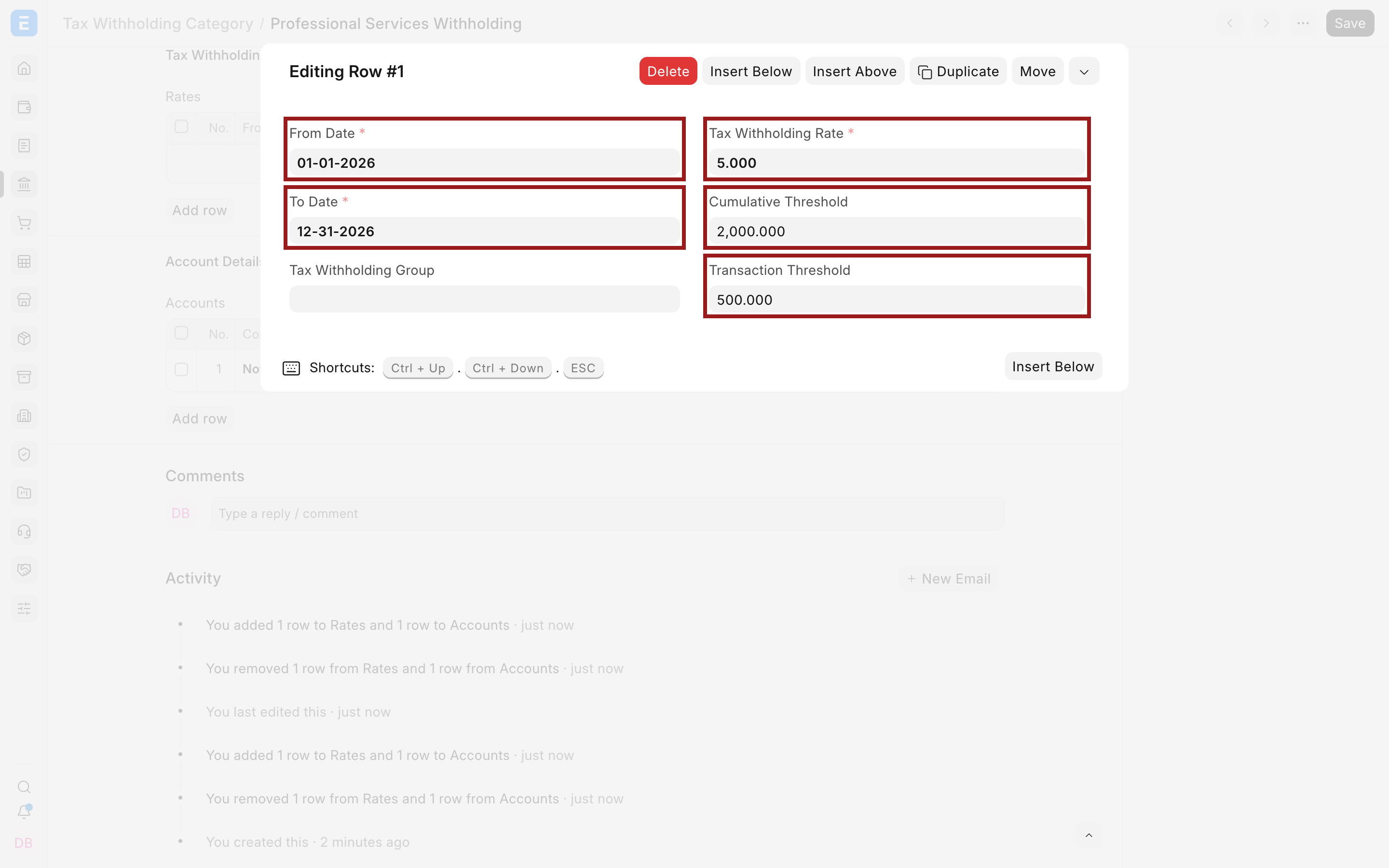
Rows of the same group cannot have overlapping dates.
Assign the category
ERPNext finds the category for each item row of an invoice in this order:
- The Item's Purchase Tax Withholding Category or Sales Tax Withholding Category (on the Tax tab of the Item).
- The Tax Withholding Category of the supplier or customer.
To assign the category to a party:
- Open the Supplier or Customer and go to the Tax tab.
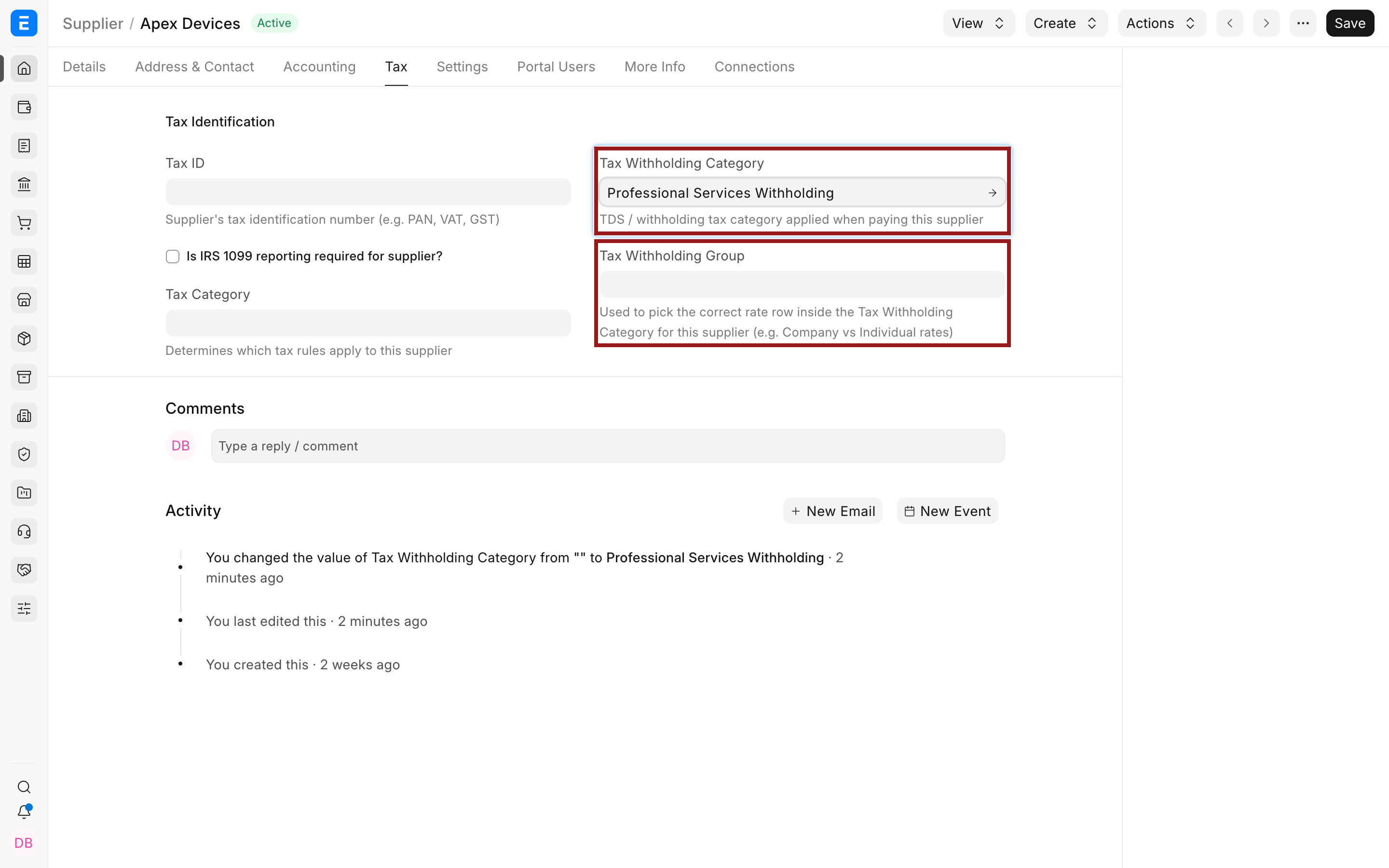
- Select the Tax Withholding Category.
- Optional: select the Tax Withholding Group. ERPNext then uses the rate row of that group.
- Save.
Withhold tax on a Purchase Invoice
- Create a Purchase Invoice for the supplier. ERPNext selects Consider for Tax Withholding when the supplier has a Tax Withholding Category or group.
- Check the Tax Withholding Category on each item row. Clear Consider for Tax Withholding on a row that is not subject to withholding.
- Save. ERPNext calculates the withholding and adds a row to Purchase Taxes and Charges with Add or Deduct set to Deduct and the category's account.
- Check the Tax Withholding Entries table and the Grand Total. Then submit.
| Calculation | Amount |
|---|---|
| Net Total | 800.00 |
| Withholding at 5% | 40.00 |
| Payable to the supplier | 760.00 |
On submit, the invoice debits the expense with 800, credits the supplier with 760, and credits the withholding account with 40.
Tax Withholding Entries
Each invoice or payment with withholding has a Tax Withholding Entries table. Each entry shows the category, the tax rate, the Base Taxable Amount, the Base Tax Withheld, the document that the tax was deducted from, and the document that it applies to. The Status of an entry is one of:
| Status | Meaning |
|---|---|
| Settled | Tax was withheld for this taxable amount. |
| Under Withheld | A taxable amount without withholding, for example an invoice below the threshold, unless a reason applies. |
| Over Withheld | Tax was withheld without a matching taxable amount, for example on an advance payment. |
| Cancelled | The source document was cancelled. |
An entry can have an Under Withheld Reason: Threshold Exemption for the part below the threshold when Only Deduct Tax On Excess Amount is selected, or Lower Deduction Certificate when a Lower Deduction Certificate gives a reduced rate.
ERPNext uses these entries to apply thresholds and to settle earlier amounts:
- The cumulative threshold adds up the taxable amounts of the party in the rate period. When the party has a Tax ID, ERPNext adds up all parties with the same Tax ID.
- When a document crosses the threshold, ERPNext also withholds on the earlier Under Withheld amounts of the period.
- After tax was withheld once in a rate period, ERPNext withholds on every later document in that period.
- An Over Withheld amount, for example tax withheld on an advance, is used against later invoices so that tax is not withheld twice.
To see all entries across documents, use the Tax Withholding Details report.
Withhold tax on a supplier advance
- Create a Payment Entry with Payment Type Pay and Party Type Supplier.
- Enter the amount before withholding.
- Select Consider for Tax Withholding, and check the Tax Withholding Category.
- Save, and check the Tax Withholding Entries table and the Advance Taxes and Charges table.
- Submit.
ERPNext calculates the tax on the unallocated amount and on amounts allocated to orders. When you later allocate the advance on the Purchase Invoice, ERPNext uses the advance's entries so that the same amount is not taxed twice.
Consider for Tax Withholding shows on a Payment Entry only when Party Type is Supplier.
Collect tax from a customer
Some tax laws require a seller to collect tax from a customer above a threshold.
- Assign the category to the Customer, or to the items as Sales Tax Withholding Category.
- Create a Sales Invoice. ERPNext selects Consider for Tax Withholding.
- Save. ERPNext adds the collected tax to Sales Taxes and Charges with the category's account.
Use a separate account for tax collected from customers. Do not reuse the account for tax withheld from suppliers.
Debit and credit notes in Journal Entry
A Journal Entry with Entry Type Credit Note or Debit Note also shows Consider for Tax Withholding. Use it to adjust withholding on a note for a single party.
Override the calculation
Each document with withholding has two more checkboxes:
- Ignore Tax Withholding Threshold: withholds tax even when the document is below the thresholds.
- Edit Tax Withholding Entries: ERPNext stops recalculating the entries, and you edit the table yourself.
Use them only for a documented exception, for example a certificate or an approval. Record the reason, and check the tax table and the ledger before you submit.
Changes from earlier versions
- Rate rows use From Date and To Date instead of a Fiscal Year.
- A Tax Withholding Group on the party and on the rate rows lets one category hold different rates for different classes of party.
- Items can carry their own Purchase Tax Withholding Category and Sales Tax Withholding Category, and each invoice item row has its own category.
- Consider Entire Party Ledger Amount is removed.
- ERPNext records each withholding calculation in the Tax Withholding Entries table, and uses these entries for thresholds and later adjustments.
Troubleshooting
| Problem | Cause and fix |
|---|---|
| Consider for Tax Withholding is not selected | The party has no Tax Withholding Category or group. Assign one, or select the checkbox yourself. |
| "No Tax Withholding data found for the current posting date." | No rate row covers the posting date for the party's group. Add a row for the period, or for the group. A row without a group applies only to parties without a group. |
| "No Tax withholding account set for Company ... in Tax Withholding Category ..." | Add the company and its account in Account Details. |
| No tax is withheld | The document is below both thresholds. ERPNext records it as Under Withheld and withholds it later when the threshold is crossed. |
| The wrong rate is used | Check the posting date, the rate rows, and the Tax Withholding Group of the party and document. |
| Tax is withheld twice on an advance | Allocate the advance on the invoice, and check the entries of both documents. Do not add a manual deduction row. |