Track payment terms of Sales Orders
The Payment Terms Status for Sales Order report shows each payment term of a Sales Order on its own row, and how much of it is covered by submitted Sales Invoices. Use it to see which part of an agreed payment schedule is billed, instead of treating the order as one amount.
Prerequisites
- Payment terms and a Payment Terms Template are set up.
- The Sales Order uses the template, so it has a payment schedule, and it is submitted.
- Sales Invoices made from the Sales Order are submitted.
Run the report
- Open the Payment Terms Status for Sales Order report.
- Select the Company.
- Set Start Date and End Date. The report includes Sales Orders whose date is in this range. The default is the last month.
- Optional: filter by Customer Group, Customer, Item Group, Item, From Due Date, To Due Date, or Status.
- Optional: select Show only the Immediate Upcoming Term to see only the first term of each order that falls due after today.
The report includes Sales Orders with the status To Deliver and Bill, To Bill, or To Pay. Orders with other statuses, such as To Deliver, Completed, or Closed, are left out.
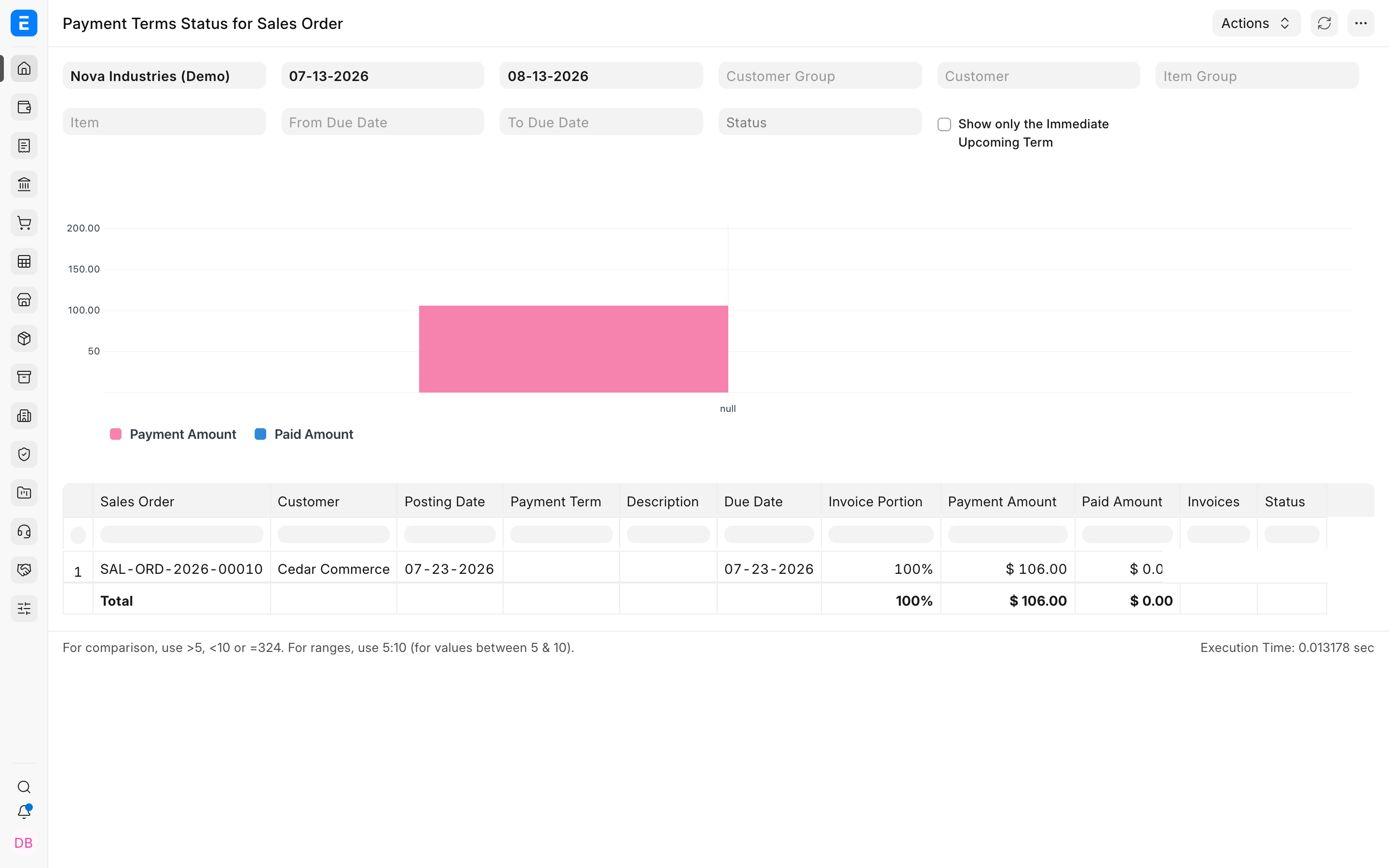
How invoices are allocated to terms
ERPNext allocates the grand total of each linked invoice to the terms in due date order: the earliest term is filled first, then the next. A term starts from the amount already paid against it on the Sales Order, for example an advance payment. Each row shows the Payment Term, Due Date, Invoice Portion, Payment Amount, the allocated Paid Amount, the Invoices used, and a Status:
| Status | Meaning |
|---|---|
| Completed | Invoices cover the full term. |
| Partly Paid | Invoices cover part of the term. |
| Unpaid | No invoice covers the term, and the due date has not passed. |
| Overdue | No invoice covers the term, and the due date has passed. |
For example, Nova Industries has a Sales Order of 7,000 with two terms of 50% each, and submits an invoice of 4,900 against it:
| Term | Payment Amount | Allocated | Status |
|---|---|---|---|
| First 50% | 3,500 | 3,500 | Completed |
| Second 50% | 3,500 | 1,400 | Partly Paid |
WARNING
Despite the column and status names, the report measures billing against the Sales Order, not cash received. To check whether the customer paid, use Accounts Receivable or the Payment Ledger.
Troubleshooting
A Sales Order is missing
Check that the order is submitted, has a payment schedule, has the status To Deliver and Bill, To Bill, or To Pay, and has a date between Start Date and End Date.
The status does not match what the customer paid
The report compares invoices with the order's terms. Check the linked Sales Invoices and Payment Entries separately.
An invoice is allocated to the wrong term
Invoices fill the earliest term first. Check the order, due dates, and amounts in the payment schedule of the Sales Order.