Set up recurring invoices and orders with Auto Repeat
Auto Repeat uses an existing document as a template and creates a new copy of it on a schedule. Use it for stable recurring transactions, for example a Sales Invoice that you send to a customer on the first day of every month for a support contract.
Auto Repeat works with Sales Invoices, Purchase Invoices, Sales Orders, Purchase Orders, and other document types that allow it, such as Journal Entries.
TIP
Use a Subscription instead when billing follows plans, with service periods, plan quantities, trial periods, or a grace period for unpaid invoices.
Prerequisites
- A reference document: the invoice or order to copy. Check its party, company, items, rates, taxes, payment terms, accounting dimensions, and addresses.
- A decision on whether new documents stay as drafts for review or are submitted automatically.
- If you send email, the recipients and the print format to attach.
Create the Auto Repeat
- Open the Auto Repeat list and select Add Auto Repeat.
- Select the Reference Document Type, for example Sales Invoice, and then the Reference Document to copy.
- Enter the Start Date. If the agreement ends, enter the End Date. Without an end date, ERPNext creates documents until you disable the Auto Repeat.
- Select Submit On Creation only if the new documents need no review.
- Select the Frequency: Daily, Weekly, Monthly, Quarterly, Half-yearly, or Yearly.
- For a monthly or longer frequency, ERPNext uses the day of the Start Date. To use another day, enter it in Repeat on Day, or select Repeat on Last Day of the Month. For a weekly frequency, select the days of the week.
- Optional: select Notify by Email, and fill in the Recipients, Subject, Message, and Print Format.
- Save.
You can also start from the document: open the invoice or order, open the form menu, and select Repeat. The option is not shown when the document already has an Auto Repeat.
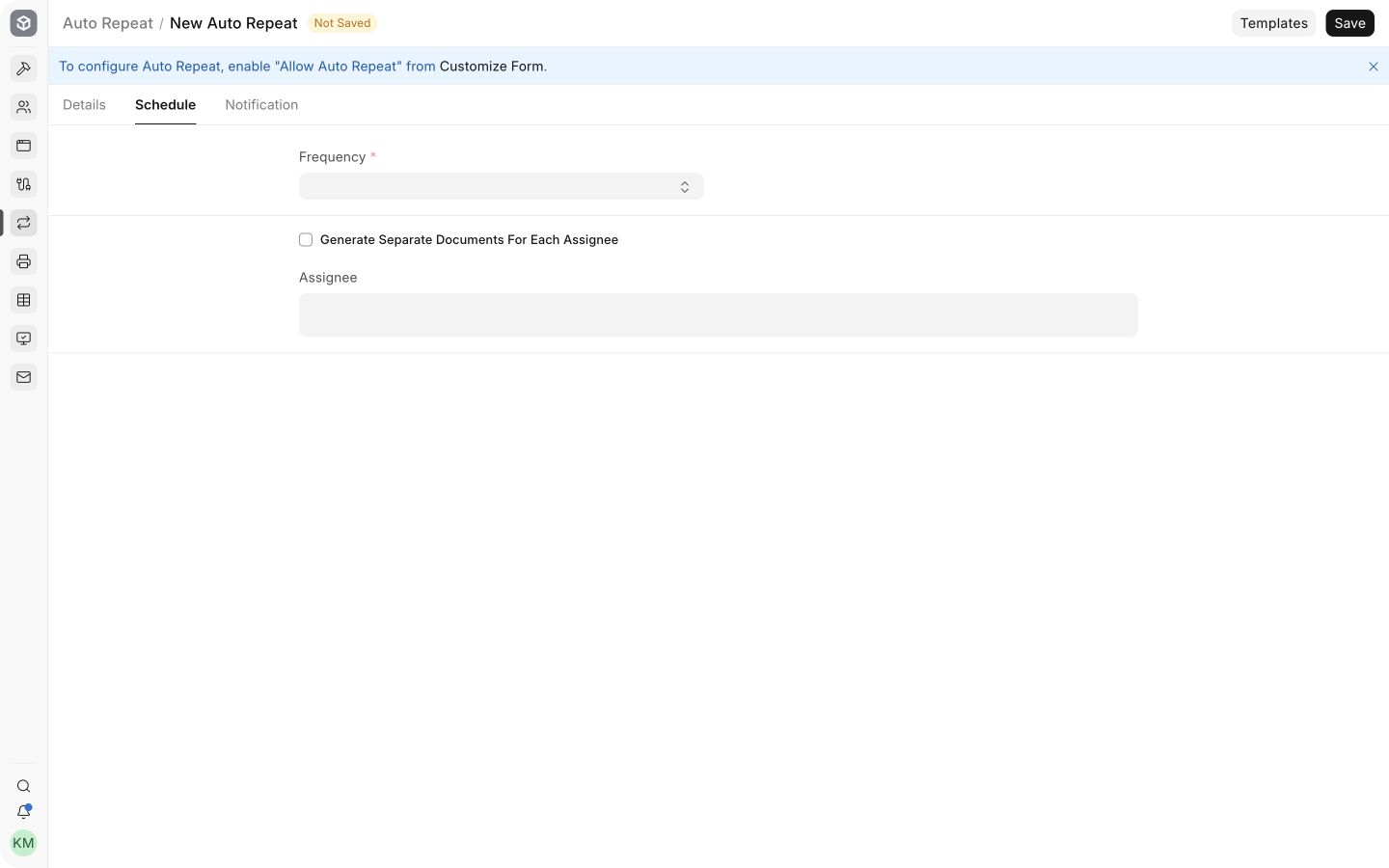
The Auto Repeat field in the Automation section of the invoice links the document to its Auto Repeat.
For all the fields and options, see Auto Repeat.
Monitor the generated documents
The Auto Repeat shows the Next Schedule Date and the schedule of upcoming documents. Prices, taxes, addresses, and contract terms can change after you approved the reference document. Keep someone responsible for checking the generated documents, even when ERPNext submits them automatically.
To stop the schedule, select Disabled on the Auto Repeat.
Troubleshooting
No document was created
Check that the Auto Repeat is not disabled, that today is between the start date and the end date, that the reference document is valid, and that the scheduler is running.
The new document has old terms
Auto Repeat copies the reference document. Update the reference document, or point the Auto Repeat to a new approved document. Changes to masters, such as an item price, do not always update the copied fields.