Deliver items with a Delivery Note
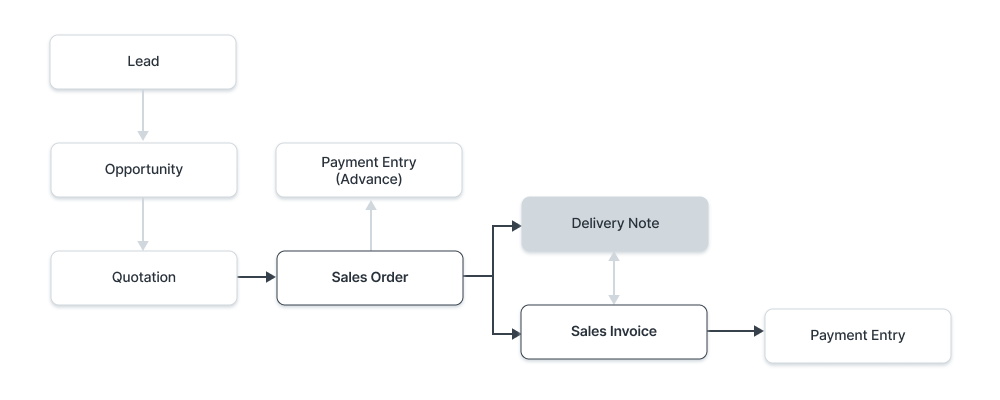
A Delivery Note records the items that you ship to a customer, usually against a Sales Order. When you submit it, ERPNext removes the items from your warehouse and updates the delivered quantity on the Sales Order. A copy often travels with the goods.
A Delivery Note is optional. You can also deliver from the Sales Invoice. See Deliver from a Sales Invoice.
Prerequisites
- A submitted Sales Order. To deliver without a Sales Order, set Is Sales Order required to create Sales Invoice/Delivery Note? to No in Selling Settings.
- Enough stock of the items in the source warehouse. See Insufficient stock error.
Create a Delivery Note from a Sales Order
- Open the submitted Sales Order and select Create > Delivery Note. ERPNext copies the customer, the items that are not yet delivered, the rates, and the taxes.
- In Set Source Warehouse, check the warehouse that the items leave from. You can change the Warehouse in each item row.
- To deliver part of the order, reduce the Quantity in the item rows. You can deliver the rest with another Delivery Note later.
- For serialized or batched items, select Pick Serial / Batch No in the item row, or let ERPNext pick them by the rule in Stock Settings. See Serial and Batch Bundle.
- Select Submit. ERPNext reduces the stock in the warehouse and updates the Sales Order.
To deliver items from more than one Sales Order of a customer, create a new Delivery Note, select the customer, and select Get Items From > Sales Order.
TIP
To deliver on an earlier date, select Edit Posting Date and Time before you submit.
Create Delivery Notes from a Pick List
If your warehouse team picks items with a Pick List, create the Delivery Notes from it:
- Open the submitted Pick List.
- Select Create > Delivery Note.
ERPNext creates one Delivery Note for each customer, with the items of that customer's Sales Orders. Items that you added to the Pick List without a Sales Order go into a separate Delivery Note.
You can also select Get Items From > Pick List in a draft Delivery Note.
Deliver product bundles
When you deliver a product bundle, ERPNext lists its component items in the Packed Items table. ERPNext removes the components from stock, not the bundle item. For serialized components, enter the serial numbers in the Packed Items table.
Pack the items into boxes
To record what goes into each box or package, create Packing Slips from the Delivery Note while it is still a draft: select Create > Packing Slip. ERPNext checks that the packed quantities do not exceed the Delivery Note quantities.
Delivery Note statuses
| Status | Meaning |
|---|---|
| Draft | Saved, not submitted. |
| To Bill | Submitted, and no Sales Invoice exists for it yet. |
| Partially Billed | Submitted, and Sales Invoices cover part of the amount. |
| Completed | Submitted and fully billed. |
| Return | The document is itself a return (Is Return is selected). |
| Return Issued | All items on it were returned by the customer. |
| Closed | You closed it. ERPNext does not expect a Sales Invoice for the rest. |
| Cancelled | Cancelled. |
To close a Delivery Note that you will not bill in full, select Status > Close. Select Status > Reopen to undo it.
What you can create after you submit
From the Create button of a submitted Delivery Note:
- Sales Invoice: bill the delivered items. See Sales Invoice.
- Sales Return: take back items from the customer. See the next section.
- Installation Note: record an installation at the customer site. See Installation Note.
- Delivery Trip: plan the vehicle route. See Delivery Trip.
- Shipment: track the parcel with a carrier. See Shipment.
Take back returned items
- Open the submitted Delivery Note and select Create > Sales Return.
- Check the items and the negative quantities.
- Select Submit. ERPNext adds the items back to the warehouse.
To give the customer a credit note for the return, select Create > Credit Note in the submitted return. Learn more in Sales Return.
Deliver from a Sales Invoice
If you deliver and bill at the same time, you can skip the Delivery Note:
- In the Sales Invoice, select Update Stock. ERPNext shows the warehouse, serial number, and batch fields in the item rows.
- Set the Source Warehouse or the warehouse in each item row.
- Select Submit. ERPNext posts the stock ledger entries and the general ledger entries.

To allow invoices without a Delivery Note, set Is Delivery Note required to create Sales Invoice? to No in Selling Settings.
Troubleshooting
Insufficient stock
ERPNext does not submit the Delivery Note when the warehouse does not hold enough stock on the posting date and time. See Insufficient stock error.
This document is over limit
The message is "This document is over limit by ... Are you making another Delivery Note against the same Sales Order?". You deliver more than the Sales Order quantity. Reduce the quantity, or allow a tolerance. See Allow over-delivery and over-billing.
You cannot cancel or back-date a Delivery Note
Stock transactions follow the rules of the immutable ledger. See Immutable ledger.