Handle a customer payment that is more than the invoice
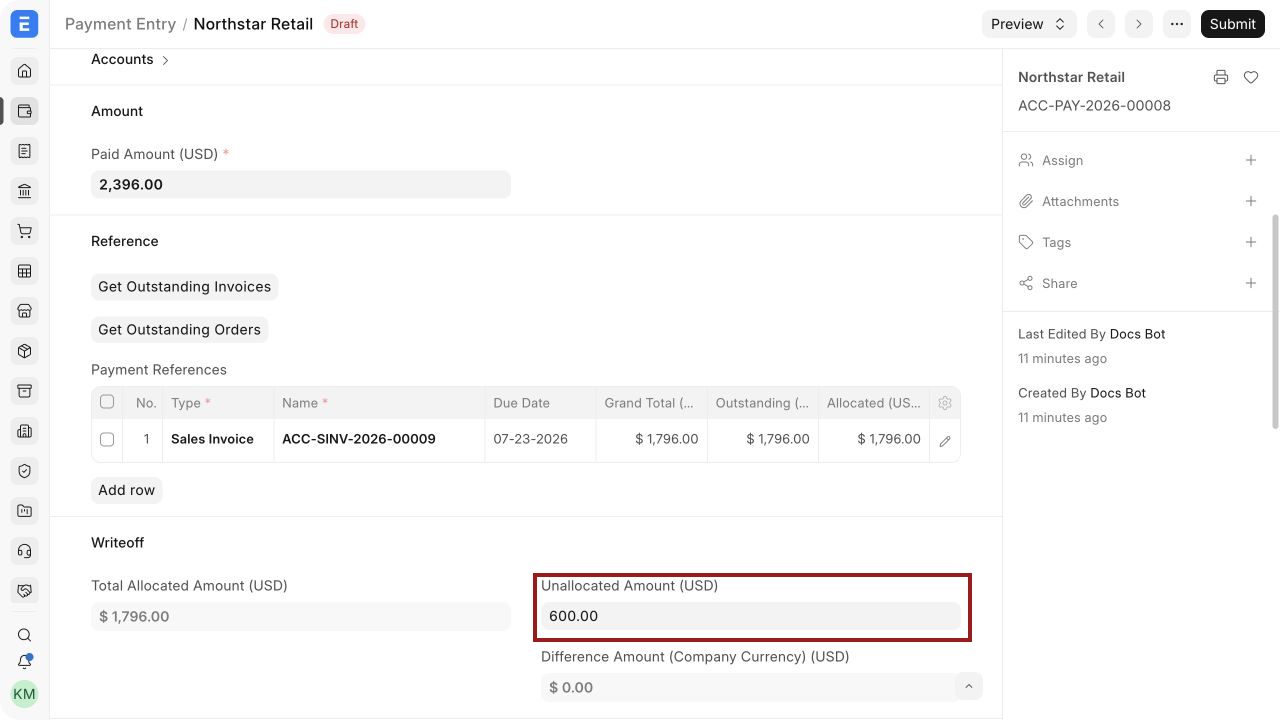
When a customer pays more than the invoice amount, record the full amount that you received. Allocate only the invoice's outstanding amount, and leave the rest unallocated. ERPNext keeps the unallocated amount as an advance from the customer. You can apply it to a later invoice or refund it.
For example, an invoice is 1,000 and the customer pays 1,200. You allocate 1,000 to the invoice, and 200 stays as a customer advance.
Prerequisites
- The submitted Sales Invoice.
- The bank reference or remittance advice of the payment.
Record the payment
- Create a Payment Entry from the Sales Invoice, or create one with Payment Type set to Receive and select the customer.
- In Paid Amount, enter the full amount that you received, for example 1,200.
- In the Payment References table, set the Allocated amount of the invoice to its outstanding amount, for example 1,000.
- Check the totals: Total Allocated Amount is 1,000 and Unallocated Amount is 200.
- Enter the Cheque/Reference No and Cheque/Reference Date, then submit.
The invoice becomes paid. The customer's balance shows a credit of 200.
Apply the excess to a later invoice
- On a new invoice that is still a draft: in the Advance Payments section of the Sales Invoice, select Get Advances Received, then set the Allocated amount of the advance. Or select Allocate Advances Automatically (FIFO). ERPNext applies the advance when you submit the invoice.
- On an invoice that is already submitted: use Payment Reconciliation to allocate the unallocated amount to the invoice.
Refund the excess
Create a Payment Entry with Payment Type set to Pay, Party Type set to Customer, and the customer as Party, for the excess amount. Enter the bank reference and the reason in the remarks. The refund clears the customer's credit balance.
Troubleshooting
The excess does not appear on a later invoice
The advance must belong to the same customer, company, currency, and receivable account as the invoice, and still be unallocated. On a draft invoice, select Get Advances Received. On a submitted invoice, use Payment Reconciliation.
The extra amount is a fee, not a customer credit
If the extra amount is income, for example a surcharge, add it to the invoice, or record it with a deduction row in the Deductions or Loss section of the Payment Entry. See Record deductions in a payment.
The excess was allocated to the wrong invoice
If only the allocation is wrong, unreconcile the payment and reconcile it again. If the amount, party, or account is wrong, cancel and amend the Payment Entry.
The excess belongs to another customer
Do not change the party on the original Payment Entry. Move the credit with a Journal Entry between the two customers, with an approval and a clear remark.