Create a Purchase Taxes and Charges Template
A Purchase Taxes and Charges Template is a reusable set of tax and charge rows for buying documents: Supplier Quotation, Purchase Order, Purchase Receipt, and Purchase Invoice. Use it for input tax, freight, duties, insurance, and handling charges.
A purchase row needs one decision that a sales row does not: does the amount change what you owe the supplier, the value of the received stock, or both?
Prerequisites
- An account for each row in the Chart of Accounts. An input tax account normally has Account Type set to Tax.
- You know whether supplier prices include tax.
- You know which costs you record on the purchase document and which you add later with a Landed Cost Voucher. Do not record the same cost in both places.
Create the template
- Open the Purchase Taxes and Charges Template list and select Add Purchase Taxes and Charges Template.
- Enter a Title, for example
Standard Purchase Tax 5%. - Select the Company.
- Optional: select a Tax Category. Only one enabled purchase template in a company can use each Tax Category.
- Optional: select Default to apply the template to new buying documents of the company.
- In the Purchase Taxes and Charges table, add a row for each tax or charge, in calculation order. Set the fields in the next section.
- Save.
To stop using a template, select Disabled.
Fill in a tax row
Open a row with the edit icon to see all fields.
| Field | What it does |
|---|---|
| Consider Tax or Charge for | Total (the default), Valuation, or Valuation and Total. See the next section. |
| Add or Deduct | Whether the row increases or reduces the total. |
| Type | The calculation base. See Tax calculation types. |
| Reference Row # | The earlier row that a previous-row type uses. |
| Allocate Full Amount to Stock Items | For an Actual row that affects valuation. When selected (the default), the whole amount goes to stock and asset items. When cleared, ERPNext spreads it over all items, and the part for non-stock items does not go into valuation. |
| Is this Tax included in Basic Rate? | Select when the supplier's item rate already contains this tax. |
| Account Head | The ledger account for the row. |
| Cost Center | The cost center for the row. |
| Description | The text on the purchase document. |
| Tax Rate | The percentage, or the amount per unit for On Item Quantity. |
| Considered In Paid Amount | Treats the tax as part of the paid amount when the row is used in a Payment Entry. |
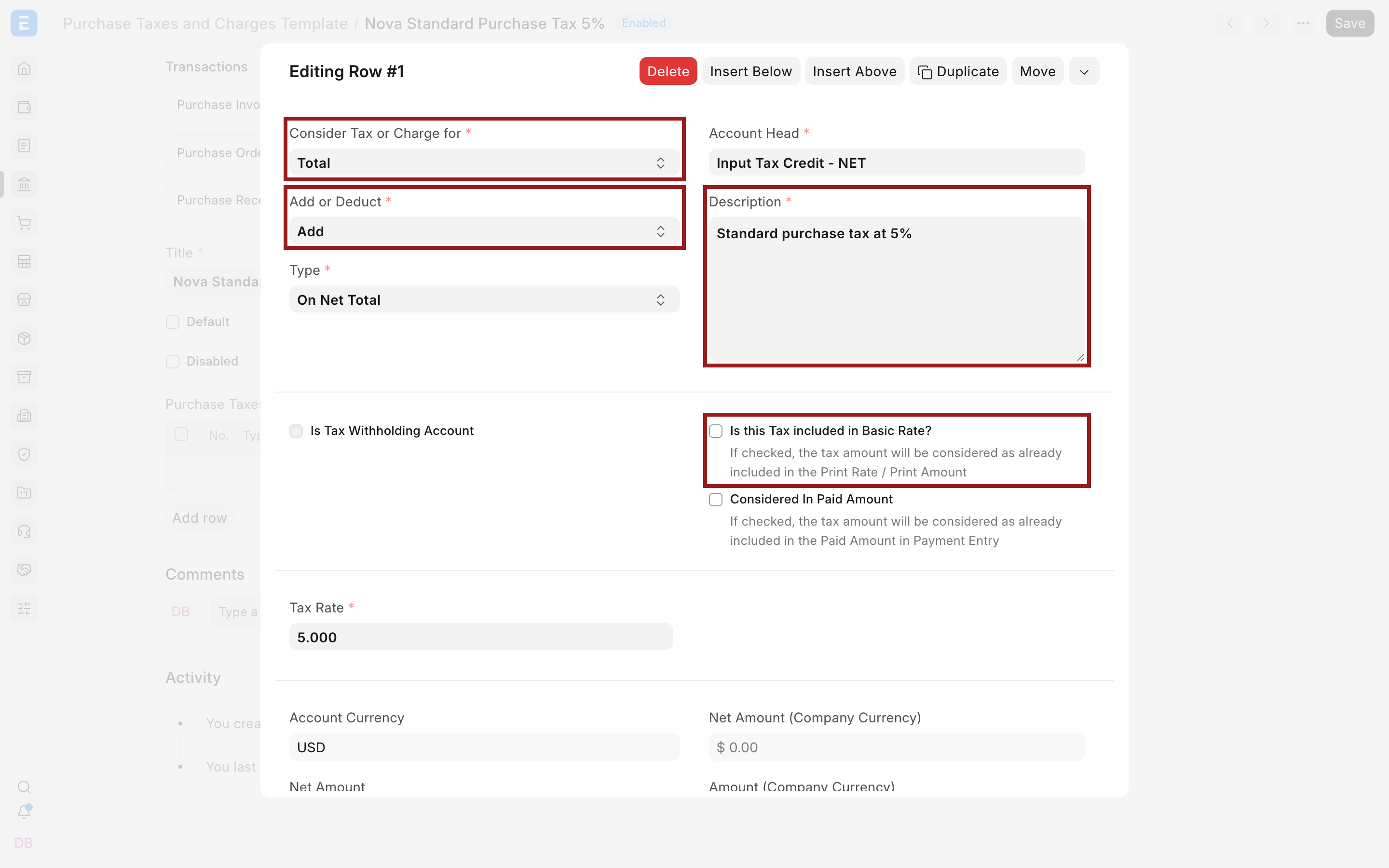
Choose Total, Valuation, or Valuation and Total
| Value | Supplier total | Stock valuation | Typical use |
|---|---|---|---|
| Total | Increases | No change | Recoverable input tax |
| Valuation | No change | Increases | Freight paid to a different party but added to the item cost |
| Valuation and Total | Increases | Increases | Freight or duty that the supplier bills and that is part of the item cost |
Recoverable input tax normally uses Total: it is part of what you owe the supplier, but it goes to an input tax asset account, not into stock value. See Include tax in valuation or total for worked examples.
Rules that ERPNext applies:
- A Valuation row cannot be inclusive (Is this Tax included in Basic Rate?).
- When all items on a document are non-stock items, ERPNext changes Valuation and Valuation and Total rows to Total.
- With perpetual inventory, a row that affects valuation needs a Cost Center.
Tax-inclusive supplier prices
Select Is this Tax included in Basic Rate? when the supplier's rate already contains the tax. For a rate of 105 that includes 5% tax, ERPNext calculates a net amount of 100 and tax of 5. See Tax-inclusive pricing.
Use the template on a document
- Create a draft Purchase Invoice, Purchase Order, or Purchase Receipt.
- Select the supplier. A Tax Rule or the company default fills Purchase Taxes and Charges Template.
- Check each row's Consider Tax or Charge for, Add or Deduct, Type, account, and rate.
- Check the Net Total, Total Taxes and Charges, and Grand Total against the supplier's bill.
For example, a 5% input tax row on a Net Total of 520 calculates 26, and the Grand Total is 546.
After you submit a Purchase Invoice, check the General Ledger. Recoverable input tax debits the input tax account, the items debit stock or expense, and the supplier account is credited with the Grand Total.
Different rates for different items
Assign an Item Tax Template to items that need a different rate. It must use the same account as a row in this template. On a Purchase Invoice, ERPNext uses the Supplier Invoice Date, if set, to decide which Item Tax Template is valid.
Troubleshooting
| Problem | Cause and fix |
|---|---|
| Freight did not increase the item valuation | The row uses Total, or all items are non-stock items. Use Valuation or Valuation and Total for stock items. |
| The supplier total is wrong | Check Add or Deduct, inclusive rows, Actual amounts, and Reference Row #. |
| Input tax posts to the wrong account | Check the Account Head on the document's row, not only on the template. |
| "Valuation type charges can not be marked as Inclusive" | Clear Is this Tax included in Basic Rate? on the Valuation row. |
| "Cost Center is required in row ... in Taxes table" | Set a Cost Center on the valuation row. |