Create a Payment Request
A Payment Request records that an amount must be paid. It is a request, not a payment, so it does not post to the ledger.
ERPNext has two types:
- Inward: you ask a customer to pay a Sales Order or Sales Invoice. ERPNext can email the request with a link to an online payment gateway, or you can use it to send bank transfer instructions.
- Outward: you record an internal request to pay a supplier for a Purchase Order or Purchase Invoice. The finance team can then pay it directly or group it in a Payment Order.
If the money is already received or paid, skip the request and create a Payment Entry.
Prerequisites
- The Sales Order, Sales Invoice, Purchase Order, or Purchase Invoice is submitted and has an amount to pay.
- To email the request, an outgoing email account works.
- To collect online, the Payments app is installed and a Payment Gateway Account is set up for the gateway, the company, and the currency.
INFO
Online payment gateways, such as Stripe, Razorpay, and PayPal, need the separate Payments app. Without it, a Payment Request still records and emails the request, but it does not collect money.
Request payment from a customer
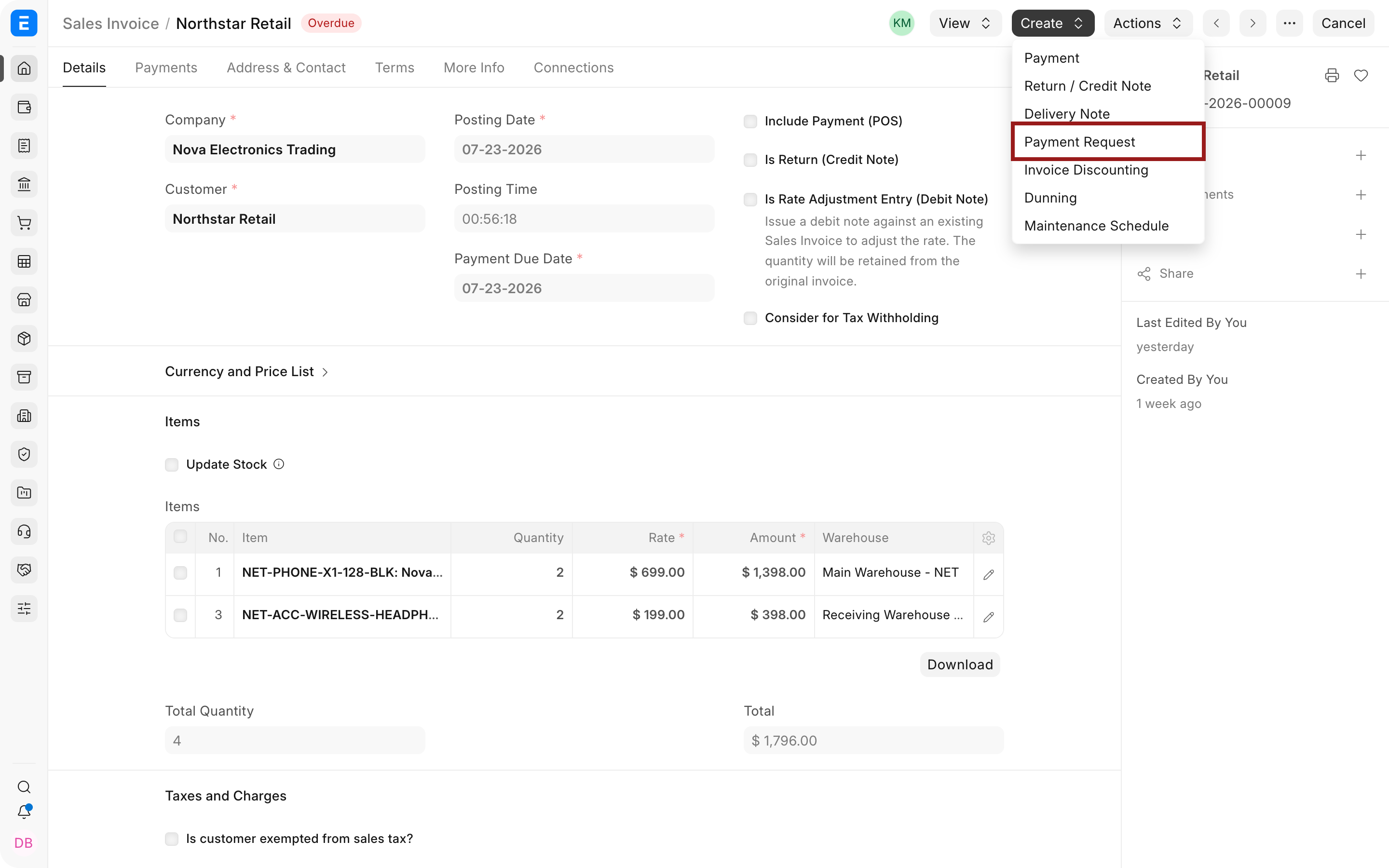
- Open the submitted Sales Order or Sales Invoice.
- Select Create > Payment Request.
- If the document has a payment schedule and Fetch Payment Schedule in Payment Request is selected in Accounts Settings, the Select Payment Schedule dialog opens. Select the installments to request, then select Create Payment Request.
- In the new Payment Request, check:
- Payment Request Type is Inward, and the Reference Doctype and Reference Name show your document.
- Amount and Transaction Currency.
- To, the email address of the customer, and the Subject and Message of the email.
- Payment Gateway Account, when you collect online.
- Submit the Payment Request. The status changes to Requested. ERPNext emails the request with the payment link, unless Payment Channel is Phone.
To send the email again, open the submitted request and select Resend Payment Email.
Request payment to a supplier
- Open the submitted Purchase Order or Purchase Invoice.
- Select Create > Payment Request. ERPNext sets Payment Request Type to Outward.
- Check the Party, the Amount, and the supplier's bank details in the Bank Account Details section.
- Submit the Payment Request according to your approval process. The status changes to Initiated.
- Pay the request in one of these ways:
- Select Create Payment Entry to create a Payment Entry for the request.
- Add the request to a Payment Order with other supplier payments.
Payment Request statuses
| Status | Meaning |
|---|---|
| Draft | Saved, not submitted. |
| Requested | An inward request is submitted and sent to the customer. |
| Initiated | An outward request is submitted and waits for payment. |
| Partially Paid | Payment Entries cover part of the amount. |
| Payment Ordered | The request is in a submitted Payment Order. |
| Paid | The full amount is paid. |
| Failed | The online payment failed. The form shows the reason. |
| Cancelled | The request is cancelled. |
What happens after the customer or supplier pays
The request itself does not settle the invoice. The ledger changes only when a Payment Entry is submitted:
- For an online payment, the Payments app marks the request as paid and creates the Payment Entry when the gateway confirms the payment.
- For an offline payment, create the Payment Entry yourself. When the Payment Entry references the same invoice, ERPNext links it to the open request and updates the request status.
Troubleshooting
The email address is empty or wrong
Check the contact of the customer and its email address. Correct the To field before you submit.
Submitting the request takes long or fails
ERPNext sends the email when you submit. Test the outgoing email account on its own, and check the Email Queue and the Error Log.
Missing Payments App
You selected a payment gateway, but the Payments app is not installed. Install the app, or clear the Payment Gateway Account and send offline payment instructions.
Transaction currency must be same as Payment Gateway currency
The Payment Gateway Account uses another currency. Select a gateway account for the currency of the document.
Total Payment Request amount cannot be greater than Sales Invoice amount
Other requests for the same document already cover the amount. Check the existing Payment Requests of the document before you create a new one.
The customer paid, but the request still shows Requested
Check the payment in the gateway's dashboard first. Then check the Payment Gateway Account setup and the Error Log. Do not create a Payment Entry until you confirm the money arrived.
Frequently asked questions
Can I request part of an invoice?
Yes. Change the Amount, or select only some installments in the Select Payment Schedule dialog. Avoid two open requests for the same part of the amount, because the customer could pay it twice.
Should I send a new request when a customer says the link failed?
First check whether the original payment succeeded. If it did not, fix the gateway setup and select Resend Payment Email, or cancel the request and create a new one.
Can I keep new requests as drafts?
Yes. Create payment requests in Draft status in Accounts Settings is selected by default. Requests created from a Sales or Purchase Invoice then stay as drafts until you submit them.