Create a Sales Taxes and Charges Template
A Sales Taxes and Charges Template is a reusable set of tax and charge rows for selling documents: Quotation, Sales Order, Delivery Note, and Sales Invoice. A row can be a sales tax, or a charge such as shipping or insurance. When you select the template on a document, ERPNext copies its rows and calculates the amounts from the items.
Create one template for each tax treatment, company, or charge structure. A Tax Rule can select the right template for each document.
Prerequisites
- An account for each row in the Chart of Accounts. A tax liability account normally has Account Type set to Tax. A shipping or insurance charge can use an income or expense account.
- You know whether your prices include tax, which charges are fixed, and which rows depend on earlier rows.
- Optional: a Tax Category for the treatment.
Create the template
- Open the Sales Taxes and Charges Template list and select Add Sales Taxes and Charges Template.
- Enter a Title, for example
Standard Sales Tax 8%. - Select the Company.
- Optional: select a Tax Category. Only one enabled sales template in a company can use each Tax Category.
- Optional: select Default to apply the template to new selling documents of the company. Only one template per company can be the default, and a disabled template cannot be the default.
- In the Sales Taxes and Charges table, add a row for each tax or charge, in the order in which ERPNext must calculate them. Set the fields in the next section.
- Save.
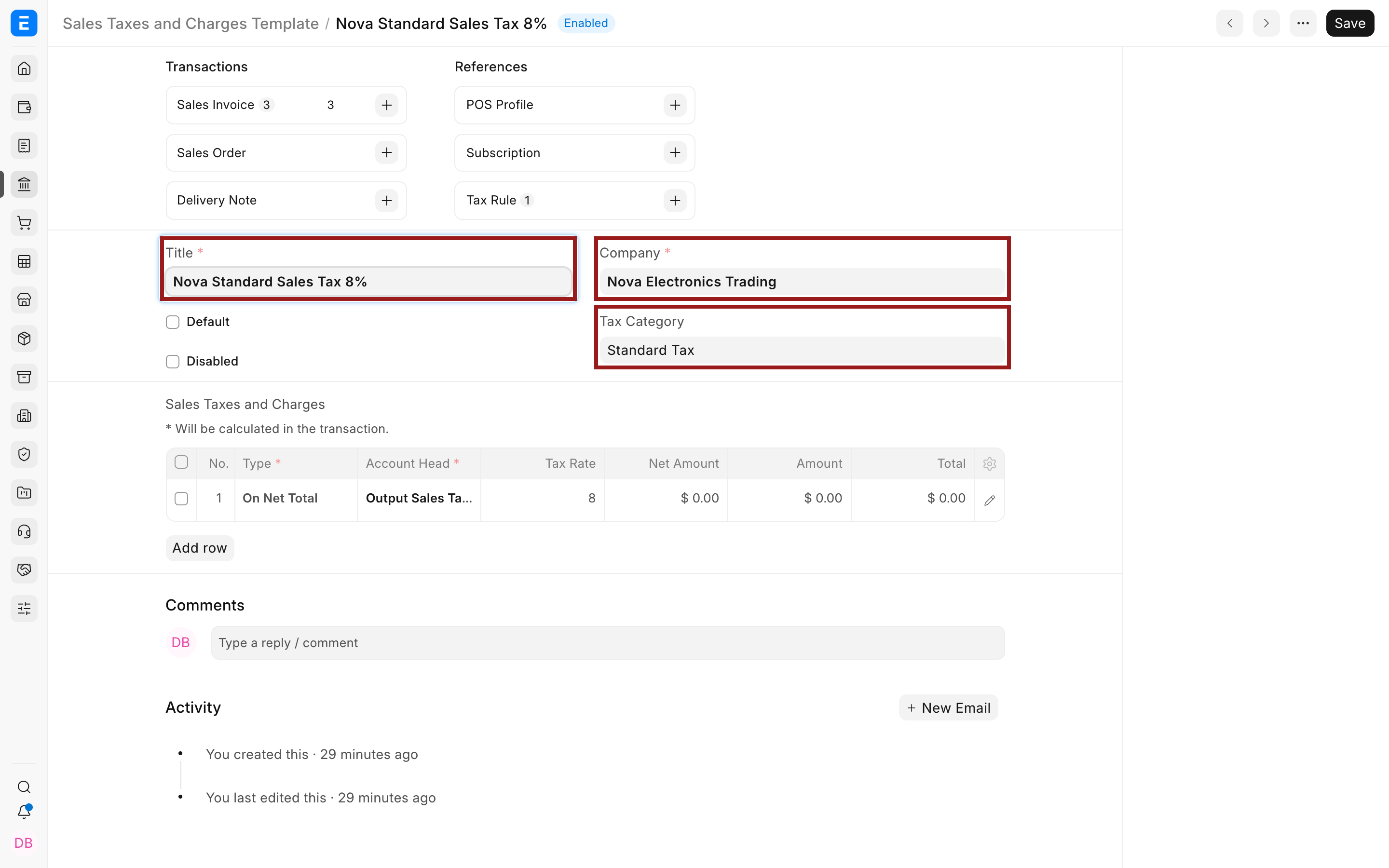
To stop using a template, select Disabled. Documents that already use it keep their rows.
Fill in a tax row
Open a row with the edit icon to see all fields. The Amount and Total columns stay zero on the template. ERPNext calculates them on a document.
| Field | What it does |
|---|---|
| Type | The calculation base: Actual, On Net Total, On Previous Row Amount, On Previous Row Total, or On Item Quantity. See Tax calculation types. |
| Reference Row # | The earlier row that a previous-row type uses. Shown only for the two previous-row types. |
| Account Head | The ledger account that receives the amount. It must belong to the template's company. |
| Cost Center | The cost center for the row. Needed when the account is an income or expense account. |
| Description | The text that prints on quotations and invoices. |
| Is this Tax included in Basic Rate? | Select when the item rate already contains this tax. See Tax-inclusive pricing. |
| Tax Rate | The percentage for percentage types. For On Item Quantity, the amount per unit. |
| Considered In Paid Amount | Treats the tax as part of the paid amount when the row is used in a Payment Entry. |
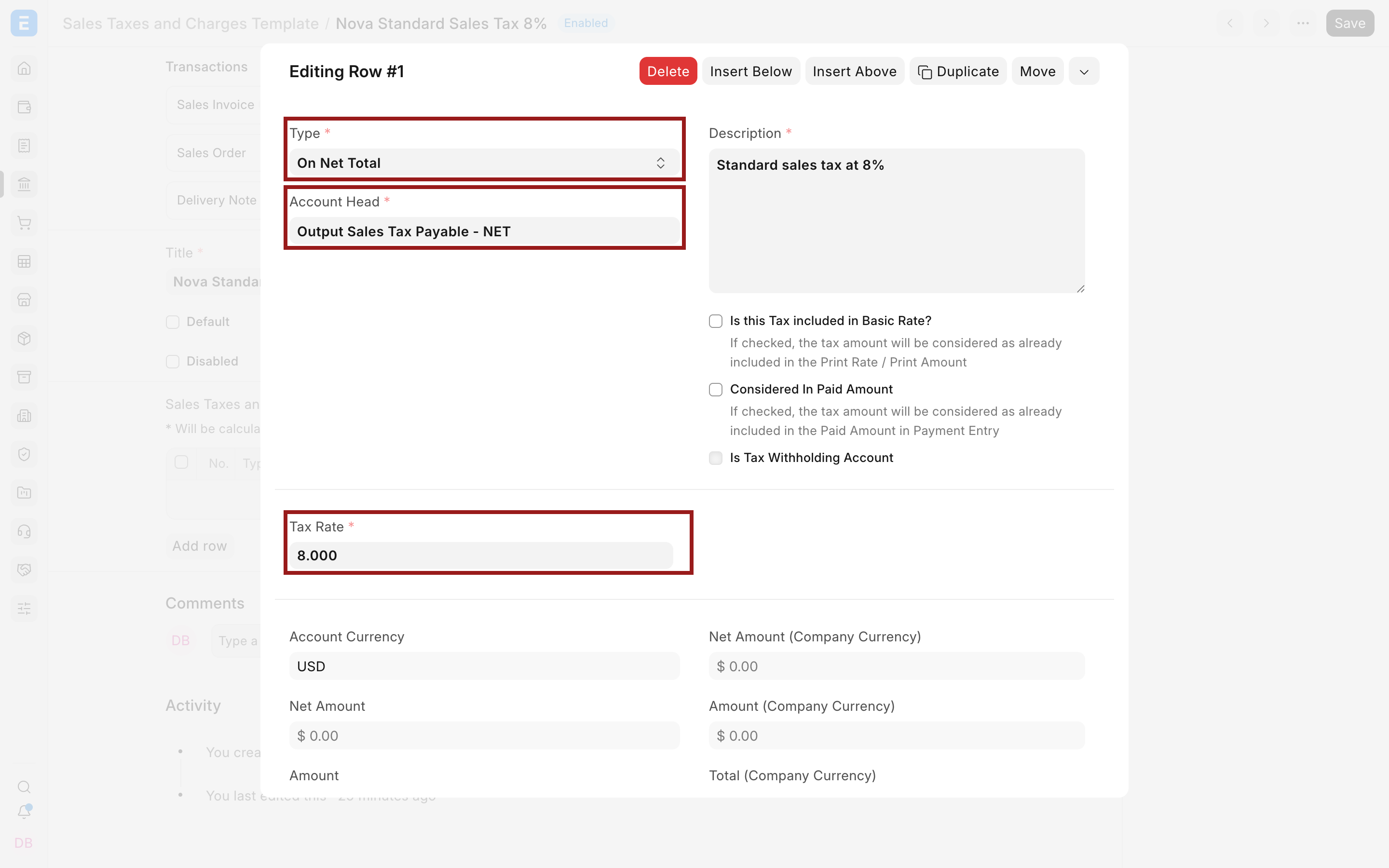
ERPNext sets Is Tax Withholding Account itself on rows that it adds for tax collected at source. Do not select it on a normal sales tax row. See Set up a Tax Withholding Category.
Rules for compound and inclusive rows
- The first row cannot use On Previous Row Amount or On Previous Row Total.
- Reference Row # must point to an earlier row. If you insert, delete, or move rows, check every reference again.
- An Actual row cannot be included in the item rate.
- An inclusive row that refers to an earlier row needs that earlier row to be inclusive too.
Use the template on a document
- Create a draft Sales Invoice, Sales Order, Quotation, or Delivery Note.
- Select the customer. A Tax Rule or the company default fills Sales Taxes and Charges Template. You can also select a template yourself.
- Check each row's Type, Account Head, rate, and Reference Row #.
- Check the Net Total, each row's Amount, Total Taxes and Charges, and Grand Total.
For example, an 8% On Net Total row on a Net Total of 699 calculates 55.92, and the Grand Total is 754.92.
The document copies the template rows at the time you select the template. If you change the template later, select it again on any draft that should use the new rows.
Different rates for different items
The template rate is the standard rate for its account. When some items need a reduced or zero rate, assign an Item Tax Template to those items. The Item Tax Template must use the same account as a row of this template.
Regional fields
A regional app can add fields to the template. For example, the India Compliance app adds GST fields that select an inter-state template. Follow the documentation of the installed app for those fields.
Troubleshooting
| Problem | Cause and fix |
|---|---|
| The template is not selected automatically | No Tax Rule matches and no template is the Default for the company. Check the rule conditions and dates. |
| Tax is added twice | An inclusive tax is set as exclusive, or the same charge is in two rows. Compare the item rate, Net Total, and tax Amount. |
| An item rate is ignored | The Item Tax Template uses a different account, or its Tax Category or Valid From date does not match the document. |
| A compound row gives a wrong amount | Check whether the row should use the earlier row's Amount or its Total, and check Reference Row #. |
| "Can refer row only if the charge type is 'On Previous Row Amount' or 'Previous Row Total'" | Remove Reference Row # or change the Type. |
| "Charge of type 'Actual' in row ... cannot be included in Item Rate or Paid Amount" | Clear Is this Tax included in Basic Rate? on the Actual row. |