Review postings in the General Ledger
The General Ledger report lists every debit and credit that submitted documents posted, with a link to each source voucher. Use it to explain an account balance, investigate an unexpected posting, or give an auditor transaction-level evidence.
To see which invoices are still unpaid, use Accounts Receivable and Accounts Payable instead.
Prerequisites
- The documents you want to see are submitted. Drafts post no ledger entries.
- You know the company and the period to review.
Run the General Ledger
- Open the General Ledger report.
- Select the Company, From Date, and To Date.
- To narrow the result, select an Account, a Party Type and Party, or enter a Voucher No. Leave them empty to see all postings.
- In Categorize by, select how to group the rows (see Choose a grouping).
- If you use finance books, cost centers, projects, or other accounting dimensions, set the same filters that you use in the report you compare with.
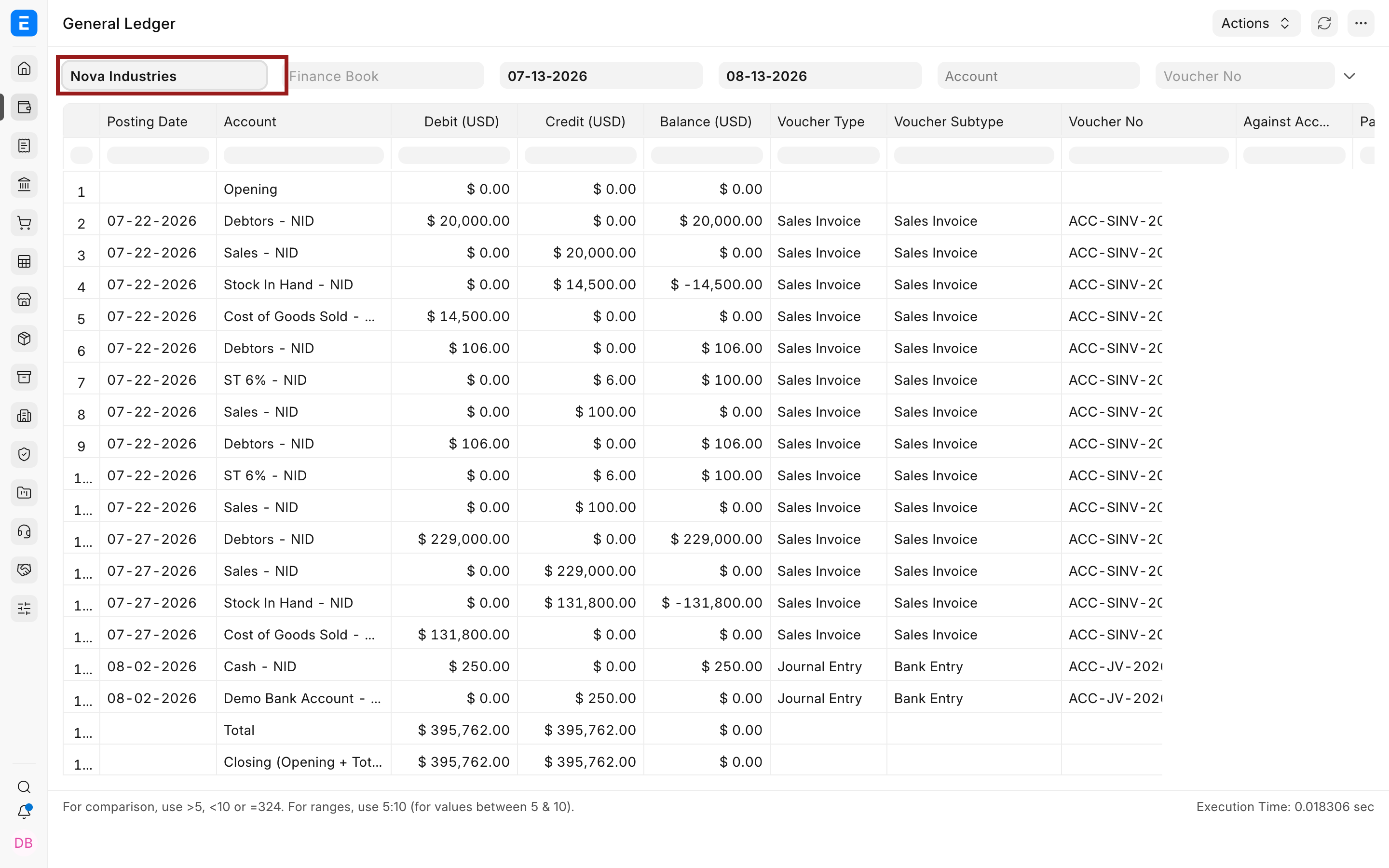
Read the result
Each row is one posting. A Sales Invoice that updates stock creates four rows, for example a sale of 20,000 with a stock value of 14,500:
| Account | Debit | Credit | Meaning |
|---|---|---|---|
| Debtors | 20,000 | The customer owes the company. | |
| Sales | 20,000 | Income for the period goes up. | |
| Stock In Hand | 14,500 | The stock asset goes down. | |
| Cost of Goods Sold | 14,500 | The cost of the sold goods becomes an expense. |
The main columns:
| Column | Meaning |
|---|---|
| Posting Date | The accounting date of the source voucher. It decides the period. |
| Account | The ledger account of the row. |
| Debit, Credit | The two sides of the posting, in the displayed currency. |
| Balance | The running balance (debit minus credit) in the current grouping. |
| Voucher Type, Voucher No | The submitted document that created the row. |
| Against Account | The counterpart accounts of the same voucher. |
| Party Type, Party | The customer, supplier, employee, or other party. |
| Cost Center, Project | The dimensions copied from the document. |
Equal debit and credit totals for the whole company show that the selected entries balance. A report filtered by account or party can show one side of a voucher only, so its totals do not need to match.
Select a Voucher No to open the source document. The voucher explains the business event. The ledger shows its accounting effect.
Choose a grouping
| Categorize by | Use it to |
|---|---|
| (empty) | See every posting in date order. |
| Categorize by Voucher (Consolidated) | See one compact line for each voucher and account. This is the default. |
| Categorize by Voucher | See all rows of each voucher together. You cannot filter by Voucher No with this grouping. |
| Categorize by Account | See opening, movement, and closing for each account. With this grouping, you can filter by group accounts only. |
| Categorize by Party | Review movement for each customer or supplier. |
Useful options
| Option | Effect |
|---|---|
| Currency | Shows amounts in another presentation currency. |
| Show Opening Entries | Lists opening entries (entries marked Is Opening) as rows instead of adding them to the opening balance. |
| Show Cancelled Entries | Includes the entries of cancelled vouchers and their reversals. |
| Include Default FB Entries | Includes entries of the company's default finance book and entries without a finance book. Selected by default. |
| Show Net Values in Party Account | Nets debit and credit for party accounts. |
| Add Columns in Transaction Currency | Adds debit and credit in the document currency. |
| Show Remarks | Adds the document remarks. |
| Ignore Exchange Rate Revaluation and Gain / Loss Journals | Leaves out system-made currency adjustment entries. |
Correct a wrong posting
You cannot edit ledger rows. To correct an account or dimension, cancel and amend the source document, or post a Journal Entry. Read about the immutable ledger before you correct a backdated document.
Troubleshooting
A submitted voucher is missing
Check the company, dates, account, party, finance book, dimensions, and voucher number filters. Drafts are never in the ledger.
The report shows "Can not filter based on Voucher No, if grouped by Voucher"
Clear Voucher No, or change Categorize by.
The report shows "To use a different finance book, please uncheck 'Include Default FB Entries'"
You selected a Finance Book that is not the company's default. Clear Include Default FB Entries.
The opening balance is unexpected
The opening balance includes all postings before the From Date. Run the report from the start of the fiscal year and check opening entries and earlier period closing.
General Ledger and Trial Balance look different
Use the same company, dates, finance book, dimensions, and currency in both. The Trial Balance shows opening, movement, and closing per account. The General Ledger lists the postings.
Related
- Payment Ledger: why an invoice is still outstanding
- Choose the right accounting report
- Repost Accounting Ledger
- Chart of Accounts