Set item-specific rates with an Item Tax Template
An Item Tax Template sets a different tax rate for specific items, for example a reduced rate, a zero rate, or "not applicable". The document's Sales or Purchase Taxes and Charges Template still supplies the tax row and its account. ERPNext uses the Item Tax Template rate for the items that have it, and the row rate for all other items.
For example, one Sales Invoice with an 8% standard tax row:
| Item | Net amount | Rate | Tax |
|---|---|---|---|
| Phone | 699.00 | 8% (standard) | 55.92 |
| Setup service | 149.00 | 4% (Item Tax Template) | 5.96 |
| Extended warranty | 99.00 | 0% (Item Tax Template) | 0.00 |
| Total | 947.00 | 61.88 |
The Grand Total is 1,008.88.
Prerequisites
- The tax account exists in the Chart of Accounts. Its Account Type must be Tax, Chargeable, Income Account, Expense Account, or Expenses Included In Valuation.
- A Sales Taxes and Charges Template or Purchase Taxes and Charges Template with a row for the same account.
- In Accounts Settings, tab Invoice and Billing, Automatically add Taxes and Charges from Item Tax Template is selected by default. With it, ERPNext adds a missing tax row for the account of an item's template.
Create an Item Tax Template
- Open the Item Tax Template list and select Add Item Tax Template.
- Enter a Title, for example
Reduced Tax 4%, and select the Company. - In the Tax Rates table, add a row:
- Tax: the tax account whose rate you replace.
- Tax Rate: the rate for the item.
- Not Applicable: select when the tax does not apply to the item at all. This is different from a 0% rate.
- Add one row for each tax account that needs a different rate. Each account can appear only once.
- Save.
Use 0% when the supply is taxable at zero percent. Use Not Applicable when the tax does not apply. Confirm the treatment with your tax adviser, because the two can be reported differently.
To stop using a template, select Disabled.
Assign the template to an item
- Open the Item and go to the Tax tab.
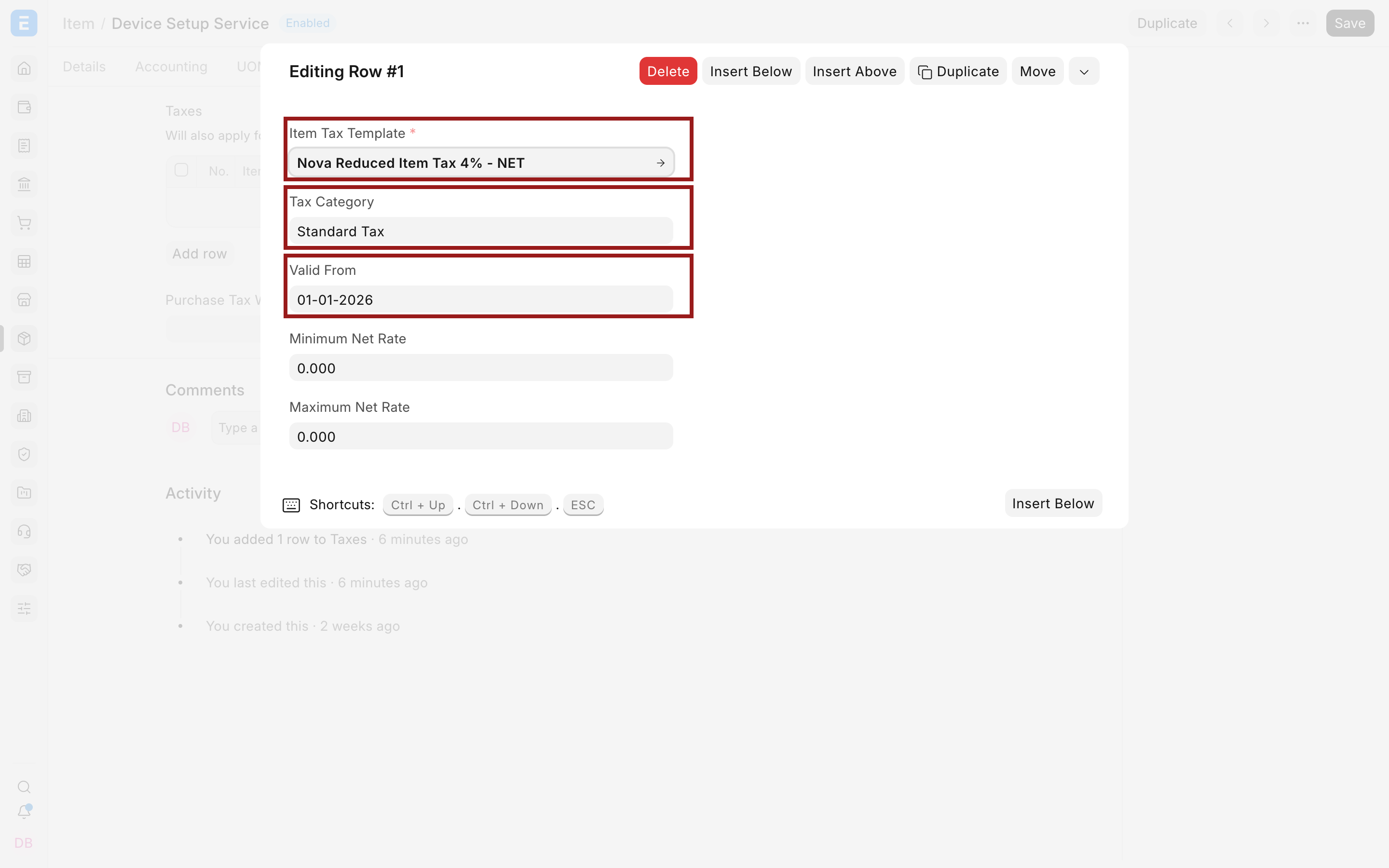
- In the Taxes table, add a row:
- Item Tax Template: the template.
- Tax Category: the category of the documents that use this template. Leave it empty for documents that have no Tax Category.
- Valid From: optional, the first date on which the row applies.
- Minimum Net Rate and Maximum Net Rate: optional, apply the row only when the item's net rate is in this range.
- Save.
Add more rows for other Tax Categories or for a rate change from a later date.
To give all items in a group the same template, use the Taxes table of the Item Group.
How ERPNext chooses the template for an item
- ERPNext checks the Item's Taxes rows first. If none matches, it checks the Item Group, then each parent group.
- It ignores templates that are disabled or that belong to another company.
- If any row has a Valid From date or a net rate range, ERPNext uses only those rows whose date is on or before the document date and whose range contains the net rate. It then prefers the latest Valid From date. Rows without a date or range are used only when no row has one.
- It takes the first remaining row whose Tax Category equals the document's Tax Category. An empty Tax Category matches only a document without a category.
On a Purchase Invoice, the document date is the Supplier Invoice Date when it is set, otherwise the Posting Date. This applies the right rate to a supplier invoice dated before a rate change but entered after it.
Use the template on a document
- Create a draft selling or buying document, for example a Sales Invoice.
- Select the party, and check the Tax Category and the taxes template.
- Add the items. Each row shows the Item Tax Template that ERPNext selected.
- Check the tax amounts and Grand Total.
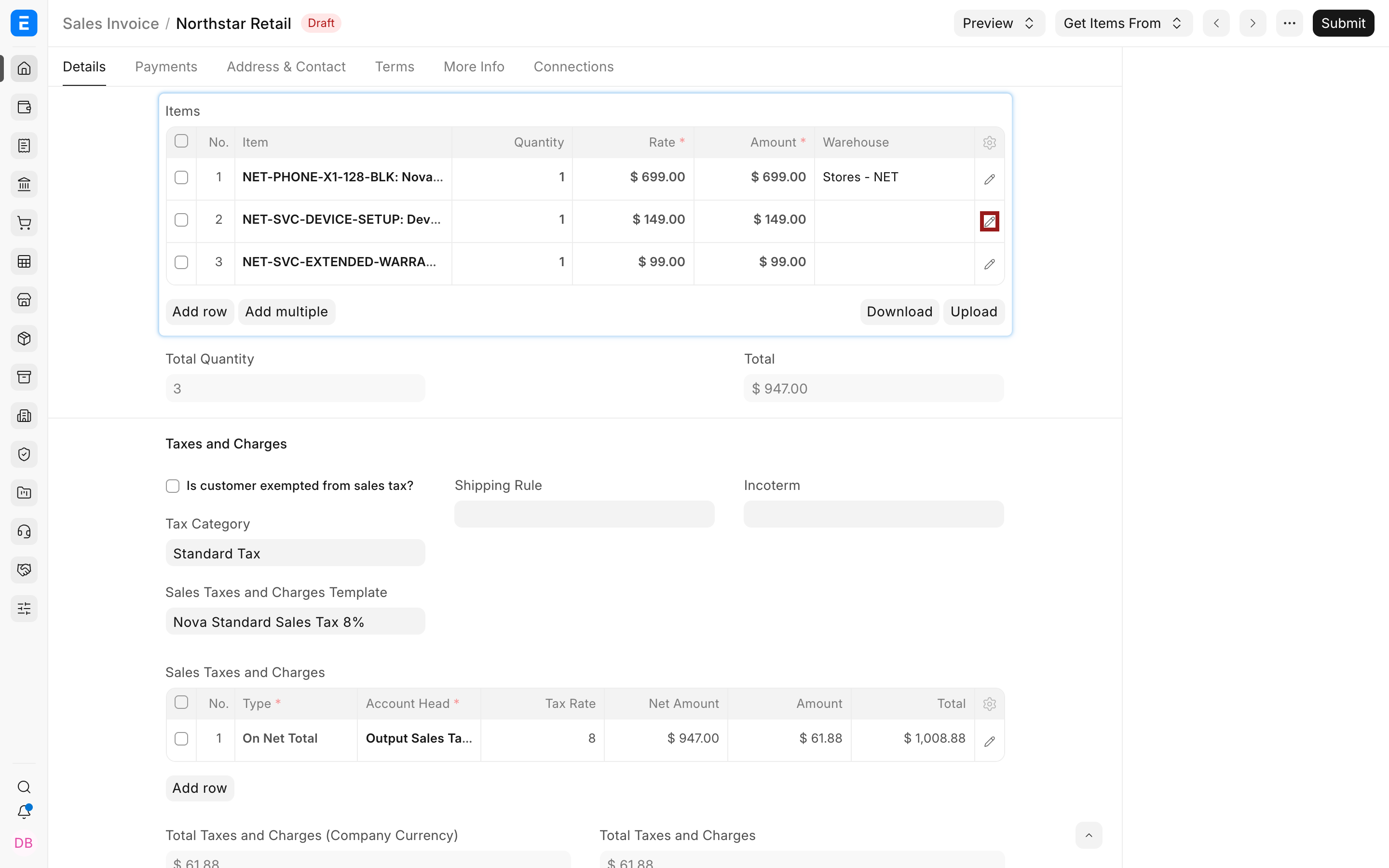
You can select a different Item Tax Template on a draft item row for an exception. It must belong to the company and use an account that is in the tax table.
Different item rates can share one tax account. ERPNext keeps the item-wise breakdown behind the tax row. Use separate accounts only when you must post or report the rates separately.
If only some items are taxable, you can set the standard row rate to 0% and let the Item Tax Templates supply the rates. Items without a template are then taxed at 0%.
Troubleshooting
| Problem | Cause and fix |
|---|---|
| The standard rate applies to every item | No Taxes row matches. Check the row's Tax Category against the document, the Valid From date, and the net rate range. |
| The template works on one date but not another | Check Valid From on each row. On a Purchase Invoice, check the Supplier Invoice Date. |
| The item rate is not applied | The document's tax table has no row for the template's account. Add the account to the taxes template, or select Automatically add Taxes and Charges from Item Tax Template in Accounts Settings. |
| A 0% item still shows in the tax breakdown | A 0% rate keeps the item in the tax. Use Not Applicable if the tax does not apply. |
| "Item Tax Row ... must have account of type Tax or Income or Expense or Chargeable" | Change the Account Type of the account or select another account. |
| "Item Tax Row ...: Account must belong to Company" | Select an account of the template's company. |