Create a credit note
A credit note reduces what a customer owes after you have submitted a Sales Invoice. Use it for a full or partial return of goods, an agreed price reduction, or another correction after billing. The original invoice stays as it is, so the audit trail shows what happened.
In ERPNext, a credit note is a Sales Invoice with Is Return (Credit Note) selected. Its quantities and amounts are negative. It reverses the receivable, the income, and the tax for the credited amount. It can also bring returned goods back into stock.
Prerequisites
- The original Sales Invoice is submitted.
- If goods come back, you know the warehouse that receives them.
- If the customer has paid, you know whether to refund the credit or keep it for a later invoice.
Create the credit note
- Open the submitted Sales Invoice.
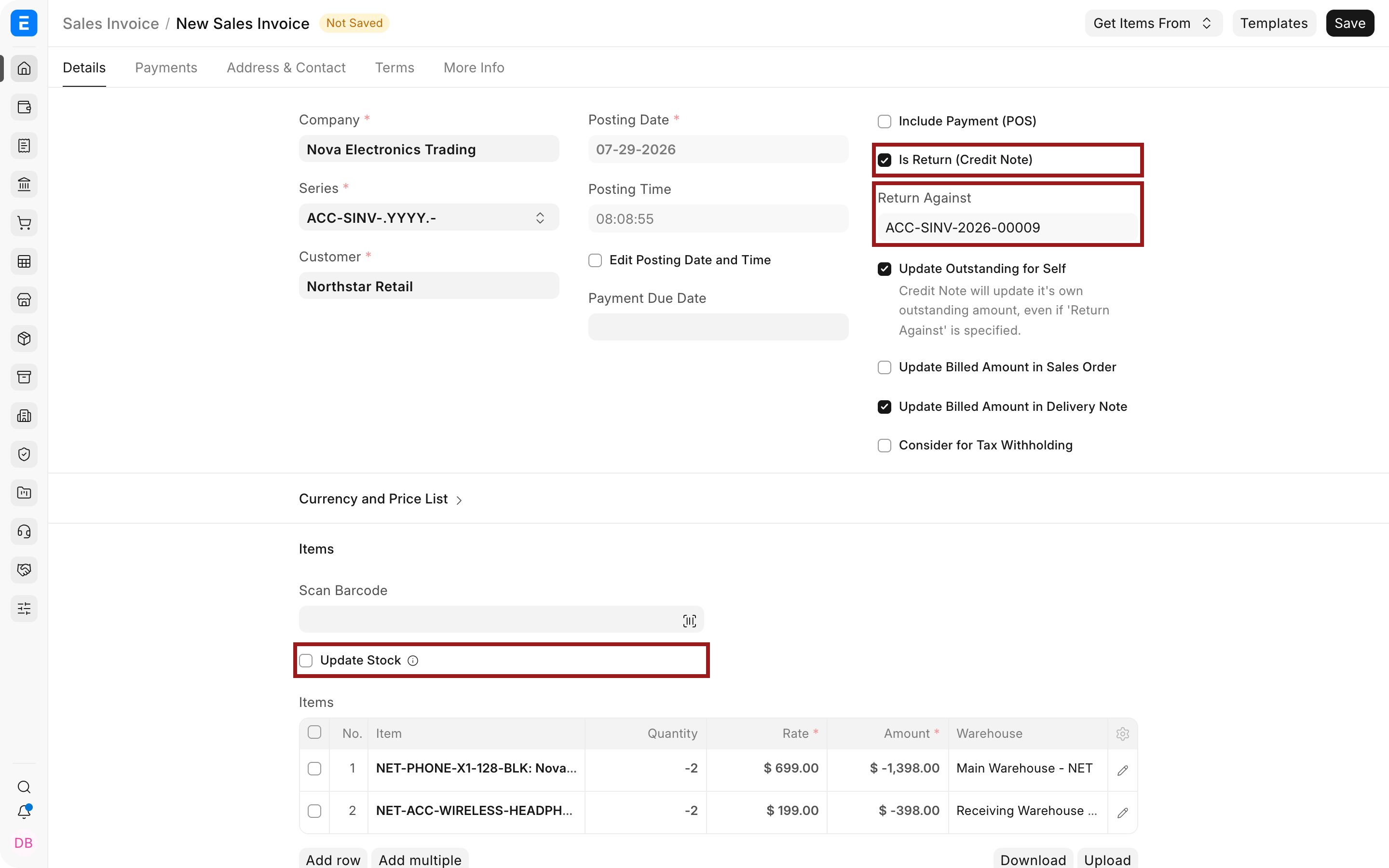
- Select Create, and then select Return / Credit Note. ERPNext creates a new Sales Invoice with Is Return (Credit Note) selected and Return Against set to the original invoice. It copies the items, rates, taxes, and accounts.
- Check the customer, the company, and the Posting Date.
- Remove the lines that are not credited. For each remaining line, enter the credited quantity. Quantities and amounts show as negative values.
- If the goods physically come back, select Update Stock, and check the Warehouse on each item row. To change it, select the edit icon at the end of the row.
- Check Update Outstanding for Self (see the next section).
- Check the taxes and totals, and then submit.
ERPNext does not let the total returned quantity exceed the invoiced quantity. If you return goods across several credit notes, each one can return only what is left.
TIP
For a price reduction where no goods move, leave Update Stock clear. The credit note reverses the receivable, income, and tax, and does not change the stock ledger.
If a Delivery Note delivered the goods, and the invoice did not update stock, record the physical return with a Sales Return against the Delivery Note instead of selecting Update Stock here.
Choose where the credit goes
The Update Outstanding for Self checkbox is selected by default.
| Update Outstanding for Self | Effect |
|---|---|
| Selected (default) | The credit note keeps its own negative outstanding amount. The original invoice stays outstanding until you allocate the credit to it. |
| Clear | The credit note reduces the outstanding amount of the original invoice directly. |
If the credit note is larger than what is outstanding on the original invoice, ERPNext selects Update Outstanding for Self for you and shows a message.
Refund or allocate the credit
After you submit, the credit note is a credit in the customer's favour.
- Refund the customer: on the credit note, select Create, and then Payment. ERPNext creates a Payment Entry that pays the money back.
- Settle an invoice: allocate the credit note to the original invoice or to another invoice. Learn how to allocate a credit note or payment.
- Keep it for later: leave the credit unallocated until the next invoice.
Ledger and stock effect
| Action | Receivable | Income and tax | Stock |
|---|---|---|---|
| Credit note, Update Stock clear | Reduced | Reversed for the credited amount | No change |
| Credit note, Update Stock selected | Reduced | Reversed for the credited amount | Returned quantity and value posted |
| Refund with a Payment Entry | Credit settled | No change | No change |
| Allocation to an invoice | Both documents reduced | No change | No change |
When to cancel instead
If an unpaid invoice was made by mistake and the sale should not exist, cancel the invoice. Use a credit note when you must keep the original invoice: a partial return, an adjustment after billing, or a refund after payment.
Troubleshooting
Row # 1: Cannot return more than 2 for Item X
Earlier credit notes already returned part of the quantity. Reduce the quantity to what is left.
Stock moved, but only the price should change
The credit note was submitted with Update Stock selected. Cancel and amend it with Update Stock clear.
The original invoice is still outstanding
Update Outstanding for Self was selected, so the credit is on the credit note. Allocate it to the invoice with Payment Reconciliation. Then check the Accounts Receivable report.