Create a Payment Entry
Record money that you receive from a customer, pay to a supplier, or move between two of your own bank or cash accounts. To learn how a Payment Entry posts to the ledger and when to use a Journal Entry instead, see About the Payment Entry.
Prerequisites
- The bank or cash account exists in the Chart of Accounts, with Account Type set to Bank or Cash.
- The invoices or orders that the payment settles are submitted.
- Optional: a Mode of Payment with a default account for your company, so that ERPNext fills the bank or cash account for you.
- You have the bank reference or cheque number and its date.
Create the Payment Entry from an invoice
This is the fastest way when the payment settles one invoice or order.
- Open the submitted Sales Invoice, Purchase Invoice, Sales Order, or Purchase Order.
- Select Create > Payment.
- ERPNext opens a new Payment Entry with the party, the accounts, the amount, and a reference row for the document. Check the values and continue from step 7 in the next section.
Create the Payment Entry from the list
- Open the Payment Entry list and select Add Payment Entry.
- In Payment Type, select Receive, Pay, or Internal Transfer.
- Check the Posting Date and the Company. The posting date is the date of the ledger entries.
- Optional: select a Mode of Payment. ERPNext fills the bank or cash account from the mode's default account for the company.
- For Receive or Pay, select the Party Type (for example Customer or Supplier) and the Party. ERPNext fills the party account in Account Paid From (for Receive) or Account Paid To (for Pay).
- In the Accounts section, check Account Paid From and Account Paid To. For Internal Transfer, select the source account and the destination account. They must be different.
- In Paid Amount, enter the amount of the payment. For a payment in one currency, ERPNext copies it to Received Amount. For a payment between two currencies, enter the exchange rates. See Multi-currency accounting.
- Allocate the payment to invoices or orders. See Allocate the payment.
- In Cheque/Reference No and Cheque/Reference Date, enter the bank reference. These fields are mandatory when the bank side of the payment is an account of type Bank.
- Check that Difference Amount (Company Currency) is zero. If it is not, see Troubleshooting.
- Optional: select Preview > Accounting Ledger to see the ledger entries before you submit.
- Submit the Payment Entry. ERPNext posts the ledger entries and reduces the outstanding amount of each allocated invoice.
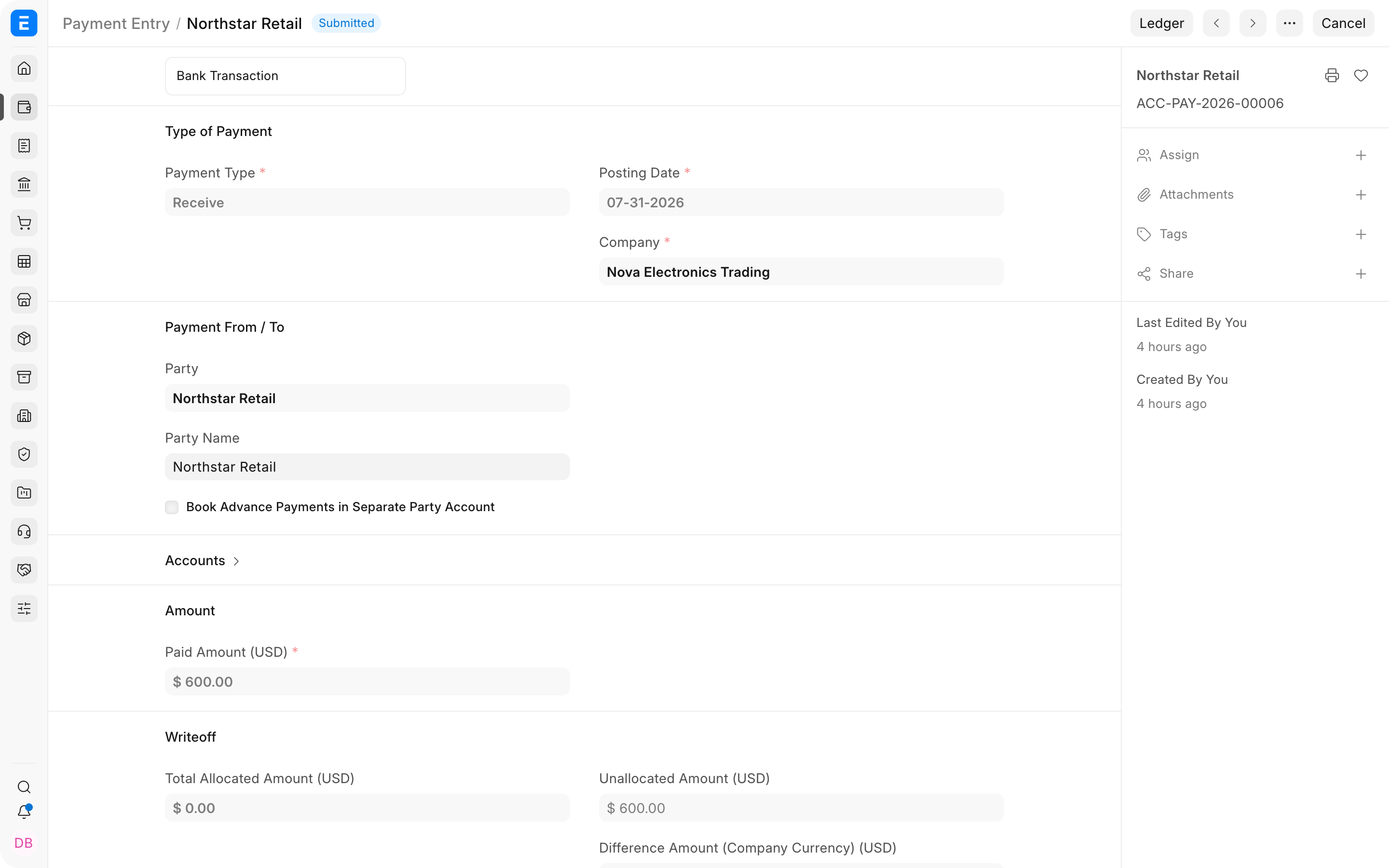
Allocate the payment
The Payment References table links the payment to the documents that it settles.
- Select Get Outstanding Invoices to fetch unpaid invoices of the party, or Get Outstanding Orders to fetch orders that are not fully billed.
- In the Filters dialog, set the filters:
- Posting Date: From Date is 30 days before today by default. Clear it or move it back to see older invoices.
- Due Date: optional range of due dates.
- Outstanding Amount: optional Greater Than Amount and Less Than Amount.
- Allocate Payment Amount: when selected (the default), ERPNext allocates the Paid Amount to the fetched invoices, earliest due date first.
- Select Get Outstanding Invoices or Get Outstanding Orders in the dialog.
- In each row, check the Allocated amount. Remove the rows that the payment does not settle.
The Writeoff section then shows the totals:
| Field | Meaning |
|---|---|
| Total Allocated Amount | The sum of the Allocated column. |
| Unallocated Amount | The part of the payment that is not allocated. ERPNext keeps it as an advance of the party, which you can allocate later with Payment Reconciliation. |
| Difference Amount (Company Currency) | An amount that the payment, the allocations, and the deductions do not explain. It must be zero before you can submit. |
To split one payment across many invoices, see Pay or receive against multiple invoices.
Main fields
| Field | What it controls |
|---|---|
| Payment Type | Receive, Pay, or Internal Transfer. |
| Party Type and Party | The customer, supplier, employee, or shareholder. Not used for Internal Transfer. |
| Account Paid From and Account Paid To | The source and destination accounts of the money. |
| Paid Amount and Received Amount | The amount in the currency of each account. |
| Payment References | The invoices, orders, or journal entries that the payment settles. |
| Payment Deductions or Loss | Bank charges, write-offs, discounts, and exchange differences, each with an account. See Record deductions in a Payment Entry. |
| Advance Taxes and Charges | Taxes on an advance payment, when your tax rules require them. |
| Cheque/Reference No and Cheque/Reference Date | The bank reference of the payment. |
| Clearance Date | The date the bank cleared the payment. Bank reconciliation sets it after you submit. |
Fix a submitted Payment Entry
- The amount, party, or account is wrong: cancel the Payment Entry, amend it, and submit the amended copy.
- The money and party are correct, but the payment is allocated to the wrong invoice: open the Payment Entry and select Actions > UnReconcile to remove the allocation. Then allocate it again with Payment Reconciliation. See Unreconcile payments.
Troubleshooting
An invoice does not appear in Get Outstanding Invoices
Check these causes:
- The invoice is not submitted, or it has no outstanding amount.
- The invoice belongs to another party or company.
- The invoice uses a different receivable or payable account from the Account Paid From or Account Paid To of the Payment Entry.
- The invoice posting date is outside the From Date and To Date in the Filters dialog. From Date is 30 days before today by default.
Difference Amount is not zero
Check the Paid Amount, the Received Amount, the exchange rates, and the allocations first. Then record each real difference as a row in Payment Deductions or Loss with its own account, for example bank charges. Select Write Off Difference Amount to post the whole difference to the Write Off Account of the company. Do not record a bank charge in Advance Taxes and Charges, because the bank keeps that money, not the party.
Reference No and Reference Date is mandatory for Bank transaction
The bank or cash account of the payment is an account of type Bank. Enter the Cheque/Reference No and Cheque/Reference Date.
Row #1: Allocated Amount cannot be greater than outstanding amount
The Allocated amount of the row is more than the open balance of the invoice. Another payment may have settled part of the invoice since you fetched it. Fetch the invoices again and reduce the allocation.
A foreign-currency payment shows an exchange difference
When the exchange rate of the payment differs from the rate of the invoice, ERPNext posts the difference to the Exchange Gain / Loss Account of the company in a separate Journal Entry when you submit. If the account is not set, ERPNext asks you to set it. After you submit, select Actions > View Exchange Gain/Loss Journals to see the entries. See Record deductions in a Payment Entry.
Frequently asked questions
Can a Payment Entry need approval above an amount?
Yes. Set up a workflow for the Payment Entry with a condition on the amount and the roles that can approve. Test it before you use it for real payments.
Can I see the ledger entries before I submit?
Yes. On a draft Payment Entry, select Preview > Accounting Ledger. After you submit, select Ledger to open the General Ledger for the document.