Pay or receive against multiple invoices
When a customer sends one payment for several invoices, or you pay a supplier once for several bills, record one Payment Entry and split the amount across the invoices. The bank amount stays as one figure, and each invoice is settled by the exact amount that the remittance advice names.
For example, a customer pays 25,000 for three invoices of 10,000, 8,000, and 12,000. The remittance advice says the payment settles the first two in full and 7,000 of the third. One Payment Entry records the 25,000 and three allocations: 10,000, 8,000, and 7,000. The third invoice keeps an outstanding amount of 5,000.
Prerequisites
- All the invoices belong to the same party and company, and use the same receivable or payable account.
- The invoices are submitted and have an outstanding amount.
- You have the remittance advice, or a company rule for the order in which to settle invoices, such as earliest due date first.
Allocate one payment to several invoices
- Create a Payment Entry with Payment Type set to Receive (customer) or Pay (supplier). See Create a Payment Entry.
- Select the Party.
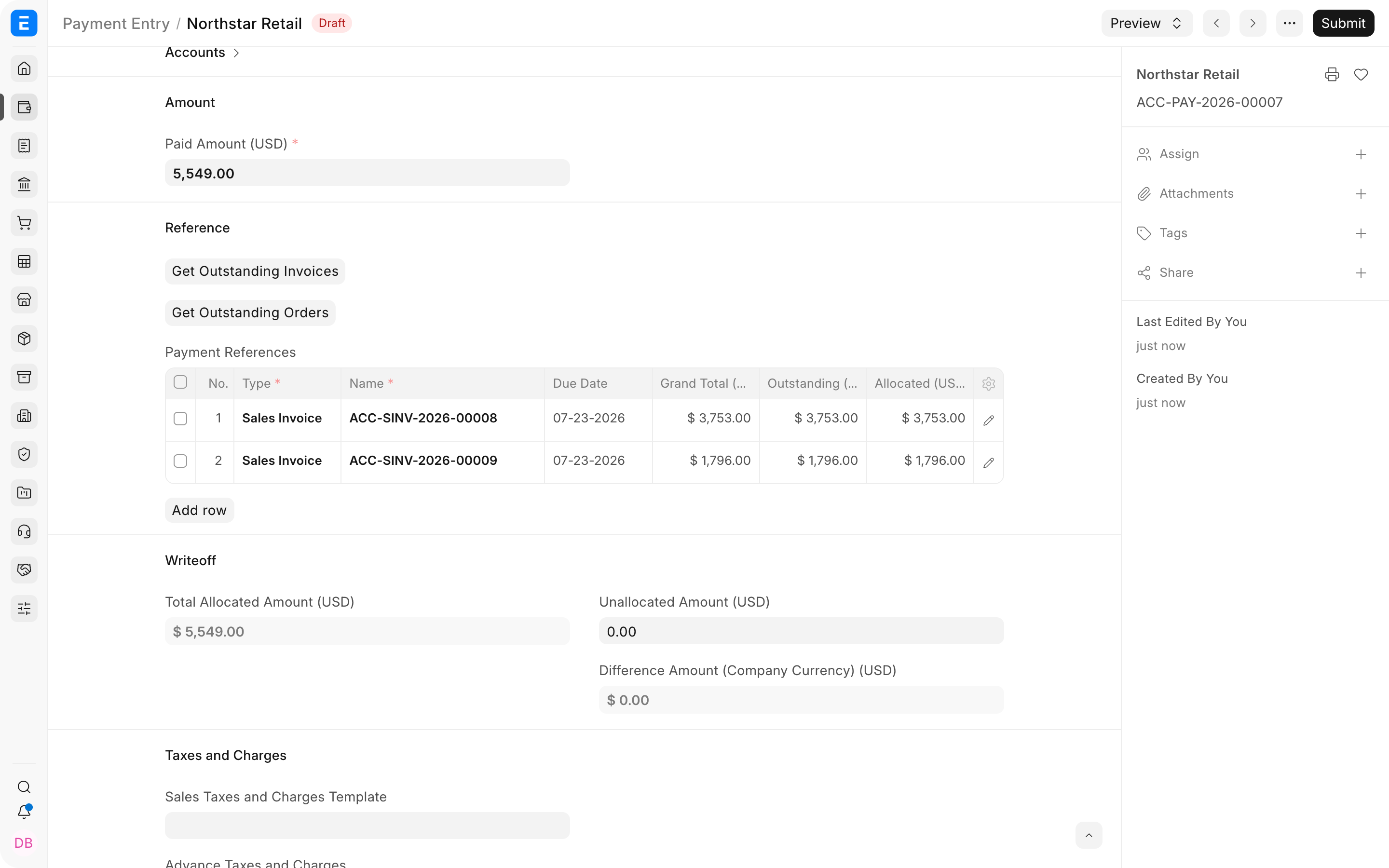
- In Paid Amount, enter the amount that the bank received or paid.
- Enter the Cheque/Reference No and Cheque/Reference Date.
- Select Get Outstanding Invoices. In the Filters dialog, widen the Posting Date range if some invoices are older than 30 days, and select Get Outstanding Invoices.
- In the Payment References table, remove the rows of the invoices that the payment does not cover.
- In each remaining row, set Allocated to the amount that settles that invoice.
- Check the totals:
- Total Allocated Amount is the sum of the allocations.
- Unallocated Amount is the part of the payment that no invoice takes. ERPNext keeps it as an advance of the party.
- Difference Amount (Company Currency) must be zero.
- If the customer deducted a bank charge or a discount, record it as a row in Payment Deductions or Loss. See Record deductions in a Payment Entry.
- Submit the Payment Entry. ERPNext reduces the outstanding amount of each invoice by its allocation.
TIP
When Allocate Payment Amount is selected in the Filters dialog, ERPNext fills the Allocated column for you, earliest due date first. Change the allocations when the remittance advice says otherwise.
Payments from several parties in one bank deposit
A Payment Entry has one party. If one bank deposit holds money from several customers, create one Payment Entry for each customer. Then match all of them to the single bank statement line in bank reconciliation.
To pay many suppliers in one run, use a Payment Order.
Troubleshooting
An invoice is missing from the list
Check that the invoice belongs to the same party, company, and receivable or payable account as the Payment Entry. Check that it is submitted and still has an outstanding amount. Check that its posting date is inside the From Date and To Date of the Filters dialog.
Removing rows does not change the Paid Amount
The Paid Amount is the amount that the bank moved. Removing or keeping rows does not change it. Enter the bank amount yourself, then set the Allocated amount of each row.
The payment is less than the invoices it should settle
Allocate the payment as the remittance advice says. An invoice can stay partly outstanding. Do not change the invoice to make the totals match.
The party paid more than the selected invoices
Allocate only the amounts that settle the invoices. The rest stays as Unallocated Amount, an advance that you can allocate to a later invoice with Payment Reconciliation. See also Handle excess payments.
Row #1: Allocated Amount cannot be greater than outstanding amount
An allocation is more than the open balance of the invoice. Reduce it.