How taxes work in ERPNext
ERPNext calculates tax on sales and purchase documents from records that you set up once: tax accounts, tax templates, Tax Categories, Tax Rules, and Item Tax Templates. When you create a document, ERPNext selects the matching setup, calculates each tax row, and posts the tax to the ledger when you submit.
ERPNext applies the rates and rules that you configure. It does not decide the legal rate, recoverability, or filing treatment for your business. Confirm these with your tax adviser. A regional app can add statutory fields, reports, and validations on top of this setup.
The parts of the tax setup
| Record | What it controls | Example |
|---|---|---|
| Tax account | The ledger account that receives the tax | Output Sales Tax Payable, Input Tax Credit |
| Tax Category | A named tax treatment for a party, address, or document | Standard Tax, Export, Exempt |
| Sales Taxes and Charges Template | The tax and charge rows for selling documents | 8% sales tax on Net Total |
| Purchase Taxes and Charges Template | The tax and charge rows for buying documents | 5% recoverable purchase tax |
| Tax Rule | The conditions that select a sales or purchase template | Use Standard Sales Tax for customers with the Standard Tax category |
| Item Tax Template | A rate for specific items that replaces the template rate | A reduced or zero rate for some items |
| Tax Withholding Category | Tax that is deducted or collected at source on invoices and payments | Withholding on supplier payments above a threshold |
A simple setup starts with one output tax account, one input tax account, one sales template, one purchase template, and a few categories and rules. Add more records only when rates or treatments differ.
How ERPNext selects the tax on a document
- When you select a customer or supplier, ERPNext reads the Tax Category from the billing or shipping address, or from the party. Accounts Settings decides which address it reads.
- ERPNext looks for a Tax Rule that matches the party, its group, its address, the Tax Category, the company, and the posting date. If one matches, ERPNext sets its template in the Sales Taxes and Charges Template or Purchase Taxes and Charges Template field. If none matches, a new document keeps the template that has Default selected for the company.
- ERPNext copies the template rows into the Sales Taxes and Charges or Purchase Taxes and Charges table.
- For each item, ERPNext selects an Item Tax Template from the Item or its Item Group, if one matches the Tax Category and date. That template's rate replaces the row rate for the item, for the same tax account.
- ERPNext calculates every row in order. The Type of each row decides the base, for example the Net Total or an earlier row. See Tax calculation types.
You can change the Tax Category, the template, or any row on a draft. The submitted document keeps the rows that it used, so later changes to a template do not change submitted documents.
How tax posts to the ledger
The tax account in each row receives the tax amount. For a sale with a Net Total of 699 and an 8% output tax row, ERPNext calculates 55.92 tax and a Grand Total of 754.92. On submit, the Sales Invoice posts:
| Account | Debit | Credit | Meaning |
|---|---|---|---|
| Debtors | 754.92 | The customer owes the total. | |
| Sales | 699.00 | Revenue before tax | |
| Output Sales Tax Payable | 55.92 | Tax owed to the tax authority |
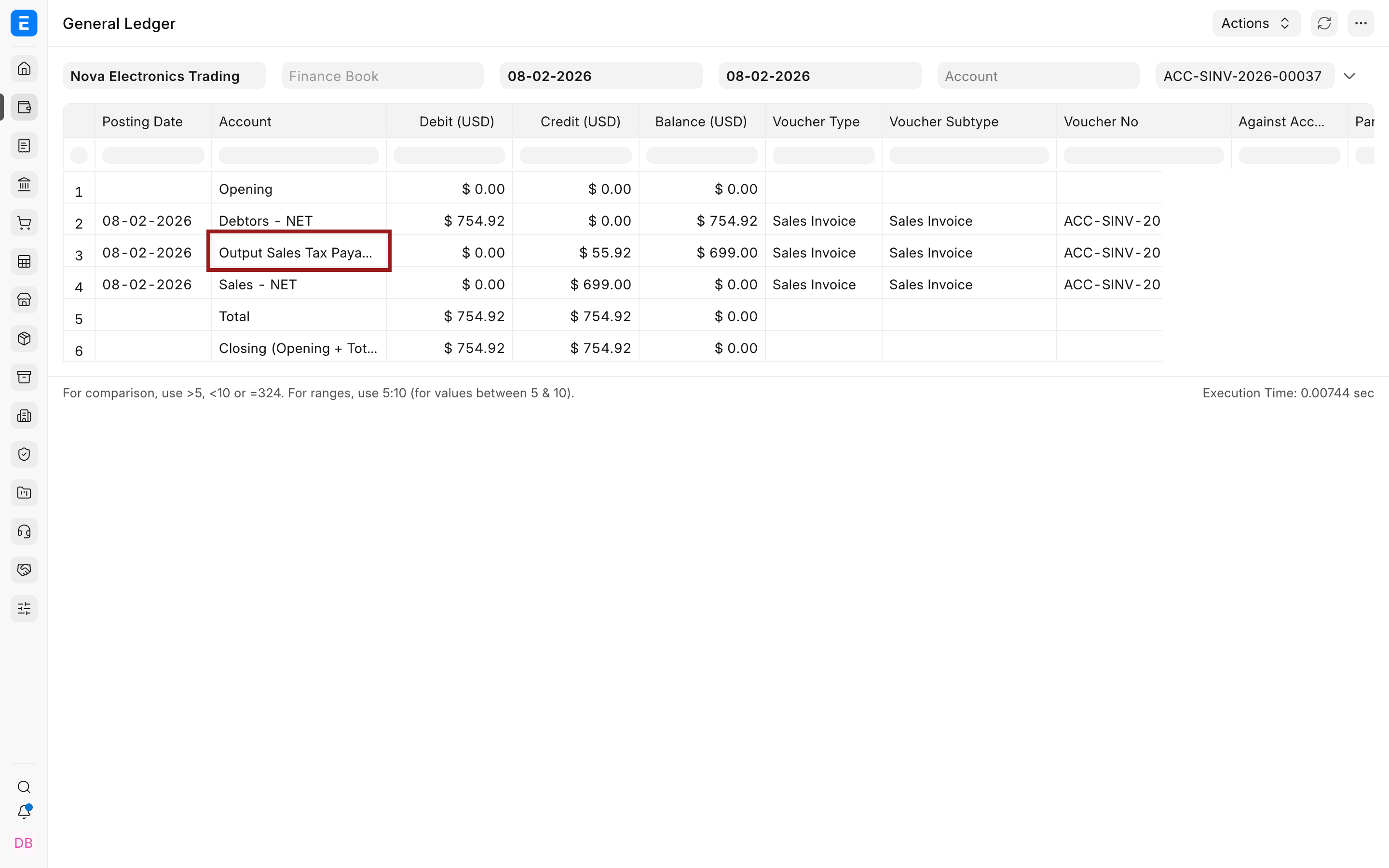
On a purchase with recoverable tax, ERPNext debits the input tax account and credits the supplier for the total that includes tax. Output tax that you collect is normally a liability. Recoverable input tax is normally an asset. Non-recoverable purchase tax can go to an expense account or into the stock valuation. See Include tax in valuation or total.
Special calculations
- Prices that include tax: mark the row Is this Tax included in Basic Rate? so that ERPNext takes the tax out of the entered rate. See Tax-inclusive pricing.
- Tax on another tax: use On Previous Row Amount or On Previous Row Total. See Apply tax on another tax.
- Mixed rates on one invoice: use Item Tax Templates, and keep the tax account in the document's tax table. See Item Tax Template.
- Reverse charge: the buyer accounts for the tax that the supplier did not charge. See Account for reverse charge tax.
Transaction tax and withholding tax
Transaction tax is added to an invoice and paid by the customer. Withholding tax (also called tax deducted at source) is an amount that the payer keeps back from a payment and pays to the tax authority. ERPNext handles withholding with a Tax Withholding Category. When a customer withholds tax from your invoice, see Record tax withheld by a customer.
A bank fee that is deducted from a payment is not a tax. Record it as a payment deduction. See Record payment deductions.