Set up a Tax Category
A Tax Category names a tax treatment, for example Standard Tax, Export, or Exempt. It stores no rate. ERPNext uses the Tax Category of a document to choose the matching Tax Rule, tax template, and Item Tax Template.
| Record | Role |
|---|---|
| Tax Category | Names the treatment |
| Tax Rule | Selects a sales or purchase template for the category and other conditions |
| Sales or Purchase Taxes and Charges Template | Holds the tax accounts, rates, and calculation types |
| Item Tax Template (assigned on the Item with a Tax Category) | Replaces the rate for specific items in that category |
Do not confuse a Tax Category with a Tax Withholding Category. A Tax Category selects transaction taxes. A Tax Withholding Category controls tax deducted at source.
Prerequisites
- The tax accounts exist in the Chart of Accounts.
- You know which treatments your business needs. Keep the list short. A category describes a treatment or jurisdiction, such as In-State or Out-of-State, not a single customer.
Create a Tax Category
- Open the Tax Category list and select Add Tax Category.
- In Title, enter the name of the treatment. Users see this name on parties, addresses, and documents.
- Save.
To stop using a category, select Disabled instead of deleting it. Documents that already use the category keep their reference.
Choose which address supplies the category
A party can have a billing address and a shipping address with different treatments.
- Open Accounts Settings, tab Invoice and Billing.
- In Determine Address Tax Category from, select Billing Address (the default) or Shipping Address.
Use the shipping address when the destination of the goods decides the tax. Use the billing address when the bill-to location decides it.
Assign the category to a customer or supplier
Open the Customer or Supplier. On the Tax tab, select the Tax Category and save. This is the default for the party when its address has no category.
Assign the category to an address
When one party needs different treatments at different locations, set the category on the Address:
- Open the billing or shipping address that is linked to the party.
- Select its Tax Category and save.
How ERPNext sets the category on a document
When you select a party on a document, ERPNext reads the address that Determine Address Tax Category from names:
- If that address has a Tax Category, ERPNext uses it.
- If not, ERPNext uses the Tax Category of the customer or supplier.
You can change the Tax Category on a draft for an exceptional case. The document keeps the category that it was submitted with.
Connect the category to templates and item rates
- Tax Rule: create a Tax Rule with the Tax Category and the template to apply. A rule with a Tax Category matches only documents with that exact category. A rule without a Tax Category matches only documents that have no category.
- Template: you can also set Tax Category on the template itself. Only one enabled template of each type can use a given Tax Category in a company.
- Item rates: on the Item or Item Group, in the Taxes table, add a row with the Item Tax Template and the Tax Category. A row without a Tax Category applies only to documents that have no category.
The document's tax table must still contain the tax account that the Item Tax Template uses.
Check the result
- Create a draft Sales Invoice or Purchase Invoice.
- Select the party and address, and check the Tax Category.
- Add items, and check the template, each tax row, and the Grand Total.
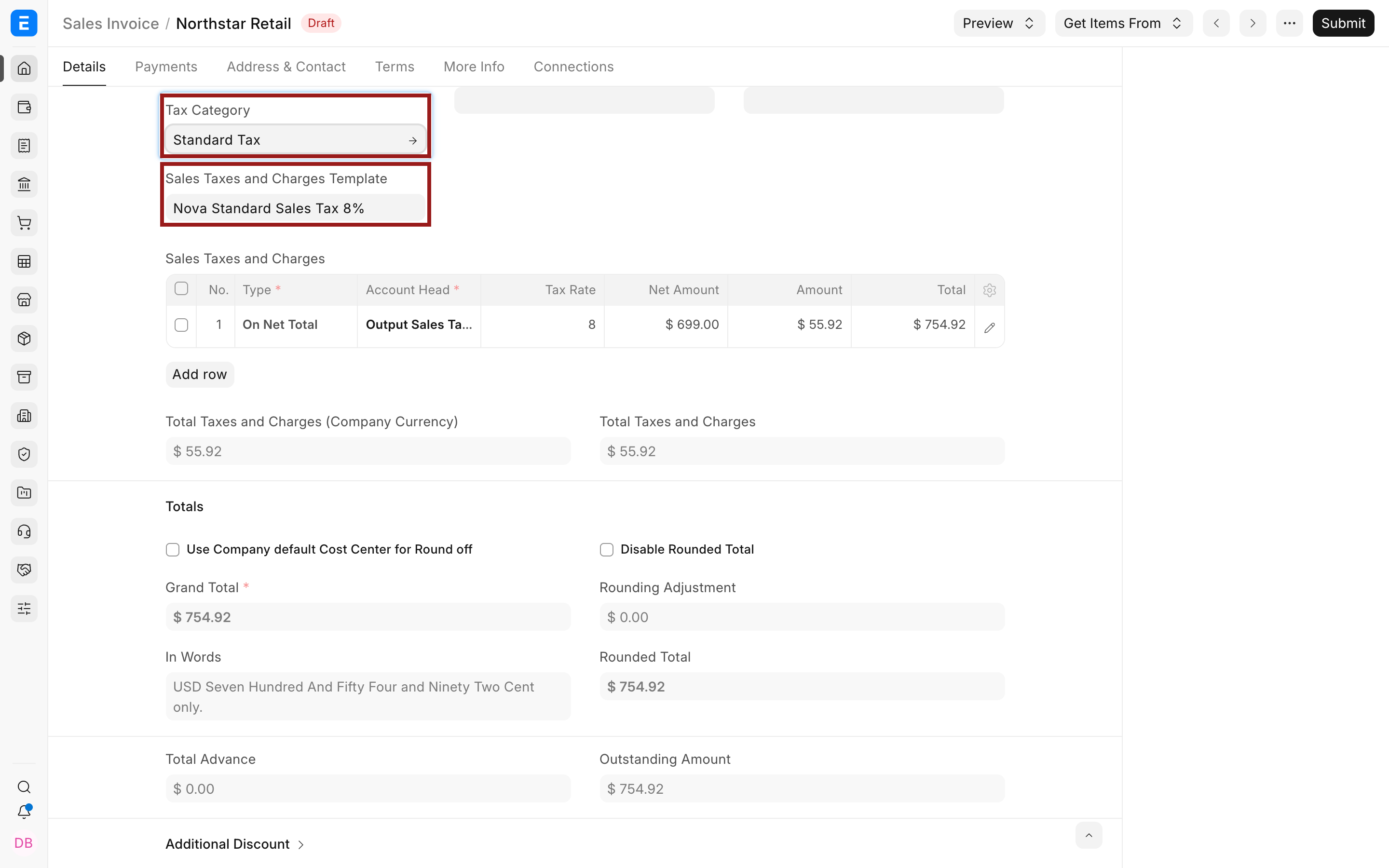
If you change the Tax Category after you add items, check the Item Tax Template on each item row and the tax table again. If an item does not refresh, remove the row and add the item again.
Troubleshooting
| Problem | Cause and fix |
|---|---|
| The Tax Category is empty on the document | Neither the address nor the party has a category. Check the address that Determine Address Tax Category from names, then the party. |
| The category is set, but no template is selected | No Tax Rule matches. Check the rule's Tax Type, company, category, party, address filters, and dates. Check that the template is not disabled. |
| An item gets the standard rate | The Item's Taxes table has no row for this Tax Category, or its Valid From date is later than the document date. |
| The wrong address decides the tax | Check Determine Address Tax Category from and the address selected on the document. The address category wins over the party category. |
| "A template with tax category ... already exists" | Another enabled template of the same type in this company uses the category. Use a Tax Rule to choose between templates, or change the category. |