Review deferred revenue and expense by period
With deferred accounting, ERPNext spreads the amount of an invoice item over its service period. For example, Nova Industries sells a one-year warranty for 1,200 and recognizes 100 of income each month. The Deferred Revenue and Expense report shows, for each deferred invoice and item, the amount recognized in each period, and compares the expected schedule with the entries actually posted.
Prerequisites
- The deferred revenue and deferred expense accounts are set on the company or on the invoice items.
- The invoice items have Enable Deferred Revenue (Sales Invoice) or Enable Deferred Expense (Purchase Invoice) selected, with a Service Start Date and Service End Date.
- The invoices are submitted, and Process Deferred Accounting runs for the periods you review.
Learn how to set this up in Deferred Revenue and Deferred Expense.
Run the report
- Open the Deferred Revenue and Expense report.
- Select the Company.
- In Filter Based On, select Fiscal Year and set Start Year and End Year, or select Date Range and set Start Date and End Date.
- Select the Periodicity: Monthly (default), Quarterly, Half-Yearly, or Yearly.
- In Invoice Type, select Revenue for Sales Invoices or Expense for Purchase Invoices.
- Keep Show with upcoming revenue/expense selected to include the amounts that are scheduled but not yet posted. Clear it to see posted amounts only.
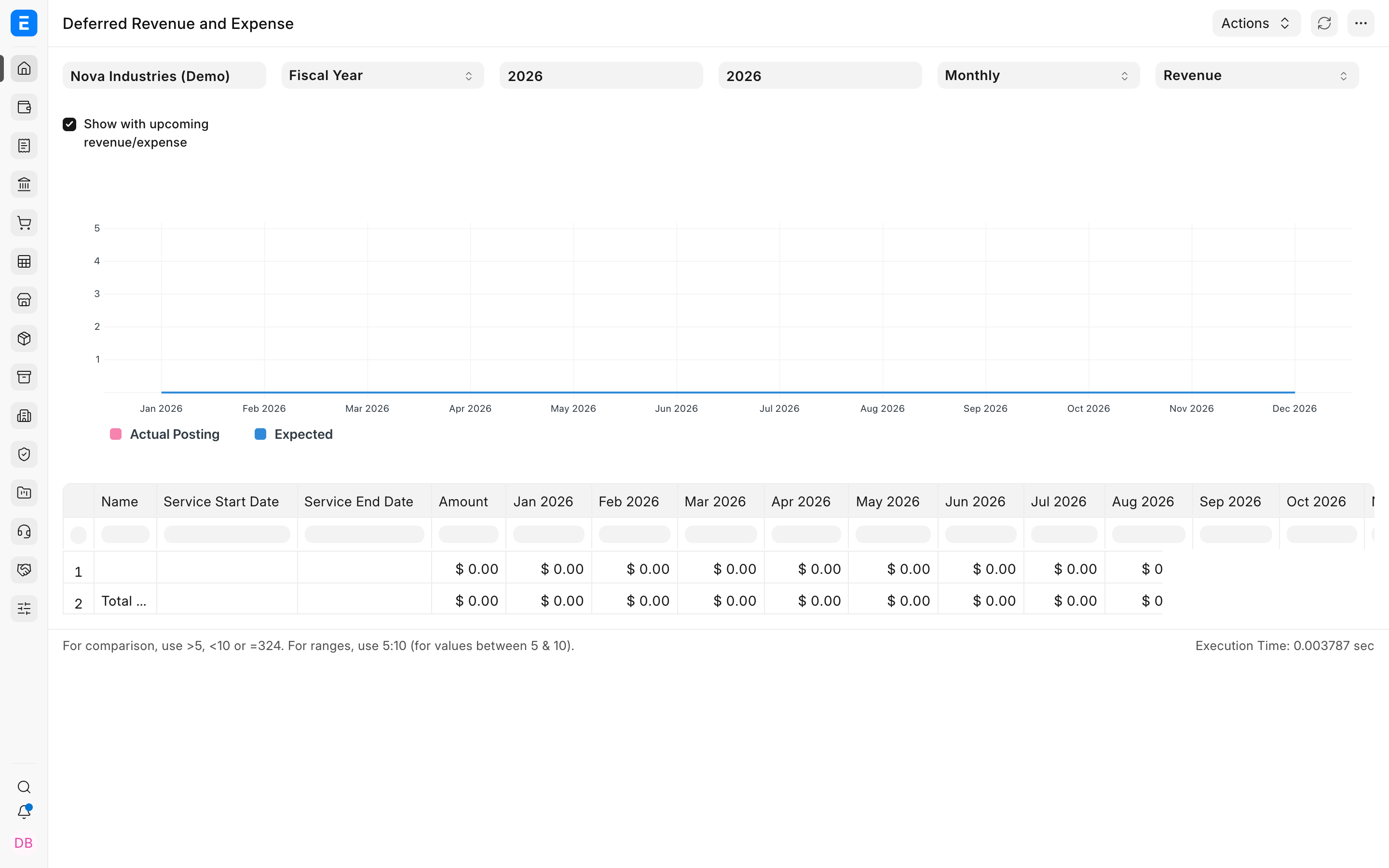
Read the result
| Column or element | Meaning |
|---|---|
| Name | The invoice, with its deferred items indented below it. |
| Service Start Date, Service End Date | The period over which the item is recognized. |
| Amount | The net amount of the item, or the total of the invoice. |
| One column per period | The amount recognized in that period. |
| Total Deferred Income or Total Deferred Expense | The total row for all invoices. |
| Chart | Actual Posting bars show the amounts posted. With upcoming amounts included, an Expected line shows the full schedule. |
A gap between the bars and the line in a past period means that recognition entries are missing for that period.
For deferred expense, select Invoice Type Expense. The report shows prepaid costs from Purchase Invoices in the same way.
Verify the accounting
Open the Journal Entry that deferred accounting created and compare it in the General Ledger:
- Revenue recognition debits the deferred revenue account (a liability) and credits the income account.
- Expense recognition credits the deferred expense account (an asset) and debits the expense account.
Troubleshooting
An invoice does not appear
Check that the invoice is submitted, the item has deferred revenue or expense enabled, the deferred account is set, and the service dates overlap the report period.
Expected and actual amounts differ
Run Process Deferred Accounting for the missing period, and check for failed or draft Journal Entries. In Accounts Settings, check Book Deferred entries based on and whether Submit Journal entries is selected.
An amount is in the wrong period
Check the posting date, the service start and end dates, and Book Deferred entries based on (days or months). Correct the invoice by cancelling and amending it, not by editing ledger entries.