Create a Payment Order
A Payment Order groups supplier payments into one payment run from one company bank account. It records which payments were selected and approved, and hands them to the person who makes the transfers. Submitting a Payment Order does not move money at the bank.
Use a Payment Order when:
- You pay many suppliers together, for example in a weekly payment run.
- One person approves what to pay and another person makes the payments.
- You want one document that lists every payment of the run for the bank upload or for approval.
To pay one supplier invoice, a Payment Order is not needed. Create a Payment Entry from the Purchase Invoice.
A Payment Order can fetch one of two kinds of source document. The Payment Order Type records which kind:
| Payment Order Type | Source | Ledger effect |
|---|---|---|
| Payment Request | Submitted outward Payment Requests with status Initiated | None yet. After you submit the order, you create journal entries from it. |
| Payment Entry | Submitted supplier Payment Entries that are not in another Payment Order | The Payment Entries already posted to the ledger. The order only groups them. |
Prerequisites
- A company Bank Account with Is Company Account selected.
- Bank Account documents for the suppliers, so that each row shows the beneficiary account.
- Submitted outward Payment Requests, or submitted Payment Entries of type Pay from that company bank account.
Create the Payment Order
- Open the Payment Order list and select Add Payment Order.
- Select the Company and the Posting Date.
- Select the Company Bank Account that pays the run. ERPNext fills the Bank and the ledger Account.
- Optional: select a Supplier to fetch the payments of one supplier only.
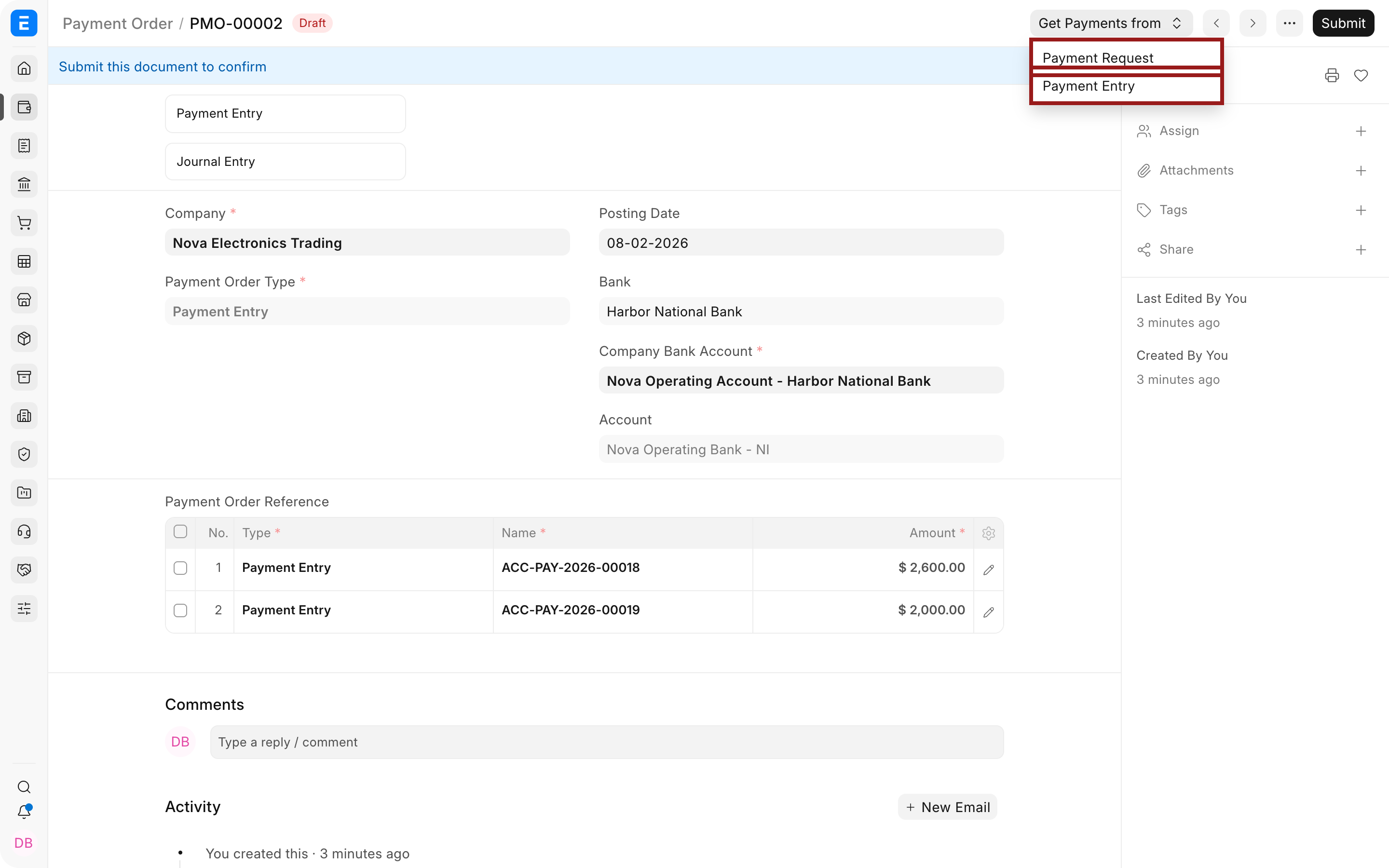
- Select Get Payments from > Payment Request or Get Payments from > Payment Entry.
- In the dialog, select the documents to pay, then select Get Items.
- In the Payment Order Reference table, check each row: the Supplier, the source document, the Amount, the Mode of Payment, and the supplier's Bank Account.
- Check the total of the run, then submit the Payment Order according to your approval process.
When you submit, ERPNext sets the status of each source Payment Request, or the payment order status of each source Payment Entry, to Payment Ordered. If you cancel the Payment Order, the status goes back to Initiated.
Create the journal entries for Payment Requests
For a Payment Order of type Payment Request, create the accounting entries after you submit:
- In the submitted Payment Order, select Create Journal Entries.
- In the For Supplier dialog, select the Supplier. Optional: select a Mode of Payment to include only the rows with that mode.
- Select Submit. ERPNext creates a draft Journal Entry that debits the supplier's payable account for each row and credits the bank account of the order. The entry type is Cash Entry for a mode of type Cash and Bank Entry otherwise.
- Open the Journal Entry, check it, add the bank reference, and submit it.
Repeat for each supplier in the order.
Complete the payment run
The Payment Order does not confirm that the bank paid anyone. Make the transfers through your bank's portal, file upload, or integration. Then match the entries to the bank statement in bank reconciliation.
INFO
Standard ERPNext does not create a bank upload file from a Payment Order. A bank-specific file format needs an integration or a customization.
Troubleshooting
A Payment Request or Payment Entry is not in the list
Check that the source document:
- Is submitted and belongs to the same company.
- Has status Initiated (Payment Request), or is not already in another submitted Payment Order (Payment Entry).
- For a Payment Entry: is of type Pay, and uses the Company Bank Account and Account of the order.
The supplier's bank account is empty in a row
Create a Bank Account for the supplier, with the party set to the supplier. Then remove the row and fetch the document again.
The order has the wrong supplier or amount
Correct the draft before you submit. If the order is submitted, cancel it and amend it. Do not create other payments until you know whether the bank already made the transfer.
Frequently asked questions
Is a Payment Order the same as one Payment Entry for many invoices?
No. A Payment Entry has one party. A Payment Order groups payments to many suppliers. To pay many invoices of one supplier, see Pay or receive against multiple invoices.
How do I control who approves large runs?
Use roles and a workflow on the Payment Order, so that different users prepare, review, and submit it.