Create a Purchase Invoice
A Purchase Invoice records a bill that a supplier sends you. When you submit it, ERPNext records the amount that you owe the supplier (the payable), and posts the expense, the asset or stock value, and the taxes to the General Ledger.
Create it from a Purchase Order or a Purchase Receipt, or enter it directly.
Prerequisites
- A Supplier with the right currency and payment terms.
- Items, or expense accounts, for what you bought.
- A company with a Default Payable Account and a default cost center.
- A Purchase Taxes and Charges Template, if tax applies.
- The Purchase Order or Purchase Receipt, if the invoice must update it.
Check whether the goods have arrived. If a Purchase Receipt exists, create the invoice from it. If the goods and the bill arrive together, you can select Update Stock on the invoice instead of creating a Purchase Receipt.
Create a Purchase Invoice directly
- Open the Purchase Invoice list and select Add Purchase Invoice.
- Select the Supplier. ERPNext fetches the payable account, currency, price list, addresses, and payment terms from the defaults.
- In the Supplier Invoice section, enter the supplier's bill number in Supplier Invoice No and the date printed on the bill in Supplier Invoice Date.
- Check the Posting Date and the Due Date.
- In the Items table, add the items with the billed quantity and rate.
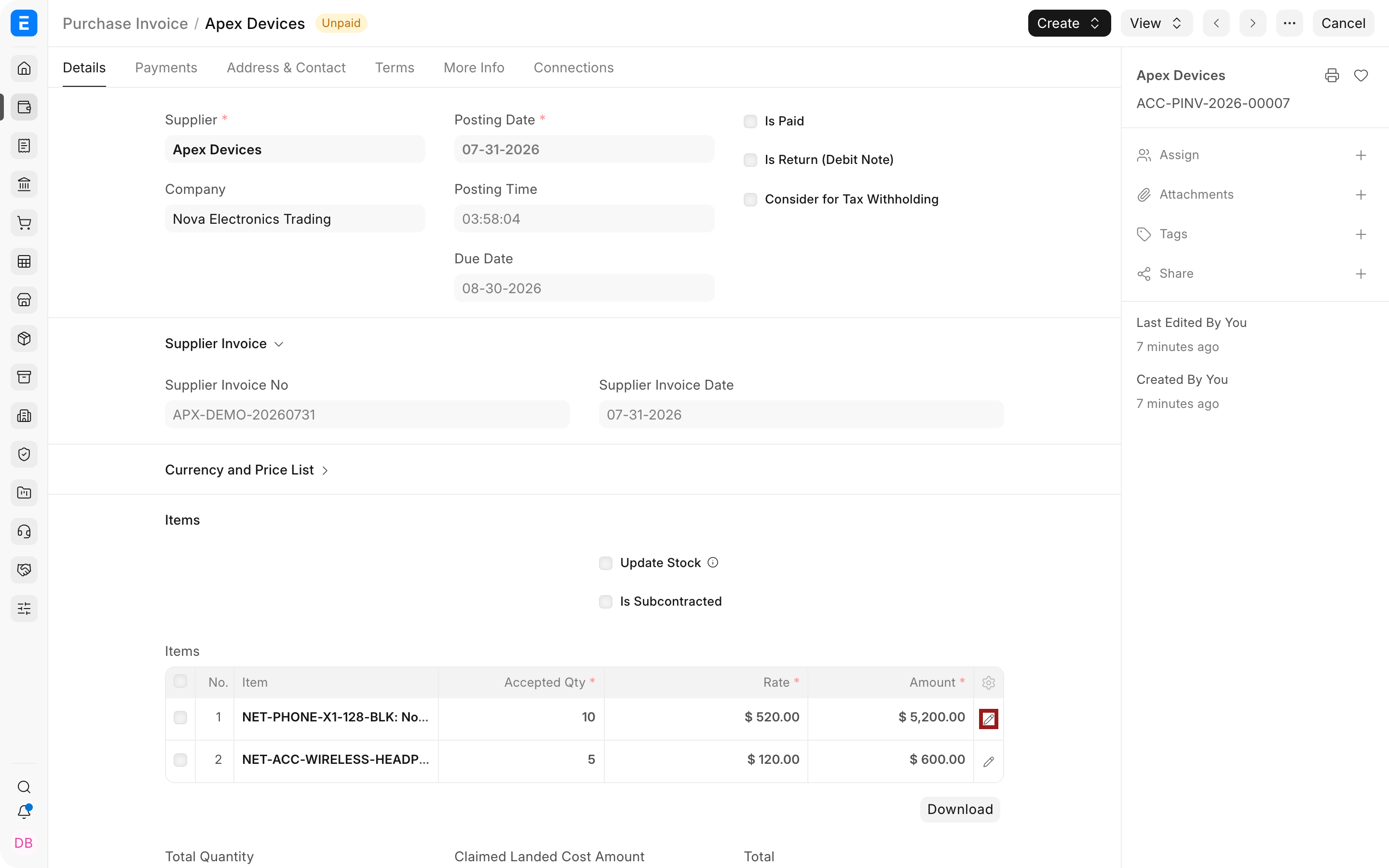
- To see all the fields of a row, select the edit icon at the end of the row. Check the Accepted Qty, the Rate, the UOM, the Expense Head (the expense account), the Cost Center, the Accepted Warehouse, and any linked Purchase Order or Purchase Receipt row.
- Check the taxes, discounts, payment schedule, rounding, and Grand Total.
- Save, and compare the draft with the supplier's bill.
- Select Submit. ERPNext posts the ledger entries.
In the Items table, a dot before the item code shows stock availability: green means in stock, red means out of stock.
Create a Purchase Invoice from another document
From a Purchase Order
Open a submitted Purchase Order, select Create, and then select Purchase Invoice. ERPNext copies the supplier, items, quantities, rates, taxes, and references. Keep only the quantities billed now. After you submit, the billed percentage of the order goes up.
Use this route when the bill arrives before the goods, or when you do not use Purchase Receipts for the purchase.
From a Purchase Receipt
Open a submitted Purchase Receipt, select Create, and then select Purchase Invoice. ERPNext copies the received quantities and the receipt references. The invoice clears the Stock Received But Not Billed amount that the receipt posted, and creates the payable.
Use this route when one team receives goods and another team checks the bills.
With Get Items From
In a new Purchase Invoice, select Get Items From, and then select Purchase Order or Purchase Receipt. You can pick several orders or receipts of the same supplier, when one bill covers them all.
Without an order or receipt
Enter the invoice directly for a bill that has no order or receipt, such as a utility bill, a professional service, rent, or a small approved expense. A direct invoice creates the payable, but does not update any Purchase Order.
Recurring supplier bills
For recurring charges, use Auto Repeat to copy a reference invoice on a schedule, or a Subscription for a supplier when billing follows a plan and a service period.
Important fields
| Field | What it controls |
|---|---|
| Supplier | The party that you owe. It supplies the currency, payable account, tax, and payment defaults. |
| Supplier Invoice No | The supplier's bill number. It helps to find duplicates and to match the bill in an audit. |
| Supplier Invoice Date | The date on the supplier's bill. |
| Posting Date and Posting Time | The date on which the invoice affects the accounts and, with Update Stock, the stock. To change them, select Edit Posting Date and Time. |
| Due Date | The date by which you must pay. A payment terms template can calculate it. |
| Credit To | The payable account credited on submit. Usually one shared payable account, with the supplier recorded as the party. |
| Update Stock | Records the receipt of stock with the invoice. Leave it clear when a Purchase Receipt already recorded the stock. |
| Is Paid | Records the payment with the invoice. Select the Mode of Payment and the Cash/Bank Account in the Payments section. |
| Is Return (Debit Note) | Makes the invoice a debit note that reduces or reverses a supplier bill. |
| Consider for Tax Withholding | Calculates withholding tax for the supplier. Check the category and the threshold before you submit. Learn more about Tax Withholding Category. |
| Items | What you bought. Each row has its own expense account, warehouse, cost center, project, and Item Tax Template. |
| Purchase Taxes and Charges | Taxes, freight, duty, and other additions or deductions. |
| Payment Schedule | Splits the amount into due dates, based on the payment terms. |
| Set Advances and Allocate (FIFO) | Applies advance payments made to the supplier to the invoice, oldest first. |
| Hold Invoice | Blocks the invoice from payment until the Release Date. |
Taxes, currency, and additional charges
Select the buying price list and the currency before you add items. ERPNext stores the exchange rate that converts the invoice to the company currency. Check it for a foreign-currency bill.
Select a tax template, or add tax rows by hand. Check whether freight or duty should be added to the stock value of the items. To allocate costs that arrive after the receipt, use a Landed Cost Voucher. Learn more about tax in valuation or total.
For country-specific taxes, follow the documentation of your regional app.
What happens when you submit
Submitting a Purchase Invoice:
- credits the supplier's payable account;
- debits expense, asset, stock, or Stock Received But Not Billed, depending on the flow;
- posts the taxes and charges;
- updates the billed quantities on linked Purchase Orders and Purchase Receipts;
- creates Payment Ledger entries, which the Accounts Payable report and reconciliation use.
Learn more about the ledger effect of the purchase cycle.
Pay the invoice and next steps
After you submit, the Create menu offers:
- Payment: creates a Payment Entry.
- Payment Request: creates a Payment Request, which you can add to a Payment Order.
- Return / Debit Note: creates a debit note against the invoice.
- Block Invoice: puts the invoice on hold, so that it cannot be paid until a release date.
To see the ledger entries, select View, and then select Accounting Ledger. If the invoice updated stock, check the stock ledger too.
To match an existing payment to the invoice, use Payment Reconciliation.
Purchase Invoice status
| Status | Meaning |
|---|---|
| Draft | Saved, not submitted. No ledger effect. |
| Unpaid | Submitted, with an outstanding amount that is not yet due. |
| Overdue | The due date has passed, and an amount is still outstanding. |
| Partly Paid | Payments or credits cover part of the invoice. |
| Paid | The outstanding amount is zero. |
| Debit Note Issued | A submitted debit note against the invoice brought its outstanding amount to zero. |
| Return | The document is itself a submitted debit note. |
| Internal Transfer | The invoice is from an internal supplier that represents the same company. |
| Cancelled | The invoice was cancelled, and its ledger entries were reversed. |
Troubleshooting
The stock value is counted twice
A Purchase Receipt already recorded the stock. Do not select Update Stock on the invoice when a receipt recorded the same goods.
A Purchase Order or Purchase Receipt is missing from Get Items From
Check that it is submitted, belongs to the same supplier and company, has a quantity left to bill, and is not closed. Check your permissions too.
The expense account is wrong
ERPNext takes it from the Item, the Item Group, the company defaults, or the linked receipt. Open the item row and check the Expense Head and the accounting dimensions before you submit.
You cannot create a payment
Check that the invoice is submitted, not on hold, and has an outstanding amount. Check that the payable account is valid for the supplier and company.
"Supplier Invoice No exists in Purchase Invoice ..."
Check Supplier invoice number uniqueness is selected in Accounts Settings, and another invoice of the same supplier has this bill number. Open that invoice and check whether the bill is already recorded. Do not change the number only to pass the check.
Frequently asked questions
Can I bill only part of a Purchase Order?
Yes. Create the invoice from the order and keep only the quantity billed now. Later invoices can bill the rest.
Should services use Update Stock?
No. Service items do not need a stock receipt. Post them to the right expense or asset account.
Can I change a submitted Purchase Invoice?
The accounting fields of a submitted invoice cannot change. Cancel and amend it if your permissions and the period allow it, or create a debit note for a traceable reduction or return.