Send a dunning letter for overdue invoices
A Dunning is a formal reminder to a customer who has not paid by the due date. It lists the overdue Sales Invoice instalments, adds optional interest and a fee, stores the letter text that you send, and links the payment back to the reminder. A Dunning does not create a new sale.
Use it when ordinary follow-up is not enough and your collection policy needs a formal notice.
Prerequisites
- The Sales Invoice is submitted, has an outstanding amount, and at least one payment schedule row is past its due date.
- An income account and a cost center for interest and fees.
- At least one Dunning Type (see the next section).
Set up a Dunning Type
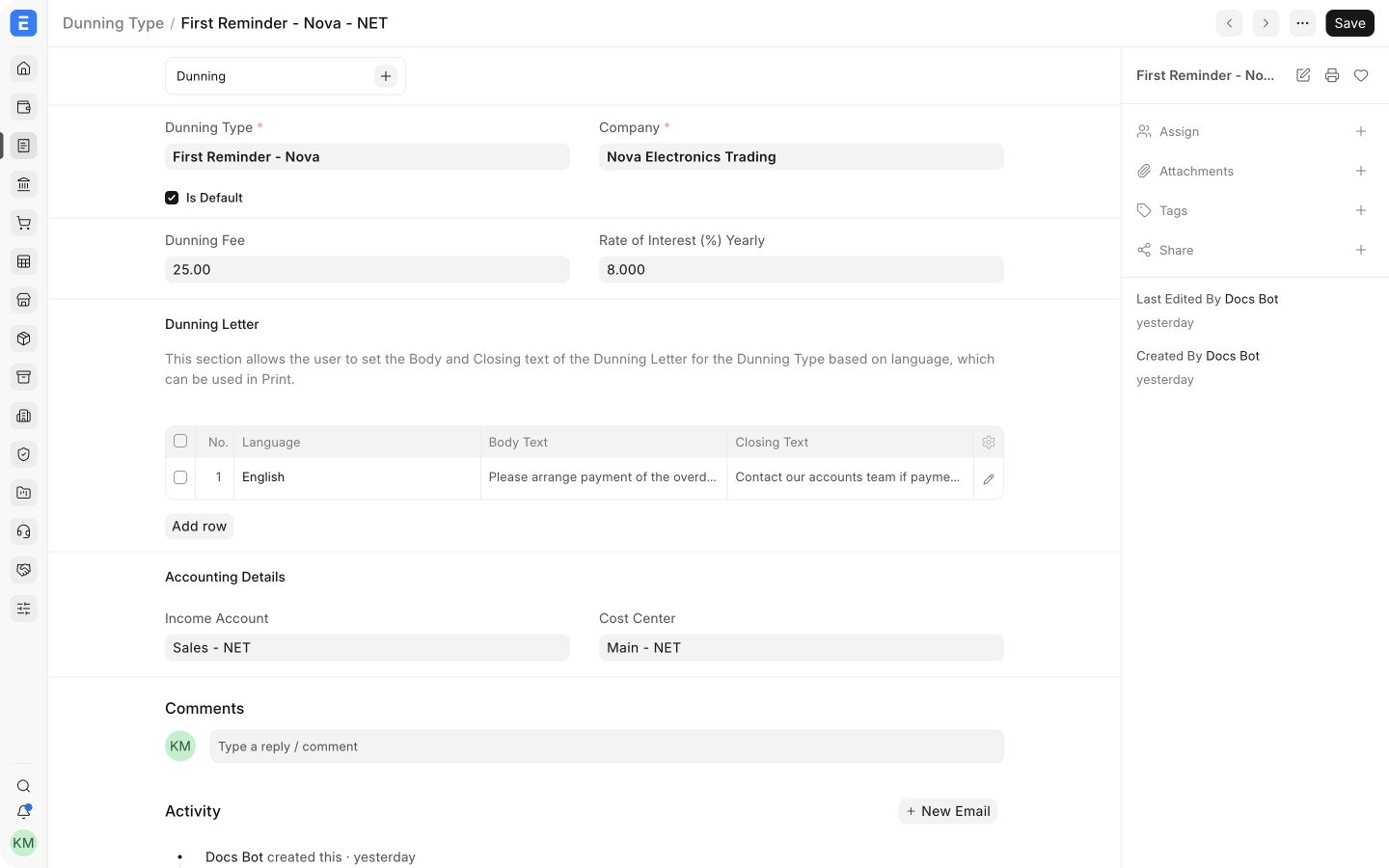
A Dunning Type stores reusable defaults for a reminder. Create one for each stage of your process, for example "First reminder", "Second reminder", and "Final notice".
- Open the Dunning Type list and select Add Dunning Type.
- Enter a name in Dunning Type, and select the Company.
- Fill in the fields below, and save.
| Field | What it controls |
|---|---|
| Is Default | Makes this the default type. |
| Dunning Fee | A fixed charge added to the reminder. |
| Rate of Interest (%) Yearly | The yearly rate used to calculate interest on the overdue amount. |
| Dunning Letter section | The Body Text and Closing Text of the letter, one row for each Language. Select Is Default Language on one row. |
| Income Account | The account credited when the customer pays the interest and fee. |
| Cost Center | The cost center for the interest and fee. |
Create a Dunning
From an overdue Sales Invoice
- Open the overdue Sales Invoice.
- Select Create, and then select Dunning. ERPNext adds the overdue payment schedule rows to the Overdue Payments table.
- Select a Dunning Type, or enter the interest rate, fee, and letter text yourself.
- Check the Overdue Payments, the Total Interest, the Dunning Fee, the Grand Total, the Income Account, and the Cost Center.
- Save and submit.
From the Dunning list
- Open the Dunning list and select Add Dunning.
- Select the Customer and the Company.
- Select Fetch Overdue Payments. In the dialog, select the overdue invoices and their payment schedule rows, and then select Get Items.
- Complete the details as above, and then save and submit.
You cannot add rows to Overdue Payments by hand. Use Fetch Overdue Payments.
To send the letter, print or email the Dunning. The Printing Settings section sets the Print Language, the Body Text, and the Closing Text.
Collect the payment
When the customer pays the invoices with the interest and fee:
- Open the submitted Dunning.
- Select Create, and then select Payment.
- Check the referenced invoices and the amount. ERPNext adds the interest and fee as a row in the Payment Deductions or Loss table, with the description "Interest and/or dunning fee".
- Submit the Payment Entry.
When the invoices, interest, and fee are paid, ERPNext sets the Dunning to Resolved. To close a Dunning without a payment, for example after a settlement, select Resolve on the submitted Dunning.
Dunning status
| Status | Meaning |
|---|---|
| Draft | Not submitted yet. |
| Unresolved | Submitted, and an overdue amount, interest, or fee is still unpaid. |
| Resolved | Paid in full, or resolved by hand. |
| Cancelled | The submitted Dunning was cancelled. |
Troubleshooting
Dunning is not in the Create menu of the invoice
Check that the invoice is submitted, has an outstanding amount, and has a payment schedule row with a due date in the past.
Interest or the fee posts to the wrong account
Check the Income Account and the Cost Center on the Dunning, and on its Dunning Type, before you create the payment.
The Dunning stays Unresolved
Open the linked Payment Entry. Check that it is submitted and that it covers all the invoices, the interest, and the fee.