Subscription Settings
Subscription Settings controls how every Subscription on the site handles unpaid invoices and partial periods. Set it before you rely on automatic recurring billing.
Settings
| Setting | Default | What it controls |
|---|---|---|
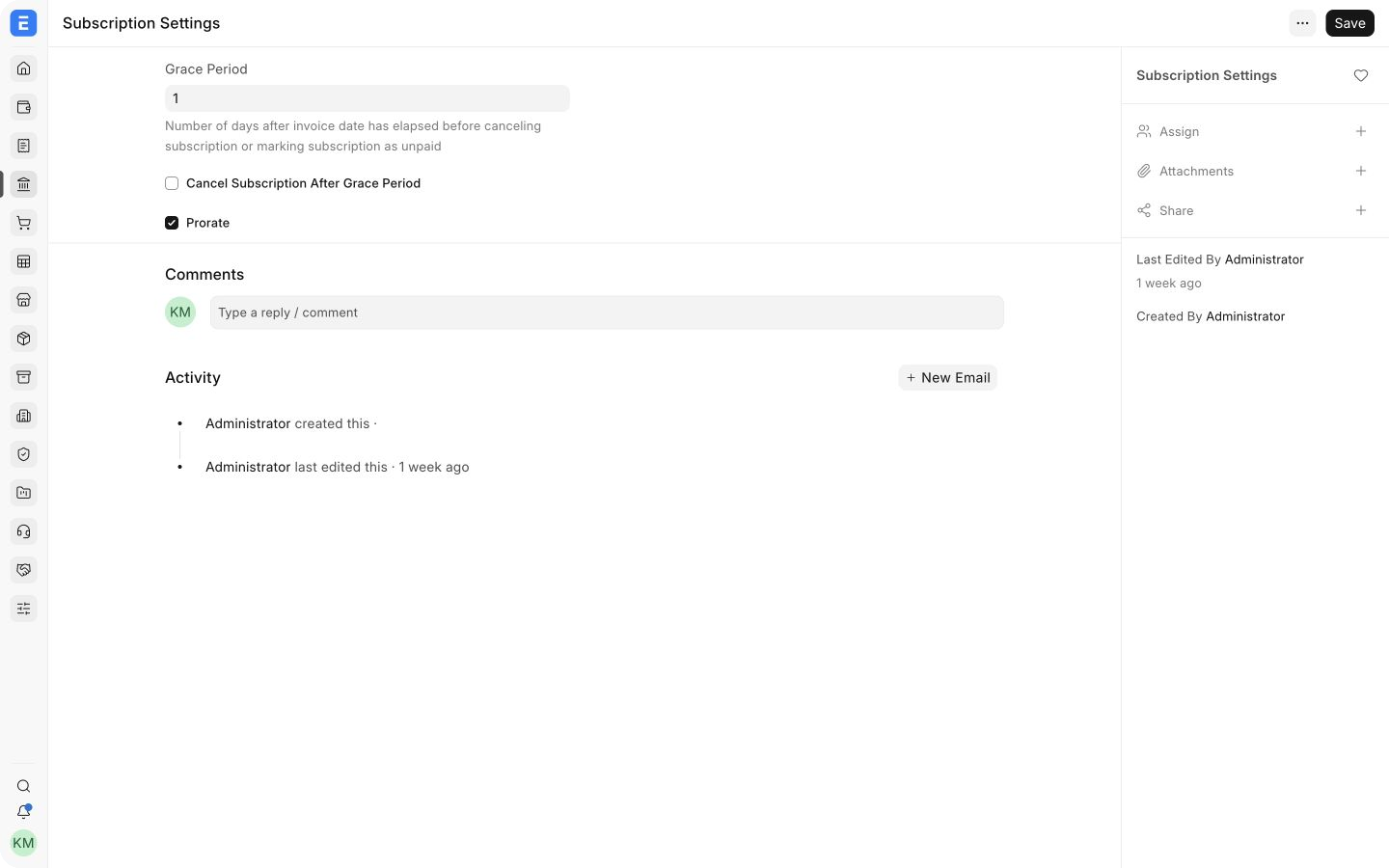
| Grace Period | 1 | The number of days after the due date of the current invoice before ERPNext marks the Subscription Unpaid or cancels it. During these days, the status is Grace Period. |
| Cancel Subscription After Grace Period | Clear | When selected, ERPNext cancels a Subscription whose invoice is still unpaid after the grace period. When clear, the status becomes Unpaid. |
| Prorate | Selected | Charges only for the part of a billing period that was used, for example when a subscription billed at the end of the period is cancelled early. For plans priced by Monthly Rate, it also reduces the charge when the period does not start on the first day of a month. |
Choose a grace period
Match the grace period to your collection process. A short period stops service quickly, but can cancel a customer after a short payment delay. A long period is more forgiving, but lets unpaid amounts grow.
These settings apply to future subscription processing. They do not cancel or reverse invoices that already exist.
Test before you go live
- Create a test Subscription with a short billing period.
- Let it create an invoice, and check the due date.
- Test a paid invoice and an unpaid invoice.
- Check that the Subscription moves through Active, Grace Period, and Unpaid or Cancelled as you expect.
- Only then select Cancel Subscription After Grace Period for live subscriptions.