Select templates with a Tax Rule
A Tax Rule selects a Sales or Purchase Taxes and Charges Template when a document matches the rule's conditions. Users then do not need to know which template applies to each customer, supplier, location, or period. The rule only selects the template. The template holds the accounts, rates, and calculation types.
Prerequisites
- The Sales Taxes and Charges Template or Purchase Taxes and Charges Template that the rule selects.
- Optional: a Tax Category for each treatment, assigned to parties or addresses.
- A plan: for each treatment, the smallest set of conditions that makes it unique. A few rules that do not overlap are easier to check than many broad rules.
Create a Tax Rule
- Open the Tax Rule list and select Add Tax Rule.
- Set Tax Type to Sales or Purchase.
- Select the Sales Tax Template or Purchase Tax Template.
- In Filters, fill in only the conditions that the documents must match. See the table below.
- Optional: in Validity, set From Date and To Date.
- Set Priority and Company.
- Save.
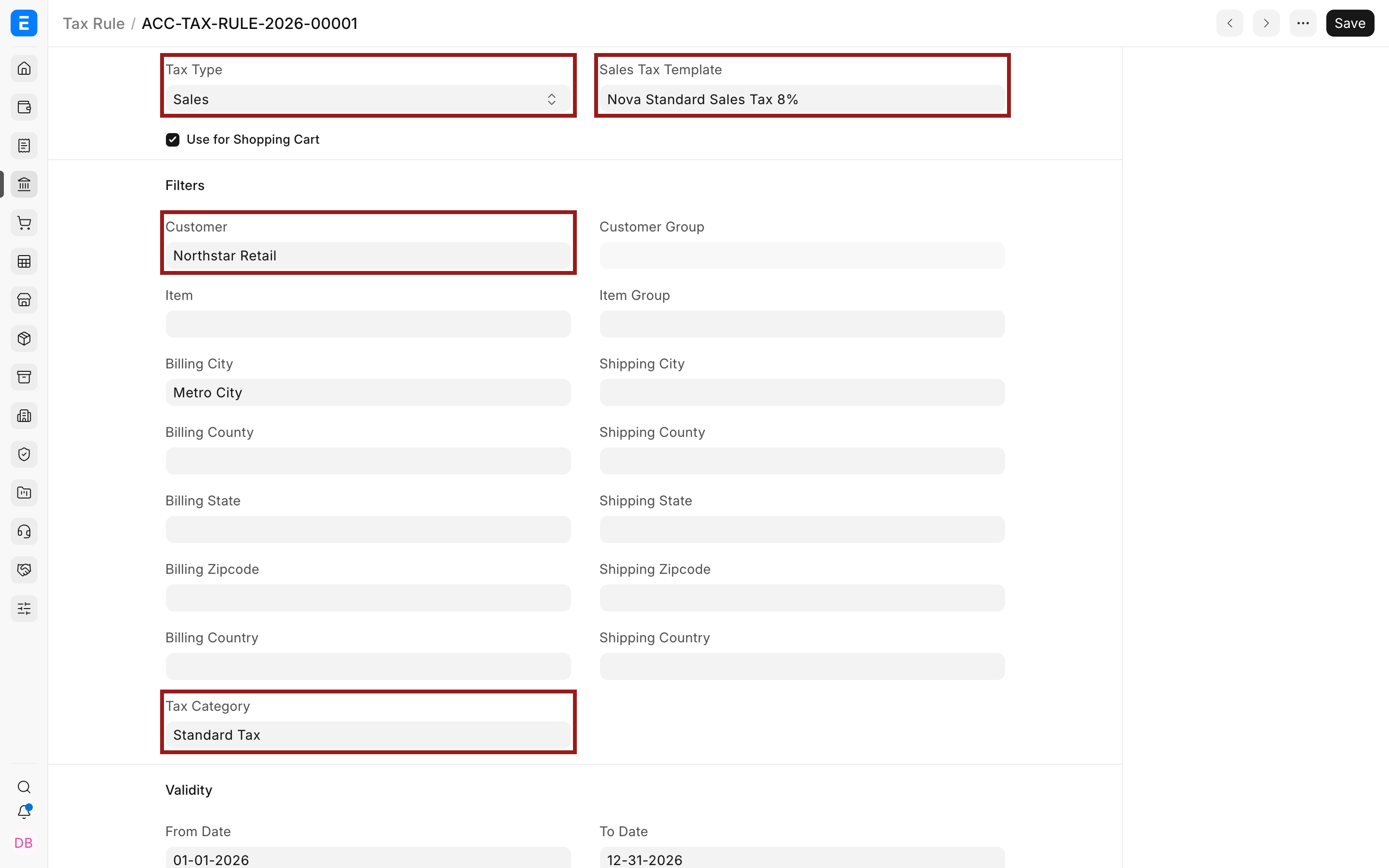
Fields
| Field | What it does |
|---|---|
| Tax Type | Sales or Purchase. |
| Use for Shopping Cart | Selected by default. Lets the website checkout of the Webshop app use the rule. It has no effect on documents that you create in ERPNext. |
| Customer or Supplier | Applies the rule to one party. |
| Customer Group or Supplier Group | Applies the rule to the parties in the group and its child groups. |
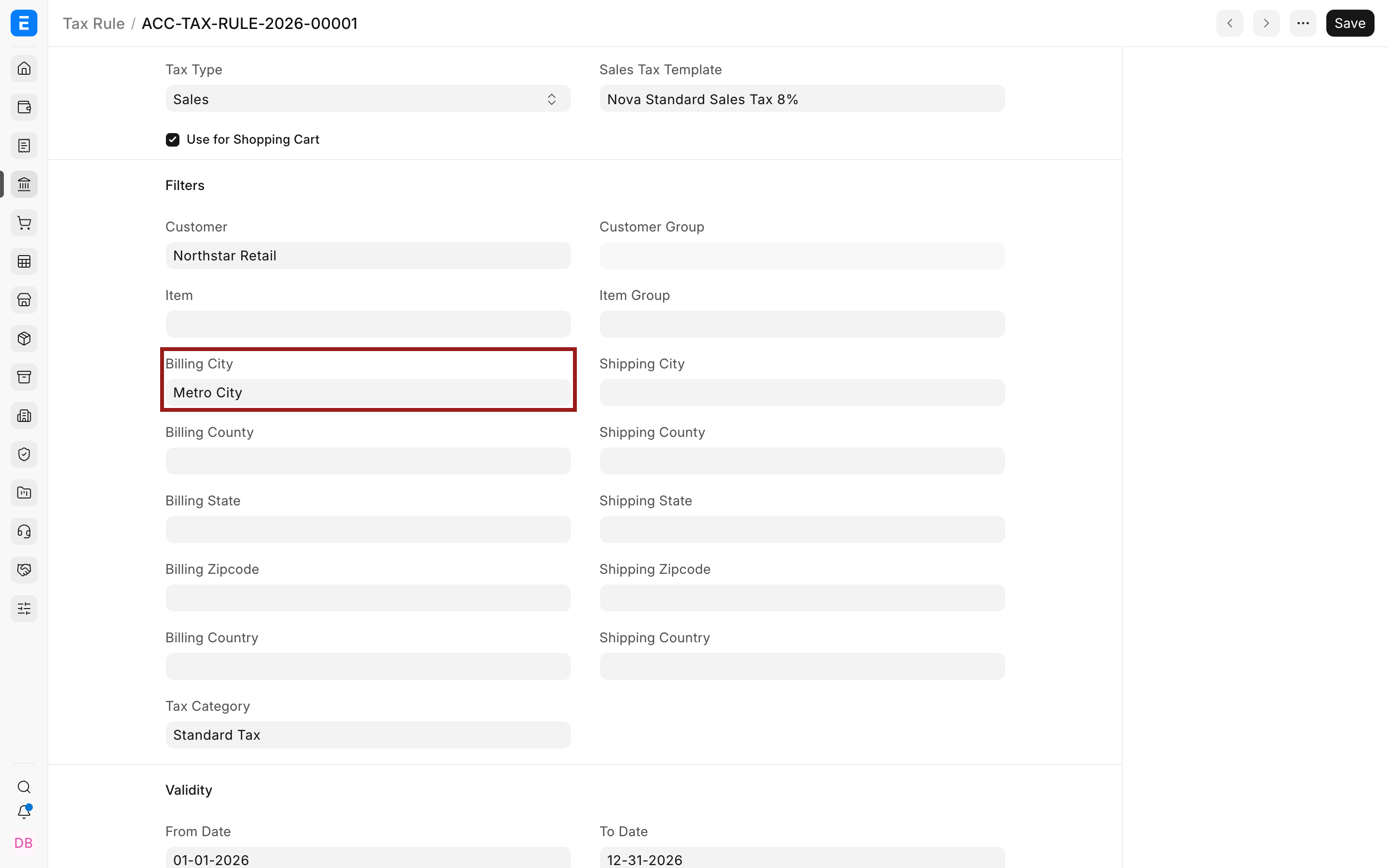
| Billing City, Billing County, Billing State, Billing Zipcode, Billing Country | Match the billing address on the document. |
| Shipping City, Shipping County, Shipping State, Shipping Zipcode, Shipping Country | Match the shipping address on the document. |
| Tax Category | Matches the Tax Category of the document. |
| Item, Item Group | See the note below. |
| From Date, To Date | The period in which the rule applies, compared with the posting date. |
| Priority | Decides between rules that match equally well. A higher number wins. The default is 1. |
| Company | Applies the rule to one company. |
An empty filter matches any value, with one exception: Tax Category. A rule with a Tax Category matches only documents with exactly that category. A rule without a Tax Category matches only documents that have no category.
WARNING
ERPNext does not send the item or the item group when it looks for a Tax Rule for a document. The Item and Item Group filters therefore do not restrict which documents a rule applies to. To tax items differently, use an Item Tax Template.
How ERPNext picks a rule
When you select the party on a document, ERPNext collects the company, party, party group, the address fields of the billing and shipping addresses, the Tax Category, and the posting date. Then it:
- Finds every rule of the right Tax Type whose filled filters all match, and whose dates include the posting date.
- Picks the rule that matches the most conditions.
- If two rules match the same number of conditions, picks the rule with the higher Priority number.
- Sets the rule's template on the document, unless the template is disabled.
If no rule matches, a new document keeps the company's default template, if one is set.
You cannot save two rules with the same conditions, overlapping dates, and the same priority. ERPNext shows "Tax Rule Conflicts with ...". Give the specific exception a higher priority or change the dates.
Location conditions
The address fields come from the billing and shipping addresses selected on the document, not from the party master. Keep address data consistent, for example always the same spelling of a state, so that the values match the rule exactly.
Rate changes
When a rate changes at the start of a tax period, create the new rule in advance with a From Date on the change date. Set a To Date on the old rule so that the periods do not overlap.
Check the result
- Create a draft Sales Invoice, Purchase Invoice, Quotation, or order that should match the rule.
- Select the company, the party, and the addresses. Check the Tax Category.
- Check the selected template, each tax row, and the Grand Total.
Test each rule with a document that should match and with one that should not.
Troubleshooting
| Problem | Cause and fix |
|---|---|
| No template is selected | Check Tax Type, company, dates, and every filled filter against the document. Check that the rule's Tax Category equals the document's category, including when one of them is empty. Check that the template is not disabled. |
| The wrong rule wins | Another rule matches more conditions, or has a higher Priority number. Make the conditions distinct or change the priority. |
| A location rule does not match | Compare the city, county, state, zip code, and country of the address on the document with the rule. |
| "Tax Template is mandatory." | Select the Sales Tax Template or Purchase Tax Template. |
| A rule worked for one customer but not another in the same group | The customers have different addresses or Tax Categories. |