Set up tax-inclusive pricing
Use tax-inclusive pricing when the item rate on a sales or purchase document already contains the tax. ERPNext then calculates the tax out of the rate instead of adding it on top.
For an item rate of 108 that includes 8% tax:
| Value | Amount |
|---|---|
| Net amount | 100.00 |
| Tax included in the rate | 8.00 |
| Grand Total | 108.00 |
Without the setting, an 8% row adds 8.64 to 108, and the Grand Total is 116.64.
Prerequisites
- The agreed or displayed price includes tax. Do not use the setting only to reach a wanted Grand Total.
- A Sales Taxes and Charges Template or Purchase Taxes and Charges Template with the tax row.
How ERPNext calculates the net amount
For one inclusive percentage tax:
Net amount = Inclusive rate ÷ (1 + Tax Rate ÷ 100)
Tax        = Inclusive rate − Net amount
For 108 at 8%: 108 ÷ 1.08 = 100, and the tax is 8. Many rates do not divide evenly. For example, 100 at 10% gives a net amount of 90.91 and tax of 9.09, rounded to the currency precision.
Mark the tax row as inclusive
- Open the taxes template, or the tax table of a draft document.
- Open the tax row with the edit icon.
- Select Is this Tax included in Basic Rate?.
- Save.
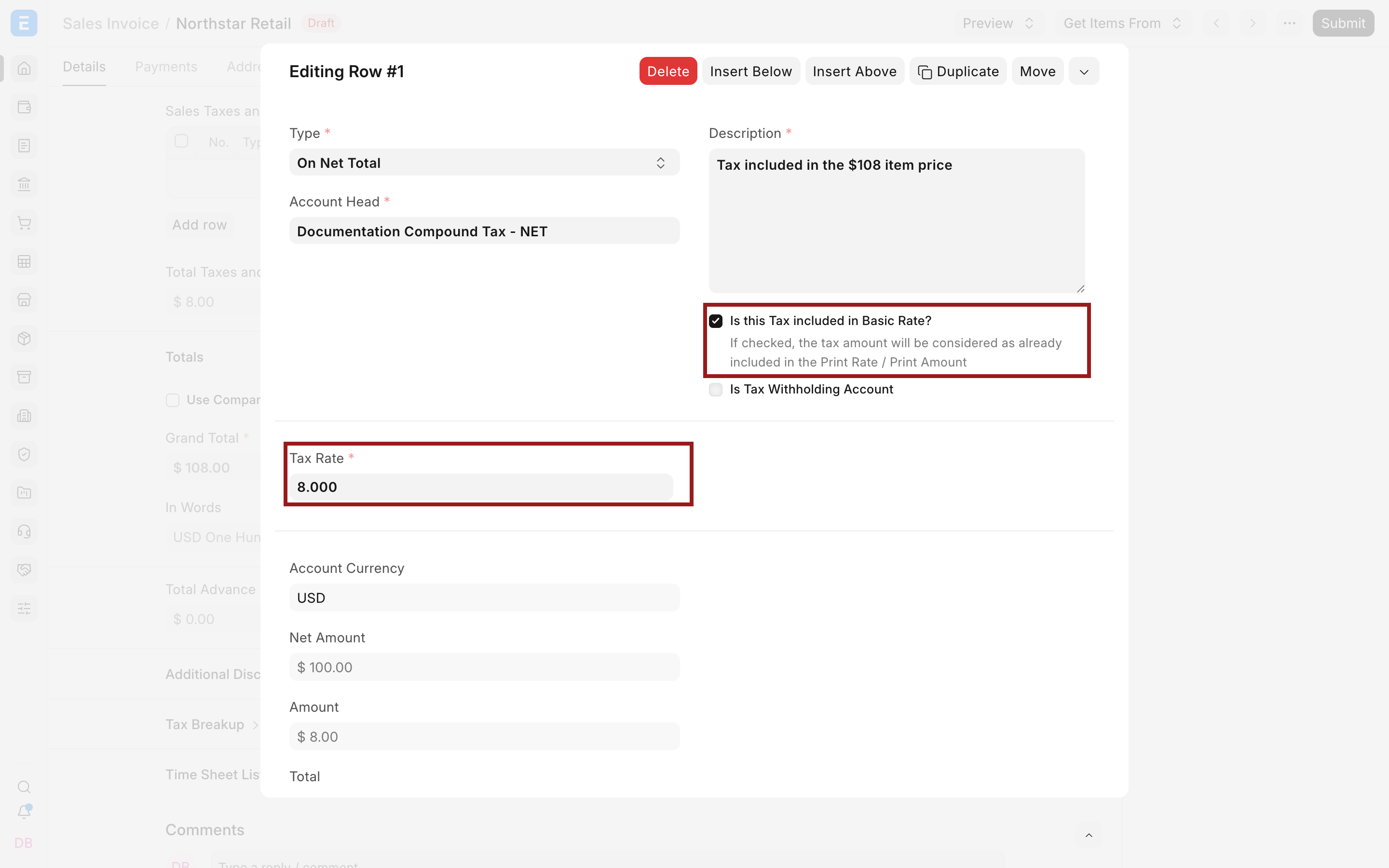
The Type still decides the base of the tax. The checkbox tells ERPNext that the tax is already inside the item rate.
These rows cannot be inclusive:
- A row with Type set to Actual.
- A purchase row with Consider Tax or Charge for set to Valuation.
- A previous-row type that refers to a row that is not inclusive. For On Previous Row Total, every row up to the referenced row must be inclusive.
Enter the inclusive rate on a document
- Create a draft document, for example a Sales Invoice, and select the template.
- In the item row, enter the tax-inclusive Rate, for example 108.
- Check the item's Net Rate (100), the tax Amount (8), and the Grand Total (108).
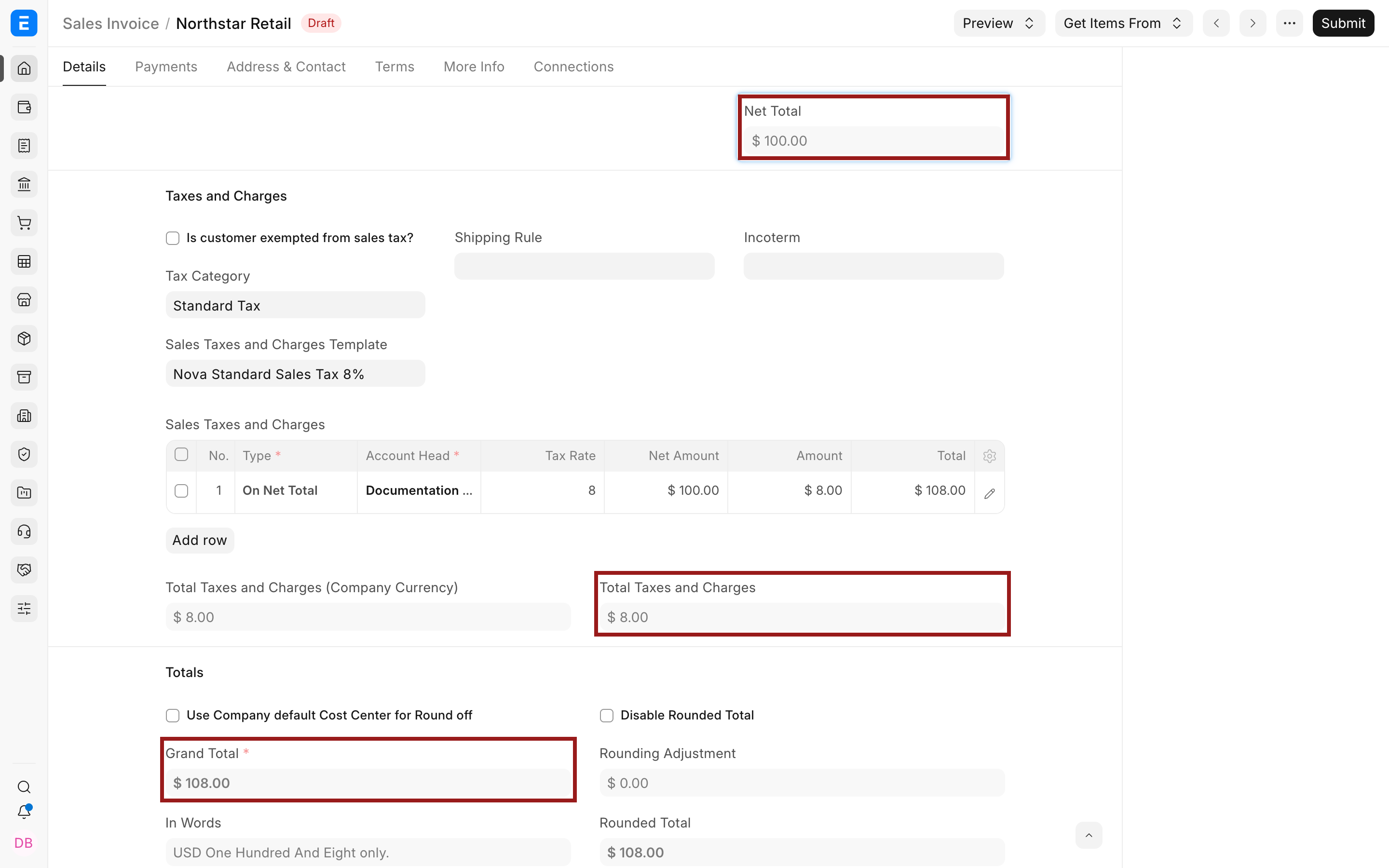
The customer pays 108. On submit, ERPNext credits 100 to income and 8 to the tax account, and debits 108 to the customer.
The same setting works on purchase rows when the supplier's rate includes tax.
To print the inclusive tax on invoices, see Show inclusive tax in print in Accounts Settings, tab Invoice and Billing. Local rules can require the tax to show separately even when it is included in the price.
Several inclusive taxes or mixed rates
- With more than one inclusive tax, the row order and types decide the result. Calculate a small example by hand and compare it with the document. See Tax calculation types.
- With Item Tax Templates, each item uses its own rate, but follows the inclusive setting of the matching row. One row cannot be inclusive for some items and exclusive for others.
- A discount changes the taxable value. Test the discount method that you use and compare the Net Rate, tax, and Grand Total.
Troubleshooting
| Problem | Cause and fix |
|---|---|
| Tax is added on top of the price | Is this Tax included in Basic Rate? is not selected on the row of the document. |
| The tax differs by 0.01 | Rounding. Check the currency precision, quantity, and the rounding adjustment of the document. |
| Income includes the tax | The inclusive row is missing or uses the wrong Account Head. Check the tax table and the General Ledger. |
| "Charge of type 'Actual' in row ... cannot be included in Item Rate or Paid Amount" | Clear the checkbox on the Actual row. |
| "To include tax in row ... in Item rate, taxes in rows ... must also be included" | Mark the referenced rows as inclusive too. |