Design financial statements with a report template
A Financial Report Template is a reusable layout for a financial statement. It defines which lines appear, which accounts feed each line, how subtotals are calculated, and how lines are formatted. You can keep one concise Profit and Loss layout for the board and an IFRS-style Cash Flow layout for lenders, without changing your Chart of Accounts.
A template controls presentation only. It does not make your books compliant with IFRS, US GAAP, or local rules. Recognition, valuation, and disclosure still need professional review.
Prerequisites
- You know the lines, groupings, signs, and formulas the statement needs.
- If you want to select accounts by category, each account in the Chart of Accounts has an Account Category. Categories let one template work across companies with different account names.
Standard templates
ERPNext includes these templates:
| Template | Report Type |
|---|---|
| Standard Balance Sheet (IFRS) | Balance Sheet |
| Horizontal Balance Sheet (Columnar) | Balance Sheet |
| Standard Profit and Loss (IFRS) | Profit and Loss Statement |
| Horizontal Profit and Loss (Columnar) | Profit and Loss Statement |
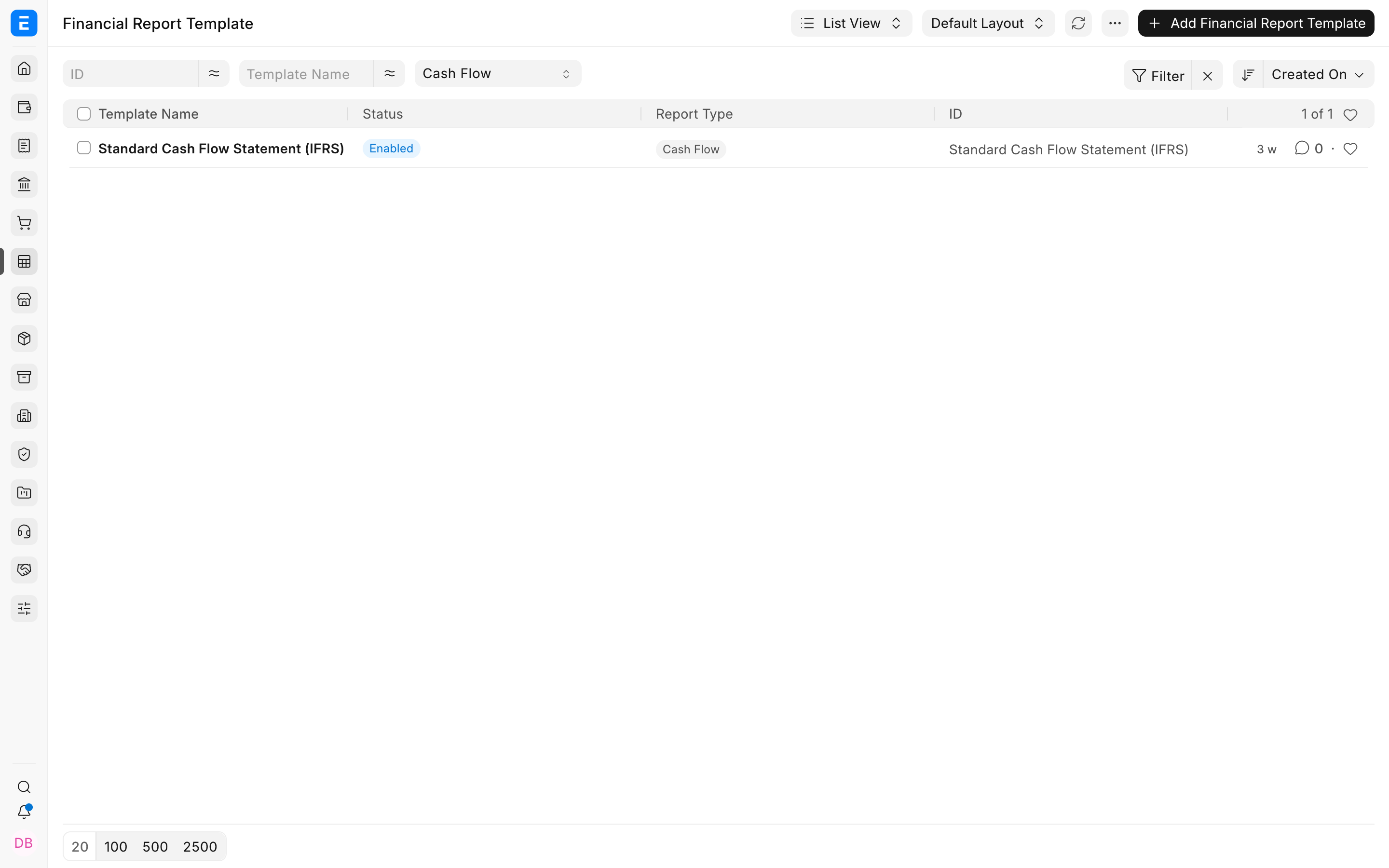
| Standard Cash Flow Statement (IFRS) | Cash Flow |
| Financial Ratios Analysis | Custom Financial Statement |
Duplicate a standard template before you change it, so the original stays available as a baseline.
Create a template
- Open the Financial Report Template list and create a template, or duplicate a standard one.
- Enter a Template Name, for example "Board P&L".
- Select the Report Type: Profit and Loss Statement, Balance Sheet, Cash Flow, or Custom Financial Statement. The template is then available in the Report Template filter of that report.
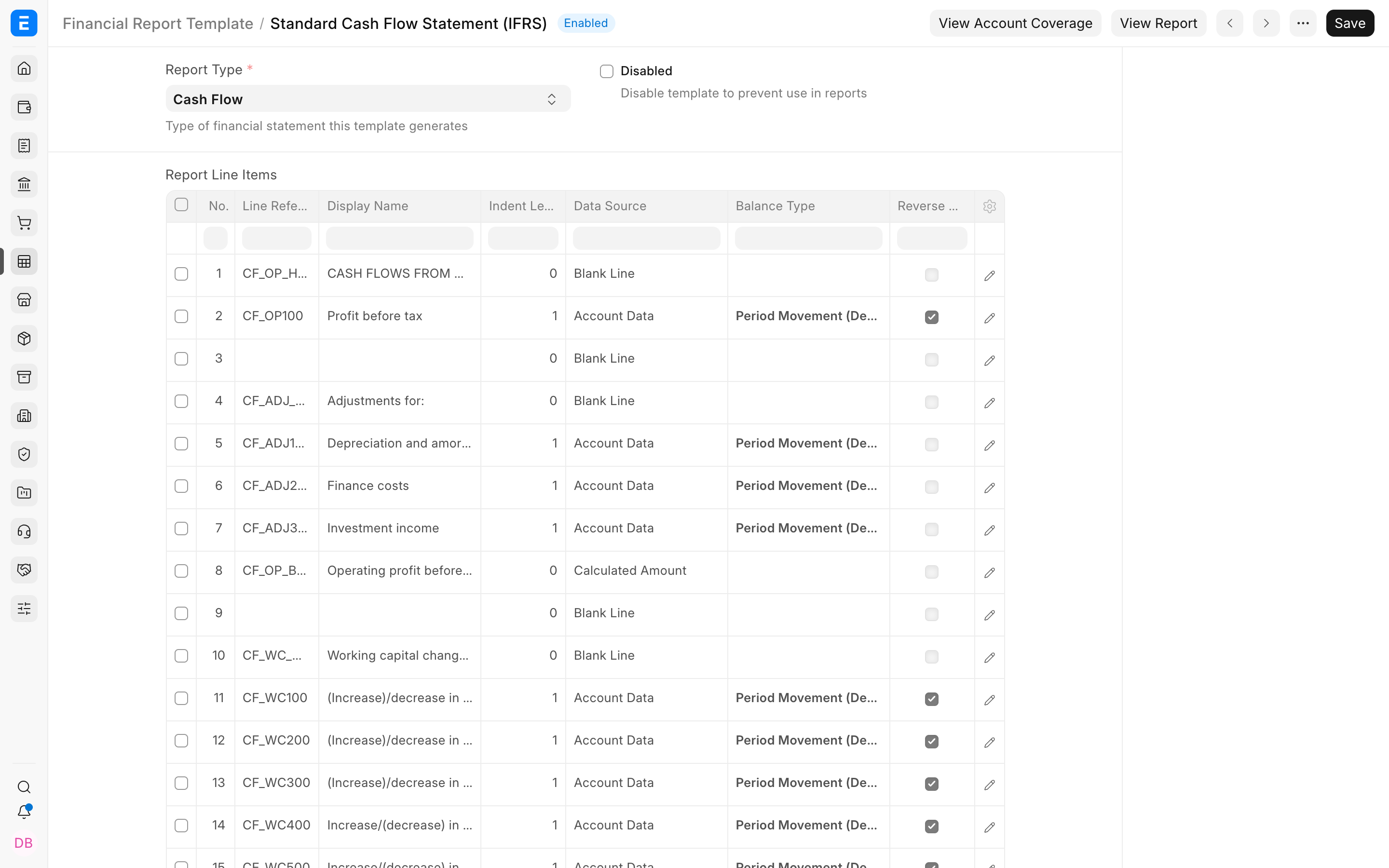
- In Report Line Items, add one row for each line, in the order it appears in the report. Set the fields described in Row fields.
- Save the template. ERPNext checks the rows and shows any errors (see Troubleshooting).
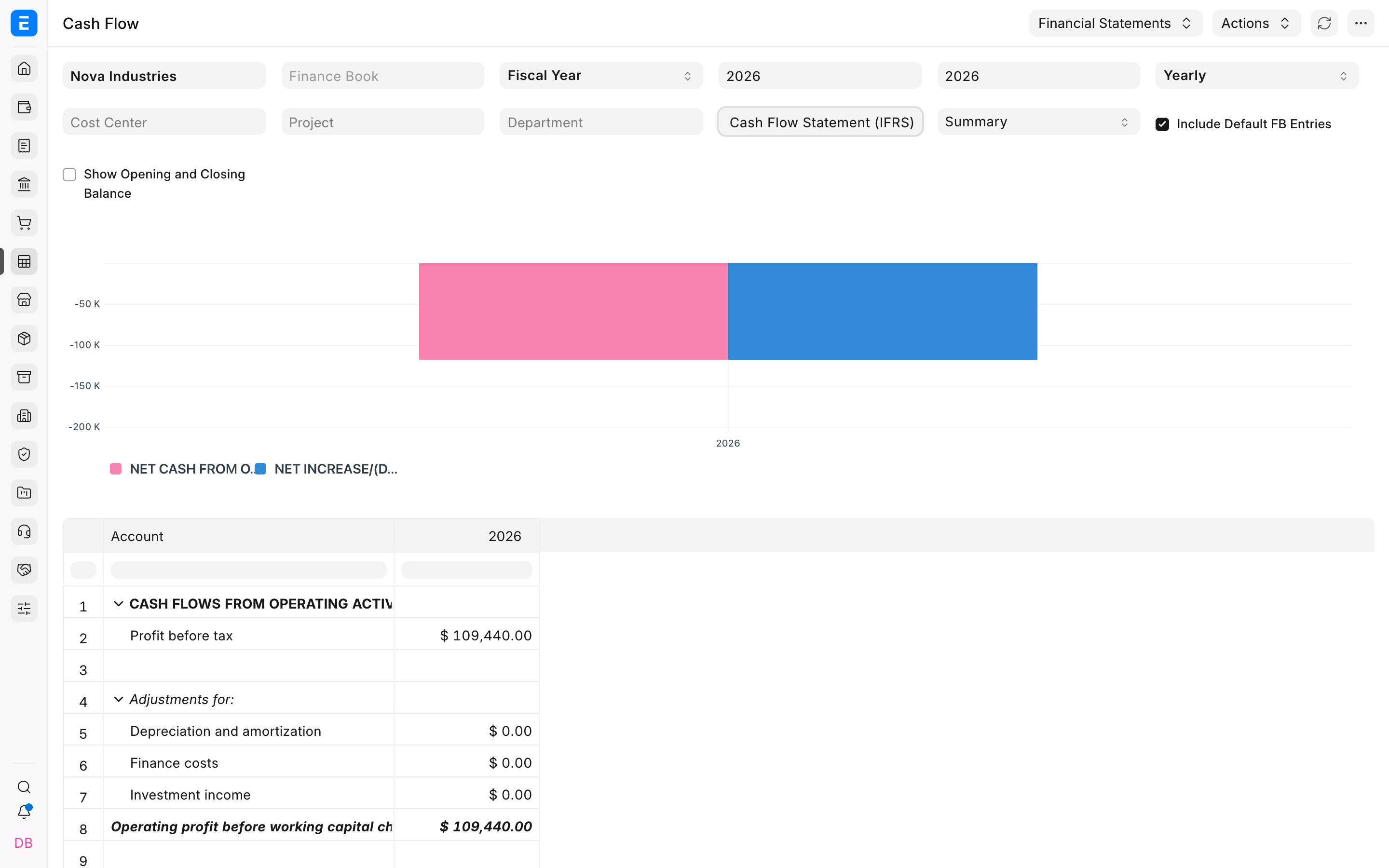
- Select View Report to run the report with this template, and compare the result with the standard statement for the same company, period, finance book, and dimensions.
To stop a template from being offered in reports, select Disabled.
Data sources
The Data Source of a row decides where its value comes from:
| Data Source | Use it for | Formula field |
|---|---|---|
| Account Data | Balances of accounts that match a filter, for example all revenue accounts | Account Filter, and a Balance Type |
| Calculated Amount | Arithmetic on other rows, for example gross profit | Calculation Formula |
| Custom API | A value from a Python method in a custom app, when the other sources cannot express it | API Method Path (see Custom API rows) |
| Blank Line | A heading (with a Display Name) or an empty spacing line | None |
| Column Break | A side-by-side layout, such as a horizontal Balance Sheet | None |
| Section Break | A break between major sections, such as trading account and profit and loss | None |
Account Data rows
Set the Balance Type:
- Opening Balance: the balance at the start of the period.
- Closing Balance: the balance at the end of the period.
- Period Movement (Debits - Credits): the net change during the period.
Then build the account filter in the filter editor. Select Advanced Filtering to type the filter instead. A filter is a condition [field, operator, value] on the Account, or a group of conditions joined with and or or:
["account_type", "=", "Cash"]
["root_type", "in", ["Asset", "Liability"]]
{"or": [["account_category", "like", "Revenue"], ["account_category", "like", "Income"]]}
The operators are =, !=, in, not in, like, not like, and is. For templates that serve many companies, filter on account_type, root_type, or account_category rather than account names.
Calculated Amount rows
A formula uses the Line Reference codes of other rows and the functions abs, round, min, max, sum, sqrt, pow, ceil, and floor. For example, with rows REVENUE and COGS:
REVENUE - COGS
(GROSS_PROFIT / REVENUE) * 100 if REVENUE != 0 else 0
ERPNext calculates formula rows after account and Custom API rows, in the order their references require, so a formula can refer to a row that appears later in the table. A formula that divides by zero returns 0 and writes an entry in the Error Log.
Row fields
| Field | Meaning |
|---|---|
| Line Reference | A unique code for formulas. It must start with a letter and contain only letters, numbers, and underscores. Python keywords and function names such as sum are not allowed. |
| Display Name | The text of the line in the report. |
| Indent Level | 0 for a main heading, 1 for a sub-category, 2 for individual accounts, and so on. |
| Data Source | Where the value comes from (see Data sources). |
| Balance Type | For Account Data rows: opening, closing, or period movement. |
| Value Type | Shows the value as Currency, Float, Int, or Percent. |
| Color, Bold Text, Italic Text | Formatting, for example bold totals. |
| Hidden Line (Internal Use Only) | Calculates the line for formulas but does not show it. |
| Hide If Zero | Hides the line when its amount is zero. |
| Reverse Sign | Shows the value with the opposite sign, for example expenses as positive amounts. |
| Include in Charts | Shows the line in the report chart. |
Check account coverage
Select View Account Coverage in a saved template. With no rows selected, the dialog shows the accounts that no Account Data row includes, for the company you select. Select rows first to see the accounts that those rows include. Use this to find missing or duplicated accounts.
Run a report with a template
In the Balance Sheet, Profit and Loss Statement, or Cash Flow report, select the template in Report Template. Use Account Detail Level to switch between Summary (template lines only) and Account Breakdown (the accounts under each line). The report still reads the same ledger entries, and you can still drill into amounts.
The Custom Financial Statement report runs any enabled template, whatever its report type. Use it for templates such as Financial Ratios Analysis that are not a standard statement.
Troubleshooting
| Message | Fix |
|---|---|
| "Invalid line reference format" | Start the code with a letter and use only letters, numbers, and underscores. |
| "Duplicate line reference" | Give each row a unique Line Reference. |
| "Balance Type is required for Account Data" | Select a Balance Type on the row. |
| "Circular dependency detected" | Two or more formulas refer to each other. Break the loop. |
| "Formula has unbalanced parentheses" | Check the brackets in the formula. |
| "Formula references itself" | Remove the row's own code from its formula. |
| "Field '...' is not a valid Account field" | Use a field that exists on the Account, such as account_type or account_category. |
An account is missing from the report
Check its Account Category and the row's account filter. Run View Account Coverage. Also check whether Hide If Zero hides the line.
The total differs from the standard statement
Use the same company, dates, finance book, dimensions, and currency in both. Then look for accounts that are missing or included in two rows.