Unreconcile a payment from an invoice
Unreconciling removes the link between a payment and the invoice that it settles. Use it when a payment was allocated to the wrong invoice. The payment stays submitted and the money stays in the bank ledger. ERPNext restores the invoice's outstanding amount and the payment's unallocated amount, so that you can allocate the payment again.
If the payment itself is wrong, for example the amount, party, or bank account, cancel and amend the Payment Entry instead.
Unreconciling payments is not the same as undoing a bank reconciliation. To remove a match between a payment and a bank statement line, see Reconcile a bank account.
Prerequisites
- The payment is a submitted Payment Entry or Journal Entry (voucher type Journal Entry, Bank Entry, or Cash Entry) that is allocated to at least one invoice.
Unreconcile from the document
- Open the submitted Payment Entry, Journal Entry, Sales Invoice, or Purchase Invoice.
- Select Actions, then UnReconcile. The button appears only when the document has allocations.
- In the UnReconcile Allocations dialog, select the allocations to remove. Each row shows the Voucher Type, Voucher No, Allocated Amount, and Currency.
- Select UnReconcile.
ERPNext creates and submits an Unreconcile Payment document for the selected allocations.
Unreconcile with the Unreconcile Payment form
- Open the Unreconcile Payment list and select Add Unreconcile Payment.
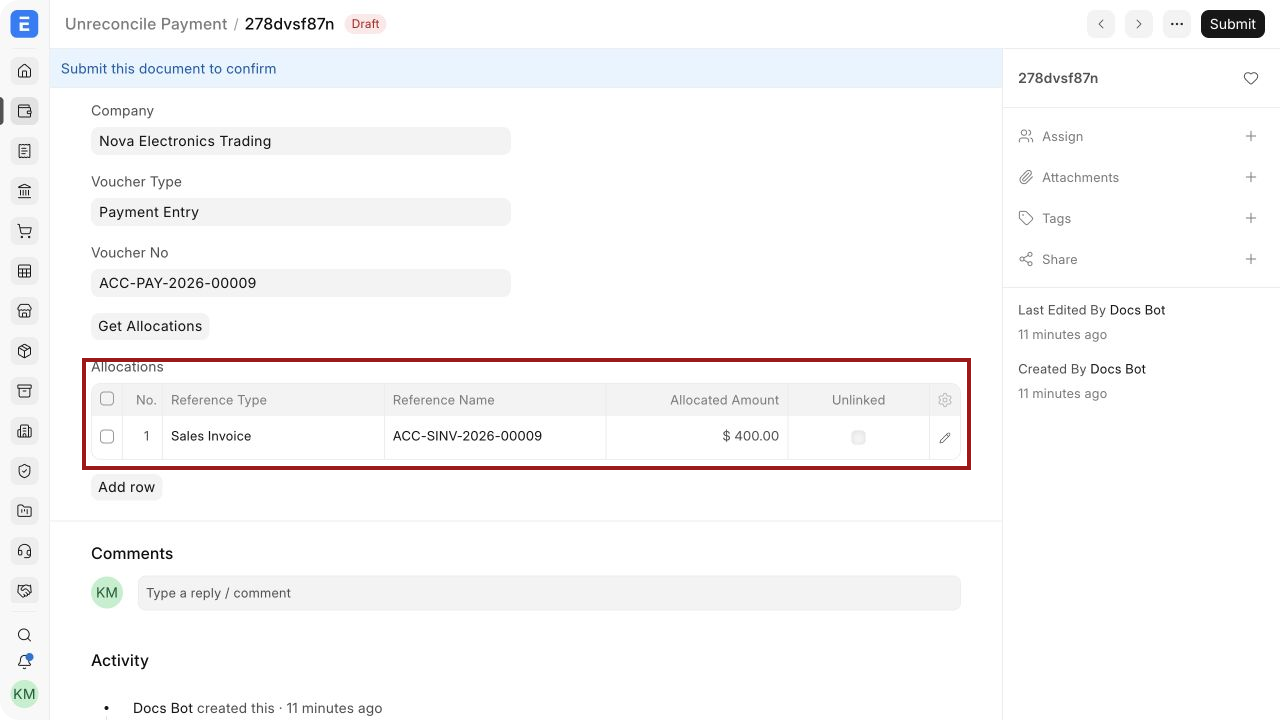
- Select the Company, the Voucher Type (Payment Entry or Journal Entry), and the Voucher No of the payment.
- Select Get Allocations. ERPNext lists every invoice that the payment is allocated to, with the Account, Party, Reference Type, Reference Name, and Allocated Amount.
- Delete the rows that you want to keep.
- Submit.
What happens when you submit
For each row, ERPNext:
- removes the invoice from the payment's references,
- cancels the exchange gain or loss Journal Entry of that allocation, if one exists,
- recalculates the invoice's outstanding amount,
- marks the row as Unlinked.
ERPNext removes the full allocated amount of each row. You cannot unreconcile part of an allocation. To keep part of it, unreconcile the row and then reconcile the payment again with the amount you want.
In the example, the Payment Entry of 400 USD has no invoice reference after the unreconciliation, and its Unallocated Amount is 400 USD again.
Next step
Allocate the payment to the correct invoice with Payment Reconciliation, or note why it stays unallocated. Unexplained unallocated payments make collection and payment follow-up harder.
Troubleshooting
The UnReconcile button is missing
The document is not submitted, has no allocations, or is a Journal Entry of a voucher type other than Journal Entry, Bank Entry, or Cash Entry. Check also that your role can create Unreconcile Payment documents.
"Only Payment Entry, Journal Entry are supported"
The Voucher Type must be Payment Entry or Journal Entry. Other documents, such as a credit note, cannot be unreconciled with this tool.
The invoice is still paid after unreconciliation
Another payment or credit note also settles the invoice. Check the Payment Ledger report for the invoice.