Allocate a credit note or payment to an invoice
Allocate a credit note or an unallocated customer payment when it must settle a specific Sales Invoice. Allocation reduces the outstanding amounts of both documents. It does not post new income, tax, stock, or cash.
Prerequisites
- The Sales Invoice, and the credit note or Payment Entry, are submitted.
- They have the same customer, company, currency, and receivable account.
- The credit note or payment still has an unallocated amount.
Allocate with Payment Reconciliation
- Open Payment Reconciliation.
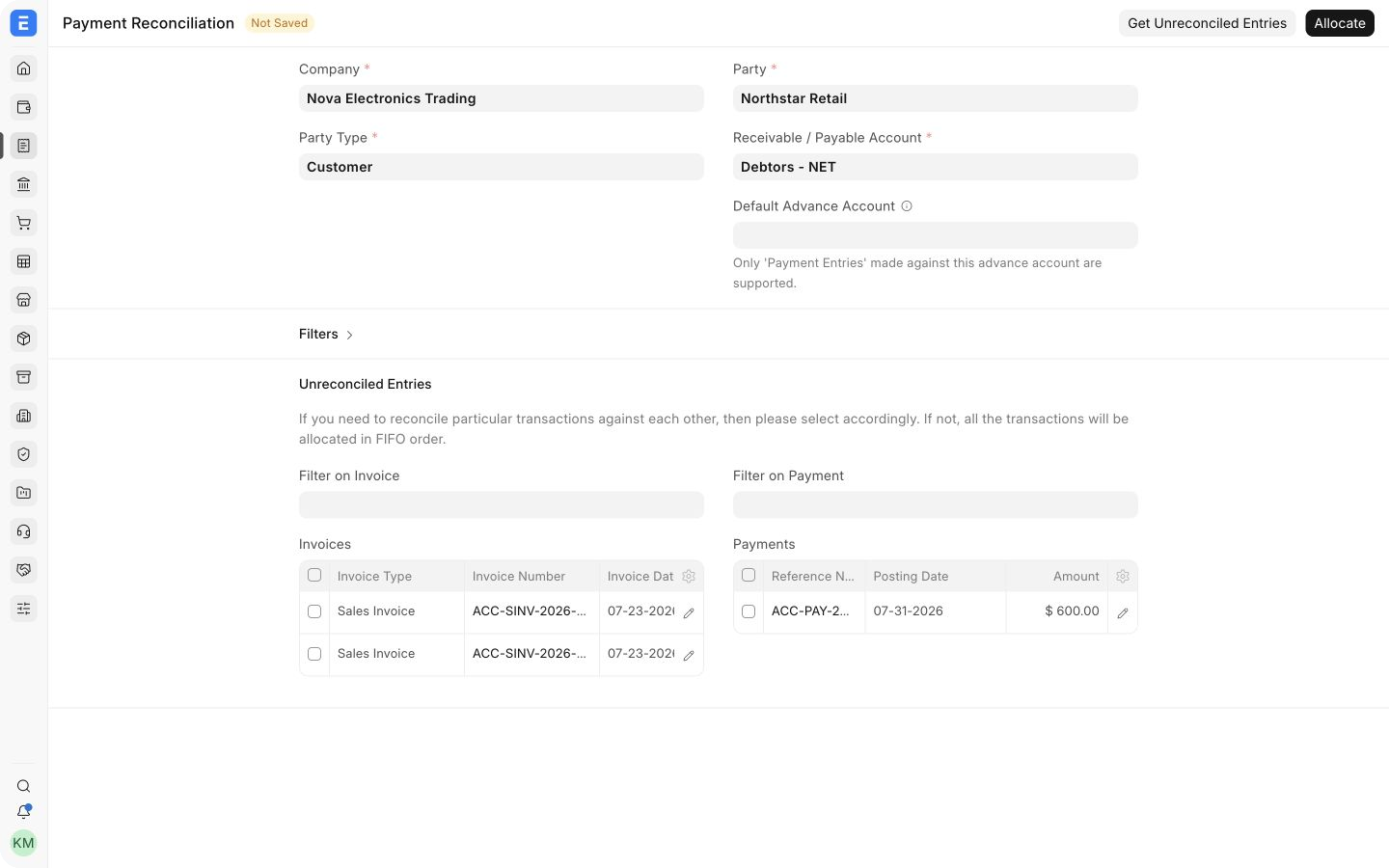
- Select the Company, set Party Type to Customer, and select the customer in Party.
- Check the Receivable / Payable Account.
- Select Get Unreconciled Entries. The Payments table shows payments and credit notes. The Invoices table shows open invoices.
- In Payments, select the credit note or the Payment Entry.
- In Invoices, select the Sales Invoice.
- Select Allocate. In the Allocation table, check or change the Allocated Amount.
- Select Reconcile.
You can split one payment across several invoices, or settle one invoice with several credits. The allocation cannot exceed the unallocated amount or the outstanding amount. Learn more about Payment Reconciliation.
Check the result
Open the Accounts Receivable report and check that:
- the outstanding amount of the Sales Invoice went down;
- the unallocated amount of the credit note or payment went down;
- the customer's total balance did not change.
Use a Journal Entry only when needed
Use a Journal Entry only when Payment Reconciliation cannot represent the adjustment. On the receivable row, set Party Type to Customer, select the customer in Party, and select the invoice or credit note in Reference Type and Reference Name. Without the reference, the documents stay open even when the account balance looks right.
Troubleshooting
The credit note or invoice does not appear
Check that both are submitted, and that the customer, company, currency, and receivable account match. Check that an unallocated or outstanding amount is left. Also check the date and amount filters.
The ledger balances, but the invoice is still unpaid
The entry has no invoice reference. Reconcile the payment, or correct the reference on the Journal Entry.
You allocated to the wrong invoice
Remove the allocation, and then reconcile the right documents. Learn how to unreconcile a payment. Do not cancel unrelated sales documents.