Create a Subscription
A Subscription bills a customer or a supplier on a regular schedule. ERPNext takes the price and interval from the Subscription Plans on the Subscription, and creates an invoice for each billing period. A Subscription for a customer creates Sales Invoices. A Subscription for a supplier creates Purchase Invoices.
Use a Subscription for a product or service billed on a fixed schedule, such as maintenance, software access, rentals, retainers, or support plans. To repeat a copy of one existing invoice or order, use Auto Repeat instead.
Prerequisites
- An Item and a Subscription Plan for each recurring charge.
- The company's income or expense, receivable or payable, tax, and cost center defaults are correct.
- Subscription Settings are set for unpaid invoices.
Create the Subscription
- Open the Subscription list and select Add Subscription.
- In Party Type, select Customer or Supplier. Select the Party and the Company.
- Enter the Subscription Start Date. If the agreement ends, enter the Subscription End Date.
- Optional: enter the Trial Period Start Date and Trial Period End Date. Billing starts on the day after the trial ends. The trial cannot start after the subscription start date.
- Set when ERPNext creates each invoice (see the next section), and the Days Until Due.
- In the Plans table, add one row for each plan, with its Quantity.
- Optional: select a Sales Taxes and Charges Template (customer) or a Purchase Taxes and Charges Template (supplier), an additional discount, and a Cost Center.
- Save.
If the start date is today or in the past, ERPNext creates the invoices that are due right after you save. After that, a daily scheduled job creates new invoices.
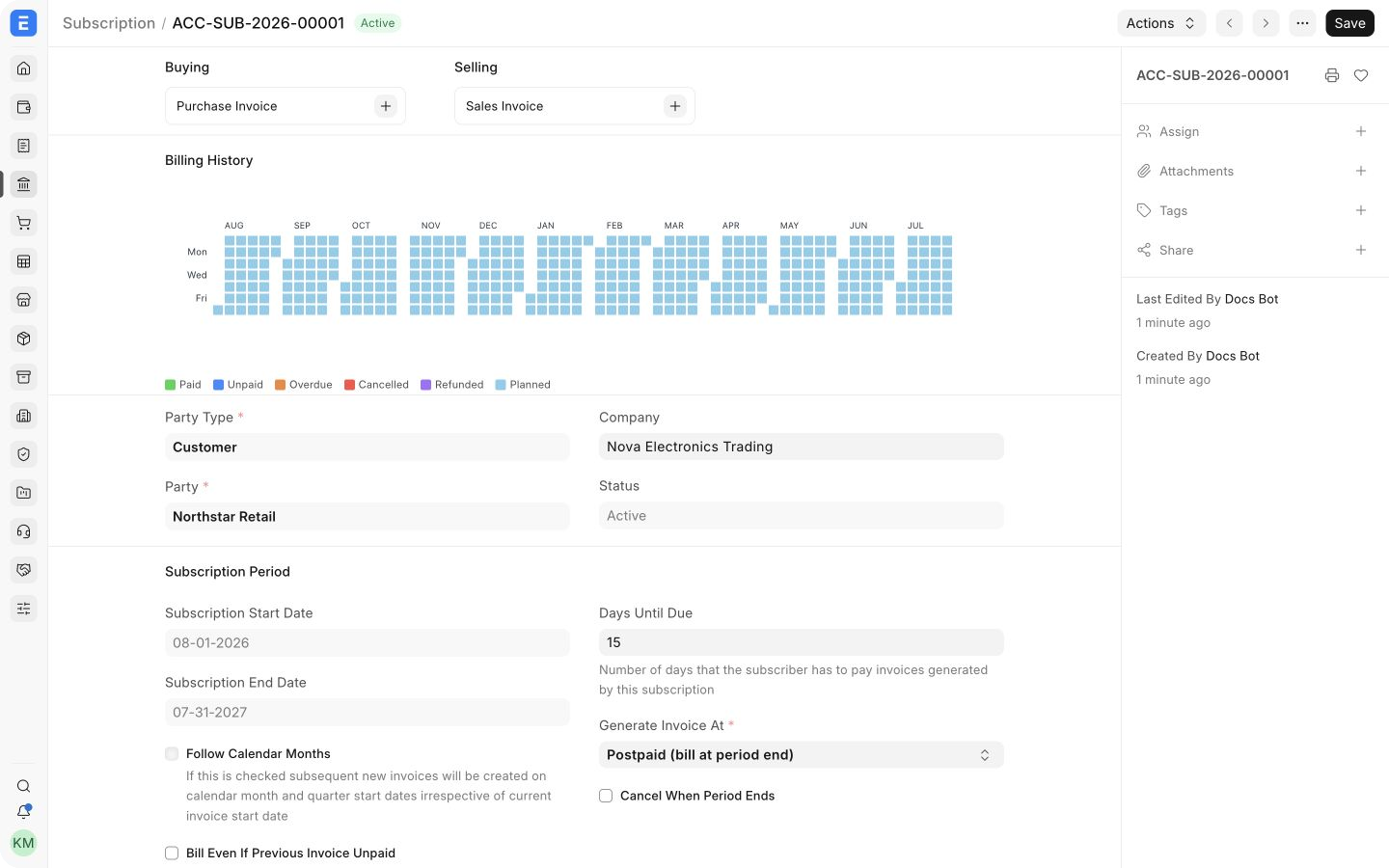
Choose when invoices are created
| Generate Invoice At | Result |
|---|---|
| End of the current subscription period (default) | The invoice is created at the end of the period. Use it to bill in arrears. |
| Beginning of the current subscription period | The invoice is created at the start of the period. Use it to bill in advance. |
| Days before the current subscription period | The invoice is created the Number of Days that you enter before the period starts. |
Billing options
| Field | What it does |
|---|---|
| Days Until Due | The number of days that the party has to pay each invoice. ERPNext sets the invoice due date from it. |
| Submit Generated Invoices | Submits each invoice when ERPNext creates it. Selected by default. Clear it if someone must check each invoice first. |
| Generate New Invoices Past Due Date | Creates new invoices on schedule even when an earlier invoice is unpaid or past due. Clear by default. Select it with care, because the outstanding balance can grow. |
| Follow Calendar Months | Aligns later invoices to calendar month and quarter start dates instead of the start date of the Subscription. It needs a Subscription End Date and plans with the Month interval. |
| Cancel At End Of Period | Cancels the Subscription at the end of the current period, instead of immediately. |
Plans, taxes, and discounts
Add each recurring charge as a row in Plans. You can combine a base plan and add-ons in one Subscription, but all plans must have the same billing interval and count. Each plan becomes one line on the invoice.
The invoice uses the plan quantities, the tax template, and the Apply Additional Discount On, Additional Discount Percentage, or Additional Discount Amount set on the Subscription.
If the plan's item uses deferred revenue or deferred expense, ERPNext sets the service start and end dates on the invoice line from the billing period.
Manage the Subscription
The Current Invoice Start Date and Current Invoice End Date show the period that ERPNext bills next. The connections at the top of the form list the invoices that the Subscription created.
The Actions menu has these options:
- Fetch Subscription Updates: checks the Subscription now, and creates an invoice if one is due.
- Force-Fetch Subscription Updates: processes the current period now, even if today is not its invoice date. It does not process future periods.
- Cancel Subscription: stops future billing. Invoices that already exist are not cancelled. If the Subscription bills at the end of the period, ERPNext creates a last invoice for the part of the period used so far.
- Restart Subscription: makes a cancelled Subscription active again, with a new billing period that starts today.
Subscription status
| Status | Meaning |
|---|---|
| Trialing | The trial period has not ended. |
| Active | No invoice is overdue. |
| Grace Period | The current invoice is past its due date, but still within the grace period in Subscription Settings. |
| Unpaid | The current invoice is still unpaid after the grace period. |
| Cancelled | The Subscription was cancelled by hand, at the end of the period, or after the grace period. |
| Completed | The end date has passed, and no invoice is outstanding. |
| Refunded | Credit notes cover the full outstanding amount of every unpaid invoice of the Subscription. Available in version 17 only. |
Version 17
The Refunded status is in ERPNext version 17, which is in development. ERPNext version 16 does not have it.
Troubleshooting
No invoice is created
Check the start date, the Current Invoice Start Date and end date, and Generate Invoice At. Check whether an earlier invoice is unpaid while Generate New Invoices Past Due Date is clear. Check that the scheduler is running, and that the plan's item and the company's account defaults are valid.
"You can only have Plans with the same billing cycle in a Subscription"
The plans have different billing intervals or counts. Use plans with the same interval, or create a separate Subscription.
The invoice amount is wrong
Open the Subscription Plan and check the price basis, rate, and interval. Then check the quantity, taxes, and discount on the Subscription, and the Prorate setting in Subscription Settings.