Receive items with a Purchase Receipt
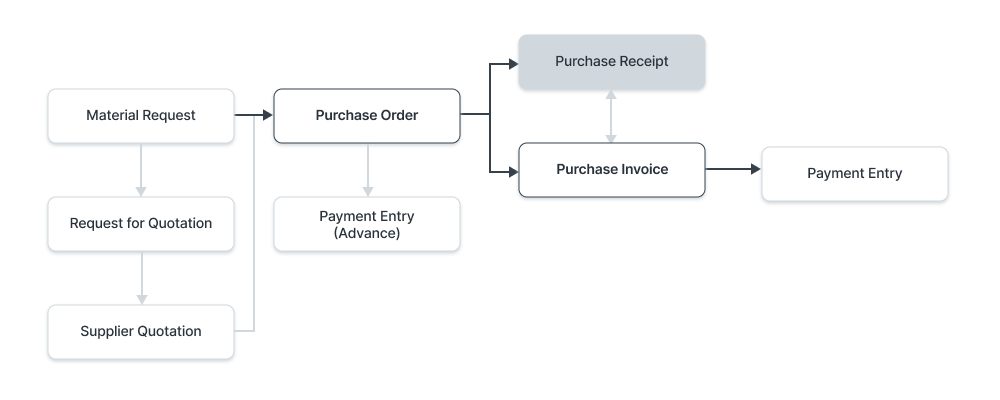
A Purchase Receipt records the items that you receive from a supplier, usually against a Purchase Order. When you submit it, ERPNext adds the accepted quantity to your warehouse and updates the received quantity on the Purchase Order.
Prerequisites
- A submitted Purchase Order for the items. To receive items without a Purchase Order, set Is Purchase Order required for Purchase Invoice & Receipt creation? to No in Buying Settings.
- A warehouse to accept the items into. If you inspect items and reject some of them, also a warehouse for rejected items.
- Stock Items with Maintain Stock selected.
Create a Purchase Receipt from a Purchase Order
- Open the submitted Purchase Order and select Create > Purchase Receipt. ERPNext copies the supplier, items, quantities, rates, and taxes.
- In Accepted Warehouse, check the warehouse that receives the items. ERPNext copies it from the Purchase Order when it is set there.
- If you inspect the items and expect rejections, select a Rejected Warehouse.
- In each item row, check the quantities:
- Received Quantity: the quantity that arrived.
- Accepted Quantity: the quantity that you keep in stock.
- Rejected Quantity: the quantity that you do not accept. ERPNext moves it to the Rejected Warehouse.
- For serialized or batched items, select Add Serial / Batch No in the item row and enter the serial numbers or batches. See Serial and Batch Bundle.
- If the supplier sent a delivery note number, enter it in Supplier Delivery Note.
- Select Submit. ERPNext adds the accepted quantity to the accepted warehouse and the rejected quantity to the rejected warehouse.
Received Quantity must equal Accepted Quantity plus Rejected Quantity in every row, or ERPNext does not save the document.
To receive items from more than one Purchase Order in one Purchase Receipt, create a new Purchase Receipt, select the supplier, and select Get Items From > Purchase Order.
TIP
To receive the items on an earlier date, select Edit Posting Date and Time before you submit. By default ERPNext uses the date and time at which you created the document.
Inspect items before you accept them
If an item has Inspection Required before Purchase selected in the Item, you must link a submitted Quality Inspection to its row before you can submit the Purchase Receipt.
- Save the Purchase Receipt as a draft.
- Select Create > Quality Inspection(s), select the items, and record the readings.
- Submit each Quality Inspection. ERPNext sets the Quality Inspection field in the item row.
Learn more in Inspect the quality of received and delivered items.
Purchase Receipt statuses
| Status | Meaning |
|---|---|
| Draft | Saved, not submitted. |
| To Bill | Submitted, and no Purchase Invoice exists for it yet. |
| Partly Billed | Submitted, and Purchase Invoices cover part of the amount. |
| Completed | Submitted and fully billed. |
| Return | The document is itself a return (Is Return is selected). |
| Return Issued | All items on it were returned to the supplier. |
| Closed | You closed it. ERPNext does not expect a Purchase Invoice for the rest. |
| Cancelled | Cancelled. |
To close a Purchase Receipt that you will not bill in full, select Status > Close. Select Status > Reopen to undo it.
What you can create after you submit
From the Create button of a submitted Purchase Receipt:
- Purchase Invoice: bill the received items. See Purchase Invoice.
- Purchase Return: send items back to the supplier. See the next section.
- Make Stock Entry: move the received items to another warehouse. See Stock Entry.
- Sample Retention Stock Entry: move retained samples to the sample warehouse. See Retain sample stock.
To skip the Purchase Receipt and update stock from the Purchase Invoice instead, select Update Stock in the Purchase Invoice.
Return items to the supplier
- Open the submitted Purchase Receipt and select Create > Purchase Return.
- If the Purchase Receipt has rejected items, ERPNext asks whether to return them. Keep Return Qty from Rejected Warehouse selected to return the rejected quantity from the Rejected Warehouse. Clear it to return accepted items from the Accepted Warehouse.
- Check the quantities in the return. They are negative.
- Select Submit. ERPNext removes the items from the warehouse.
Learn more in Purchase Return.
Add costs that you learn about later
Freight, customs duty, and other charges sometimes arrive after the goods, for example on a bill from a clearing agent. To add these charges to the value of the received items, create a Landed Cost Voucher against the Purchase Receipt.
Put freight into the value of stock items only
You can add a charge such as freight in the Purchase Taxes and Charges table with Type set to Actual and Consider Tax or Charge for set to Valuation or Valuation and Total. ERPNext then adds the charge to the valuation of the items.
The Allocate Full Amount to Stock Items checkbox on that tax row controls how ERPNext splits the charge:
- Selected (the default): ERPNext splits the charge only over stock items and asset items. The full charge goes into the stock value.
- Cleared: ERPNext splits the charge over all items by net amount. The share of non-stock items, such as services, does not go into any valuation.
For example, a Purchase Receipt has two stock items and one service item. Each has a net amount of 100. The freight charge is 30.
| Item | Type | Valuation charge, box selected | Valuation charge, box cleared |
|---|---|---|---|
| Item A | Stock | 15 | 10 |
| Item B | Stock | 15 | 10 |
| Item C | Service | 0 | 0 (10 is not capitalized) |
One document can have rows of both kinds, for example a tax with the box cleared and a freight charge with the box selected.
Troubleshooting
Received Qty must be equal to Accepted + Rejected Qty
The message is "Row #1: Received Qty must be equal to Accepted + Rejected Qty for Item ...". The quantities in the row do not add up. Change Received Quantity, Accepted Quantity, or Rejected Quantity so that the received quantity equals the accepted quantity plus the rejected quantity.
This document is over limit
The message is "This document is over limit by ... Are you making another Purchase Receipt against the same Purchase Order?". You receive more than the Purchase Order quantity. Reduce the quantity, or allow a tolerance. See Allow over-delivery and over-billing.
You cannot cancel or back-date a Purchase Receipt
Stock transactions follow the rules of the immutable ledger. See Immutable ledger.