Set up subcontracting
Do this setup once before you subcontract production to a supplier. In the example, you send unpainted parts to a supplier who paints them.
Create the items
- Create a service item for the work of the supplier, for example "Painting". Clear Maintain Stock on it.
- Create an item for the raw material that you supply, for example "Part X - unpainted".
- Create an item for the processed product, for example "Part X". Select Is Subcontracted Item on it.
Learn how to create an Item.
Create a warehouse for the supplier
Create a warehouse for each supplier, for example "Paint Shop - Supplier". ERPNext tracks there the raw materials that you send to the supplier. Learn about the Warehouse.
Create a BOM for the processed item
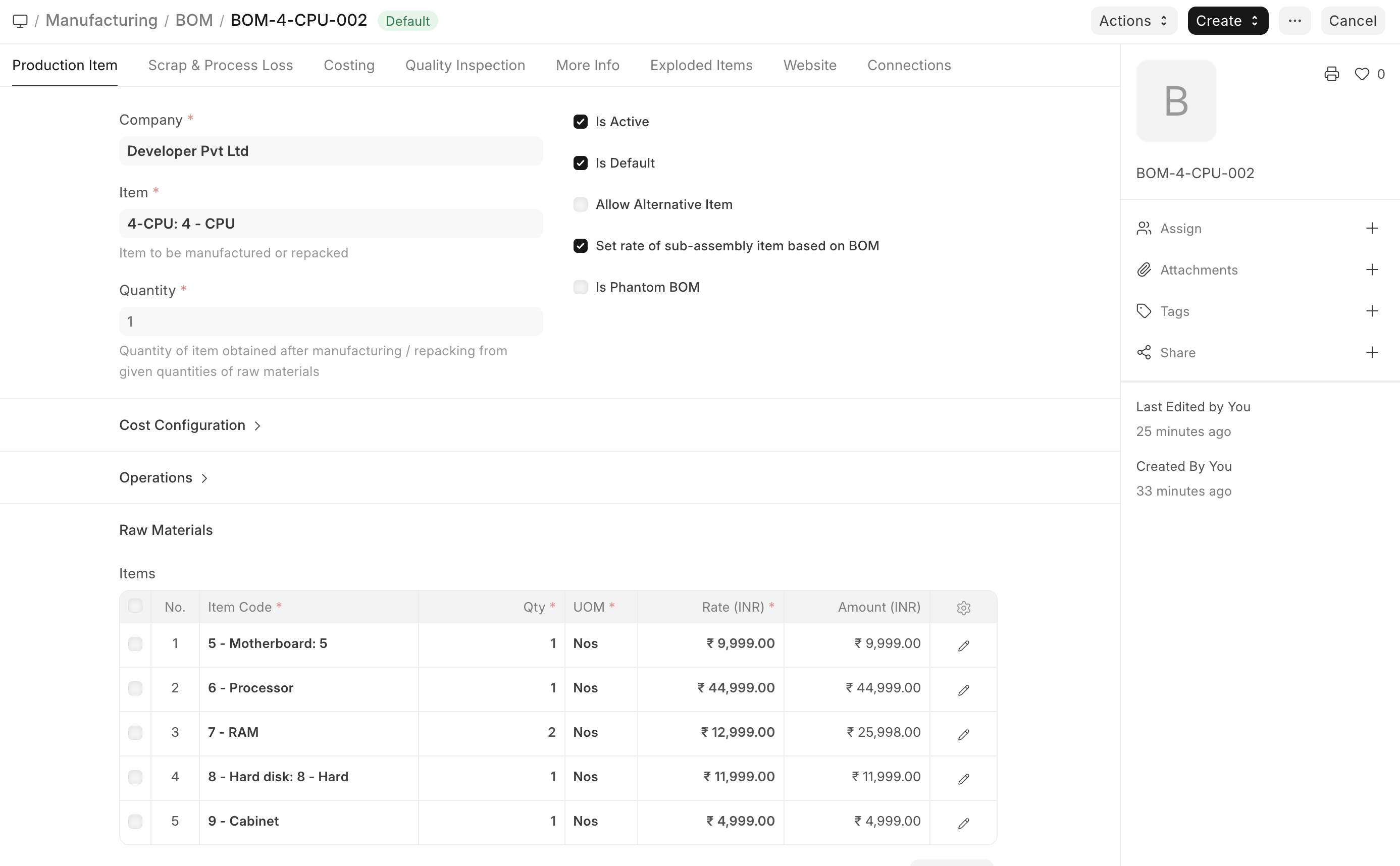
Create a BOM with the processed item as Item to Manufacture and the raw materials that you supply as components. If the supplier does all the work, do not add operations.
Materials that the supplier buys
The supplier sometimes buys some materials, for example nuts and bolts. Add these materials to the BOM and select Sourced by Supplier on their rows. ERPNext then:
- Gives them zero value in the BOM.
- Leaves them out of the supplied items of the Subcontracting Order.
- Leaves them out of the Send to Subcontractor Stock Entry.
The supplier can bill these materials in their own invoice.
Optional: create a Subcontracting BOM
A Subcontracting BOM links a service item to a finished good. With it, when you select the service item or the finished good in a subcontracted Purchase Order, ERPNext fills in the other.
- Open the Subcontracting BOM list and select New.
- Select the Finished Good, its Finished Good Qty, and its Finished Good BOM.
- Select the Service Item, its Service Item Qty, and its Service Item UOM.
- Save the Subcontracting BOM. ERPNext calculates the Conversion Factor.
For example, 1 unit of "Painting" gives 2 units of "Tiles". The conversion factor is 0.5.
Each finished good can have only one Subcontracting BOM. If a service item has several Subcontracting BOMs, ERPNext asks you to choose the finished good in the Purchase Order.
Set the backflush method
In Buying Settings, Backflush raw materials of subcontract based on sets which raw materials the Subcontracting Receipt consumes:
| Option | Consumes |
|---|---|
| BOM | The BOM quantities, even if you did not transfer materials against the Subcontracting Order, as long as the supplier warehouse has stock. |
| Material Transferred for Subcontract | Only the materials transferred against the Subcontracting Order. Without a transfer, ERPNext consumes nothing. |
To create the Subcontracting Order automatically when you submit the Purchase Order, select Auto create Subcontracting Order in Buying Settings.