Set up workstations
A workstation is a place or a machine where you perform operations. For example, melting is an operation, and a furnace is a workstation. One operation can run on many workstations.
ERPNext uses workstations for two things: the operating cost of a BOM, and the scheduling of operations. Workstations do not hold stock. Stock stays in warehouses.
Prerequisites
- Optional: a workstation type, if you have several machines of the same kind.
- Optional: a holiday list, to exclude days when the workstation does not run. Learn about the Holiday List.
Create a workstation
- Open the Workstation list and select New.
- Enter the Workstation Name.
- Optional: select the Workstation Type and the Plant Floor.
- In Job Capacity, enter how many jobs can run on the workstation at the same time.
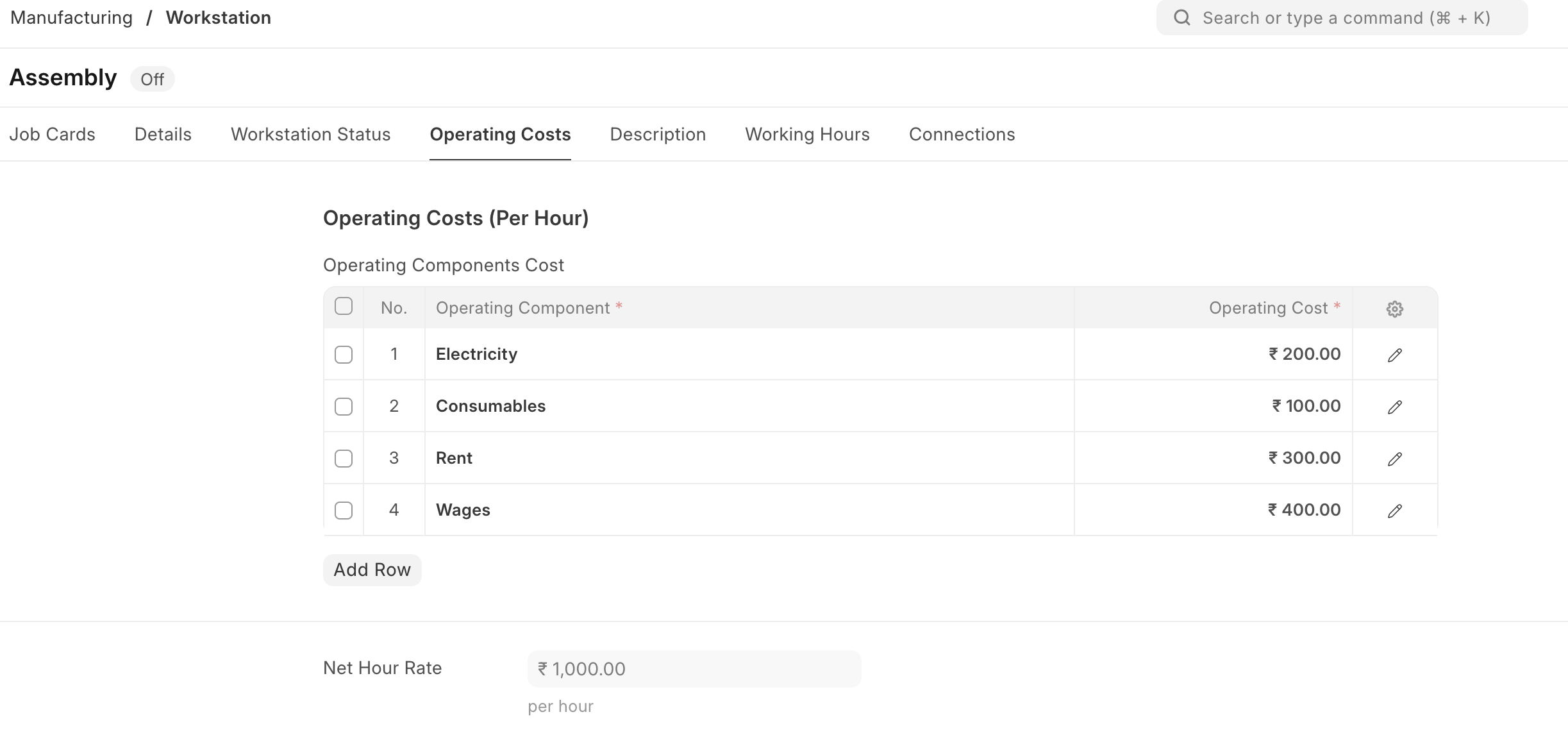
- In the Operating Components Cost table, add one row for each cost component per hour, for example electricity, rent, consumables, and wages. ERPNext adds them up in Net Hour Rate.
- In Working Hours, select a Holiday List and add the shifts. Each row has a Start Time and an End Time. For example, add 09:00–13:00 and 14:00–17:00 for a split shift.
- Save the workstation.
Operating components
An operating component is one part of the hourly cost, for example "Electricity". In the Workstation Operating Component list, you can set a Component Expense Account for each company. ERPNext books the cost of that component to this account.
How working hours affect scheduling
When you submit a Work Order with operations, ERPNext schedules each operation in the working hours of its workstation. It skips the days in the holiday list. It also places no more jobs at the same time than the Job Capacity.
To schedule work outside working hours, select Allow Overtime in Manufacturing Settings. Learn more about capacity planning.
Workstation status
The Status field shows the state of the machine: Production, Off, Idle, Problem, Maintenance, or Setup. The plant floor view shows this status. In Status Illustration, you can attach an image for the Active Status and the Inactive Status.