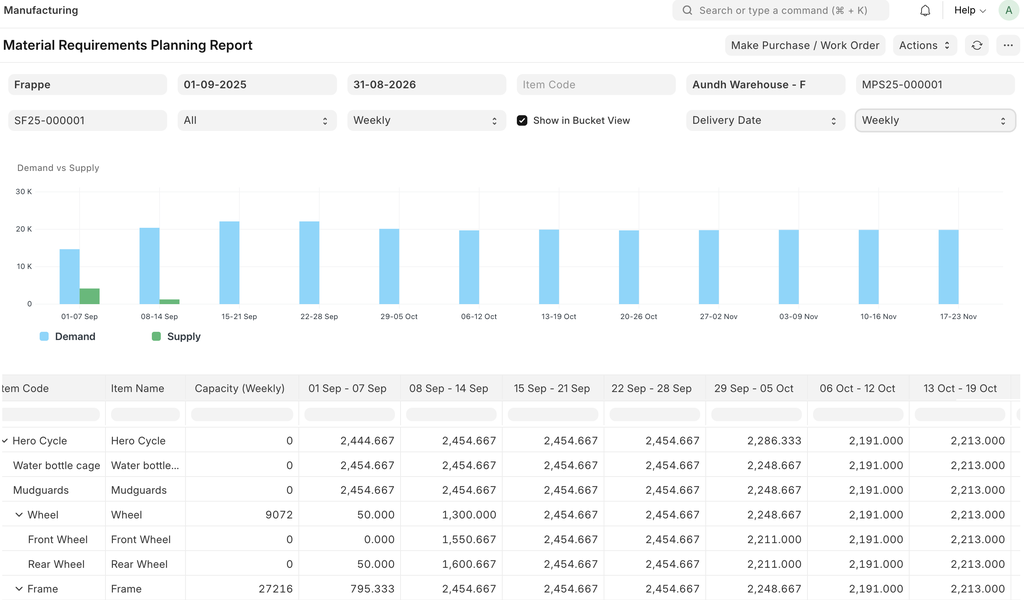
Plan material requirements with MRP
Material Requirements Planning (MRP) calculates which raw materials and components you need, how many, and when. Its goal is to have the right materials at the right time, without overproduction or late deliveries.
A Production Plan uses only open Sales Orders and Material Requests. MRP also uses sales forecasts and delivery schedules, so it covers longer periods.
How MRP works
- Demand: sales forecasts, Sales Orders with delivery schedules, and Material Requests.
- Master Production Schedule (MPS): collects the demand for finished goods.
- Item lead times: tell ERPNext how long it takes to make or buy each item.
- Material Requirements Planning Report: calculates the quantities of raw materials and components and the dates when you need them.
Prerequisites
- A BOM for each finished good and sub-assembly.
- An Item Lead Time for each item (see below).
Set item lead times
An Item Lead Time tells ERPNext how long it takes to make or to buy an item. ERPNext uses it to calculate when to release Work Orders and Purchase Orders.
- Open the Item Lead Time list and select New.
- Select the Item Code.
- For an item that you make, fill in the Manufacturing Time section: the shift time, the number of workstations and shifts, No of Units Produced, and Daily Yield (%). ERPNext calculates the Capacity.
- For an item that you buy, enter the Purchase Time and the Buffer Time in days.
- Save the Item Lead Time.
Set a lead time for each supplier
Version 17
This feature is in ERPNext version 17, which is in development. ERPNext version 16 does not have it.
In the Supplier Lead Times table of the Item Lead Time, add one row for each supplier with its Purchase Time (Days) and Buffer Time (Days). Select Is Default on one row. These rows override Purchase Time for the selected supplier. The Production Plan scheduler uses them.
Enter the demand
Sales forecast
Calculate your forecast outside ERPNext, then enter it in a Sales Forecast.
- Open the Sales Forecast list and select New.
- Enter the From Date, the Frequency (Weekly or Monthly), and the Number of Weeks / Months.
- Select the items, and optionally a Parent Warehouse.
- Select Generate Demand. ERPNext adds one row for each item and each period.
- Enter the Demand Qty in each row, then submit the Sales Forecast.
To estimate demand from past sales, use the Exponential Smoothing Forecasting report.
Delivery schedules
Some customers want one Sales Order delivered in several parts. In the Sales Order item table, select Add Schedule to split a row into delivery dates. MRP then plans each delivery on its own date instead of the full quantity at once.
Create a Master Production Schedule
- Open a submitted Sales Forecast and select Create MPS, or open the Master Production Schedule list and select New.
- Enter the From Date and the To Date, and select the items.
- Optional: select Get Sales Orders and Get Material Requests to add open orders.
- Select Get Actual Demand. ERPNext fills in the Actual Demand table.
- Save the Master Production Schedule.
View the MRP report
In the Master Production Schedule, select View MRP. The Material Requirements Planning Report shows each raw material and component, the quantity needed, and the date to release the order.
Select Show in Bucket View to group the quantities by period. Set the period length in Bucket Size.