Track operations with Job Cards
A Job Card records one operation of a Work Order on one workstation. It holds the actual time, the employee, and the quantity completed. Job Cards update the progress and the actual operating cost of the Work Order.
Prerequisites
- A submitted Work Order whose BOM has operations.
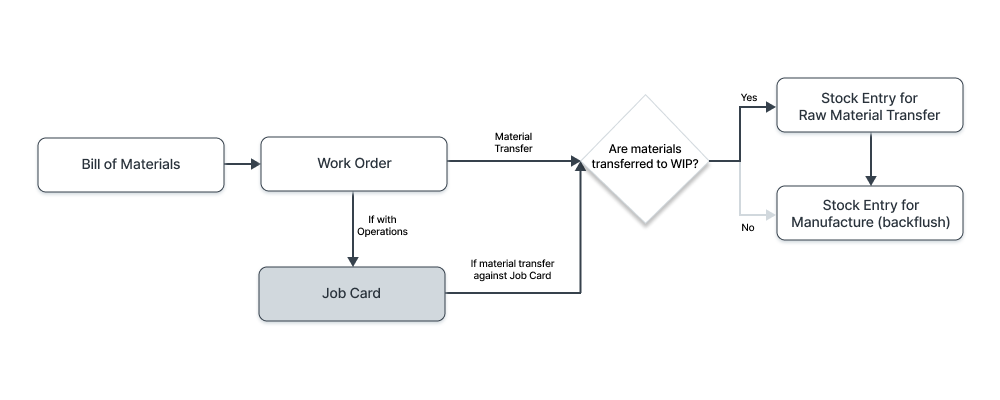
When you submit the Work Order, ERPNext creates one Job Card for each operation. To create more Job Cards, for example when several employees work on the same operation, select Create Job Card in the Work Order.
Record work on a Job Card
- Open the Job Card list and open the Job Card of the operation.
- Select Start Job and select the employee. ERPNext adds a row to Time Logs with the start time.
- To stop for a break, select Pause Job. To continue, select Resume Job.
- When the work is done, select Complete Job and enter the completed quantity.
- Submit the Job Card. ERPNext updates the operation in the Work Order.
You can also fill in the Time Logs table by hand: the Employee, From Time, To Time, and Completed Qty of each row.
TIP
To make From Time and To Time mandatory, select Enforce Time Logs in Manufacturing Settings.
Transfer materials against a Job Card
When Transfer Material Against is Job Card in the BOM or Work Order, each Job Card has its own materials.
- Select Material Request to request the raw materials for this operation. The Material Request links to the Job Card.
- Select Material Transfer to move the raw materials to the Work-in-Progress Warehouse.
To transfer more materials than required, for example to replace damaged material, select Allow Excess Material Transfer in Manufacturing Settings.
Record partial work and process loss
Three quantities on the Job Card must add up to the Qty to Manufacture:
- Total Completed qty: what the operation finished.
- Pending qty: what is still to do.
- Process Loss qty: what was lost.
ERPNext calculates the process loss as Qty to Manufacture − Total Completed qty − Pending qty. Enter the pending quantity when you submit a Job Card for partly finished work, so that ERPNext does not count the rest as a loss.
| Qty to Manufacture | Completed | Pending | Process loss |
|---|---|---|---|
| 10 | 6 | 4 | 0 |
| 10 | 6 | 0 | 4 |
Record scrap
If an operation produces scrap or broken material, add it to the Secondary Items table of the Job Card. ERPNext adds it to stock with the finished goods.
Inspect quality during production
To check semi-finished goods after an operation, create a Quality Inspection from the Job Card. If the operation has a Quality Inspection Template, ERPNext sets it on the Job Card and on the inspection. The Quality Inspection field of the Job Card links to the inspection. Learn about Quality Inspection.
Job Card statuses
| Status | Meaning |
|---|---|
| Open | Not started. |
| Work In Progress | A job is running. |
| On Hold | The job is paused. |
| Material Transferred / Partially Transferred | Raw materials were transferred for the Job Card. |
| To Manufacture | Work is done. The manufacture Stock Entry is still to make. |
| Completed | The Job Card is submitted and done. |
| Cancelled | The Job Card is cancelled. |