BOM reports
These reports help you explore BOMs and check whether you have the materials to build them. Open each report from the search bar.
BOM Explorer
Shows the full tree of a BOM: assemblies, sub-assemblies, and raw materials, with the quantities of raw materials and scrap. You can print the tree.
Filter: BOM.

BOM Search
Finds the BOMs that use specific raw materials. Use it when you have many BOMs.
Filters: Item 1 to Item 5, and Search Sub Assemblies.
BOM Stock Analysis
Tells you whether you have enough raw materials for a BOM. It has two modes.
Filters: BOM, Warehouse, FG Items to Make, Show availability of exploded items.
Detailed mode
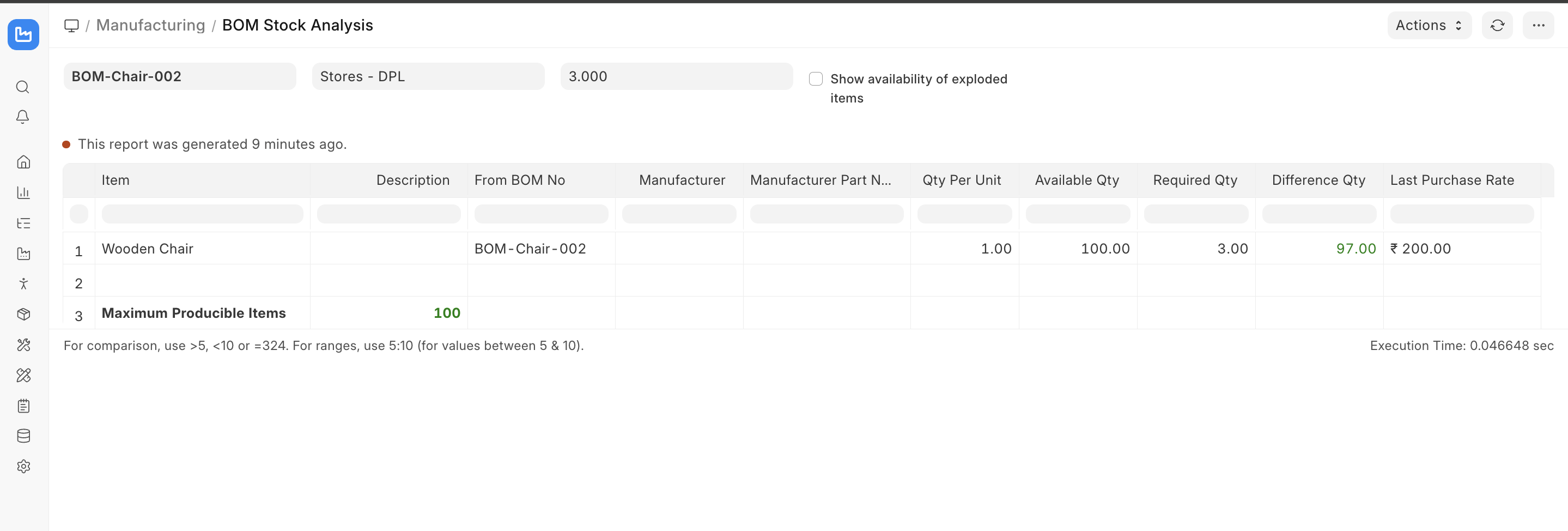
Enter a value in FG Items to Make. The report shows, for each raw material, the Available Qty, the Required Qty, the Difference Qty, and the Last Purchase Rate. Use it when you have a production target and want to know what is short and what it costs to buy.
The Maximum Producible Items row shows how many finished goods you can make with the stock. It is green when you can make the target quantity, and red when you cannot.
Summary mode
Leave FG Items to Make empty and select the BOM and the Warehouse. The report shows how many finished goods you can make right now.
INFO
The BOM Stock Report of older versions is not in ERPNext v16. Use BOM Stock Analysis instead.
BOM Operations Time
Shows the total operation time of each BOM in minutes, and in how many other BOMs it is used as a sub-assembly.
Filters: Item Code, BOM ID, Workstation.