Delivery Note fields
This page lists the main fields of the Delivery Note form. To learn how to deliver items, see Deliver items with a Delivery Note.
Details
| Field | Description |
|---|---|
| Customer | The customer who receives the items. |
| Date, Posting Time | The posting date and time of the stock transaction. Select Edit Posting Date and Time to change them. |
| Is Return | Marks the document as a return from the customer. Return Against Delivery Note links the original delivery. Issue Credit Note creates a credit note when you submit the return. |
| Project | Links the delivery to a project. |
Address & Contact tab
| Field | Description |
|---|---|
| Billing Address Name | The customer's billing address. |
| Shipping Address | The address where you ship the items. |
| Contact Person | The person at the customer who receives the items. |
| Dispatch Address Name | The address that the items leave from. |
| Company Address Name | Your company's address on the document. |
Addresses and contacts are separate documents, so a customer can have many of each. See Address and Contact.
Currency and Price List
| Field | Description |
|---|---|
| Currency, Exchange Rate | The currency of the transaction and its conversion to the company currency. ERPNext copies them from the Sales Order. See multi-currency transactions. |
| Price List | The selling price list. ERPNext fetches item rates from it. See Price lists. |
| Ignore Pricing Rule | Stops ERPNext from applying pricing rules to this document. |
Items section
| Field | Description |
|---|---|
| Set Source Warehouse | The default warehouse that the items leave from, for all rows. |
| Set Target Warehouse | For an internal customer only: the warehouse that receives the items. See Internal transfers. |
| Scan Barcode | Adds an item row, or increases its quantity, when you scan a barcode. See Barcodes. |
Item row
| Field | Description |
|---|---|
| Item Code, Item Name, Description, Image | Fetched from the Item. |
| Quantity, UOM, UOM Conversion Factor | The quantity to deliver, and its unit of measure. See Units of measure. |
| Price List Rate, Rate, Amount | The rate is fetched from the price list or the Sales Order. The amount is calculated. |
| Margin Type, Margin Rate or Amount, Discount (%) on Price List Rate with Margin, Discount Amount | A margin or a discount on the price list rate for this row. See Applying discount. |
| Item Tax Template | Applies item-specific tax rates. See Item Tax Template. |
| Weight Per Unit, Weight UOM | Fetched from the Item. |
| Warehouse | The warehouse that this row leaves from. |
| Quality Inspection | The submitted Quality Inspection for this row. Shown after you save. See Quality inspection. |
| Against Sales Order | The Sales Order of this row, when you created the Delivery Note from one. |
| Serial and Batch Bundle | The serial numbers or batches delivered. Select Pick Serial / Batch No to choose them, or select Use Serial No / Batch Fields to type them in Serial No and Batch No. |
| Qty (Warehouse), Available Batch Qty at From Warehouse, Qty (Company) | The stock available in the warehouse, in the batch, and in the company. |
| Installed Qty | The quantity recorded in Installation Notes. See Installation Note. |
| Expense Account, Cost Center, Project | The accounting details of the row. With perpetual inventory, ERPNext debits the cost of goods sold to the Expense Account. |
| Allow Zero Valuation Rate | Lets you submit the row with a valuation rate of zero, for example for a free sample. |
| Accounting dimensions | Tag the row for reporting. See Accounting Dimensions. |
| Page Break | Starts a new page before this row when you print. |
Packing List
Packed Items lists the components of product bundles in the Items table. ERPNext fills it.
Taxes and Charges
| Field | Description |
|---|---|
| Tax Category | Selects the tax template through a tax rule. See Tax Category. |
| Shipping Rule | Adds a shipping charge. See Shipping rules. |
| Sales Taxes and Charges Template | Fills the taxes table. ERPNext copies it from the Sales Order. See Sales Taxes and Charges Template. |
Additional Discount
Apply Additional Discount On (Grand Total or Net Total), Additional Discount Percentage, and Additional Discount Amount give a discount on the whole document, as a percentage or an amount. See Applying discount.
Terms tab
Terms and Terms and Conditions Details hold the terms that you print on the Delivery Note. See Terms and Conditions.
Transporter Info
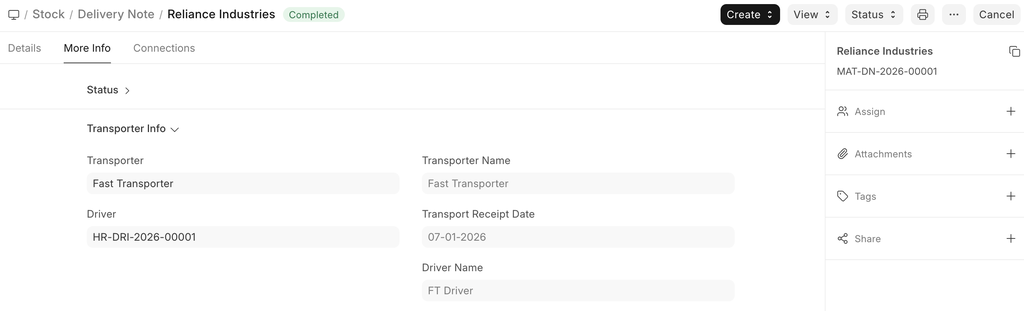
The Transporter Info section is on the More Info tab. Use this section when a transporter carries the goods for you. This is not drop shipping.
| Field | Description |
|---|---|
| Transporter | The supplier who transports the items. Only suppliers with Is Transporter selected appear here. |
| Driver | The driver of the vehicle. ERPNext fills Driver Name. |
| Vehicle No | The number of the vehicle. |
| Transport Receipt No, Transport Receipt Date | The transporter's receipt reference. |
More Info tab
| Field | Description |
|---|---|
| Customer's Purchase Order No, Customer's Purchase Order Date | The customer's order reference. |
| Campaign, Source, Medium | UTM analytics fields that track where the sale came from. |
| Status | The status of the document. See Delivery Note statuses. |
| % Amount Billed, % Returned, % Installed | The share of the Delivery Note that is billed, returned, and installed. |
| Instructions | Delivery instructions. |
| Sales Partner, Commission Rate (%) | The sales partner who made the sale, and their commission. ERPNext copies them from the Sales Order. See Sales Partner. |
| Sales Team | The sales persons who worked on the sale. See Sales Person. |
Print Settings
The Print Settings section is on the More Info tab.
| Field | Description |
|---|---|
| Letter Head | The letter head to print the document on. See Letter Head. |
| Print Heading | A different heading for the printed document. See Print Headings. |
| Print Without Amount | Prints the Delivery Note without rates and amounts, for example for high-value goods. |
| Group same items | Prints rows of the same item as one row. |