Sell Items as a Product Bundle
A Product Bundle sells several Items together as one set. For example, a smartphone ships with a charger, a cable, and a SIM ejector pin. You sell one "Smartphone Kit", and ERPNext reduces the stock of each of the four Items.
A Product Bundle has two parts:
- The Parent Item: the Item that you sell, such as the Smartphone Kit. It is a non-stock Item. ERPNext keeps no stock of it.
- The child Items: the stock Items that you deliver, with their quantities. The main product, here the smartphone, must also be a child Item.
Think of a Product Bundle as a bill of materials on the sales side.
TIP
If you want to keep stock of the finished set, do not use a Product Bundle. Create a Bill of Materials and assemble the set with a Manufacture or Repack Stock Entry.
Prerequisites
- The child Items exist as stock Items.
- The parent Item exists with Maintain Stock and Is Fixed Asset cleared. See Create an Item.
- An Item Price for the parent Item, which is the price of the set in transactions.
Create a Product Bundle
- Open the Product Bundle list and select Add Product Bundle.
- Select the Parent Item. The list shows only non-stock Items.
- Optional: enter a Description for internal use.
- In the Items table, add each child Item and its Qty for one set.
- Save.
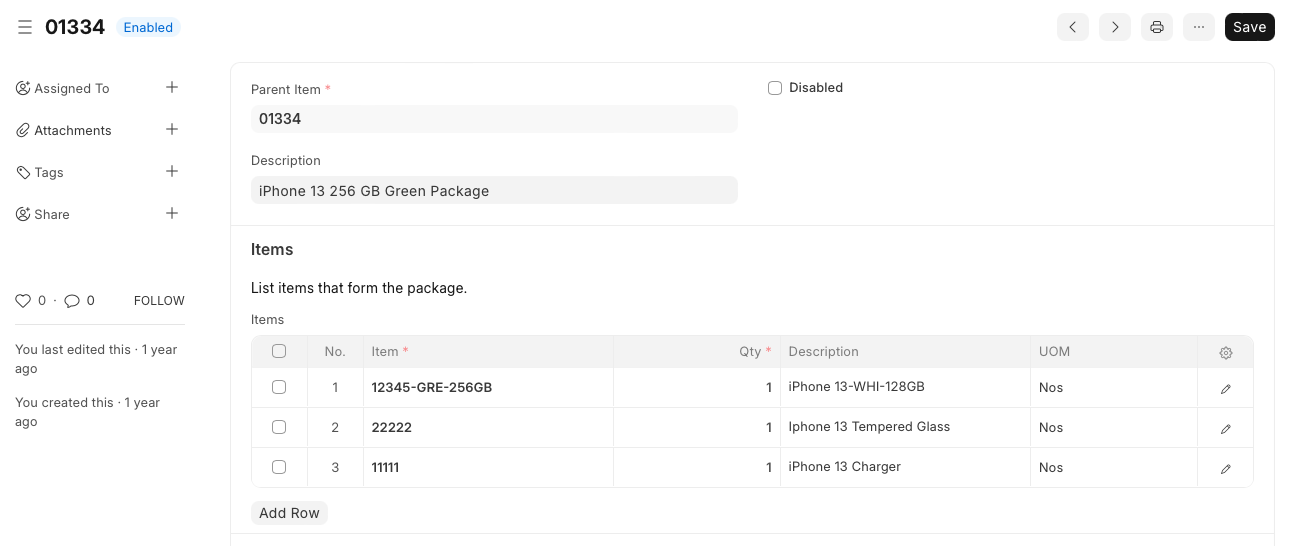
A child Item cannot be another active Product Bundle. Each quantity must be greater than zero.
To stop the use of a bundle, select Disabled.
Sell a Product Bundle
Product Bundles work in the Quotation, Sales Order, Delivery Note, Sales Invoice, and POS Invoice.
- In the Items table of the transaction, select the parent Item.
- ERPNext adds the child Items to the Packed Items table, in the Packing List section. It multiplies each child quantity by the quantity of the parent.
- In the Packed Items table, check the From Warehouse of each child Item. For a serialized or batched child Item, select the serial or batch numbers there.
- Submit the transaction. A Delivery Note, or a Sales Invoice with Update Stock, reduces the stock of the child Items from their warehouses.
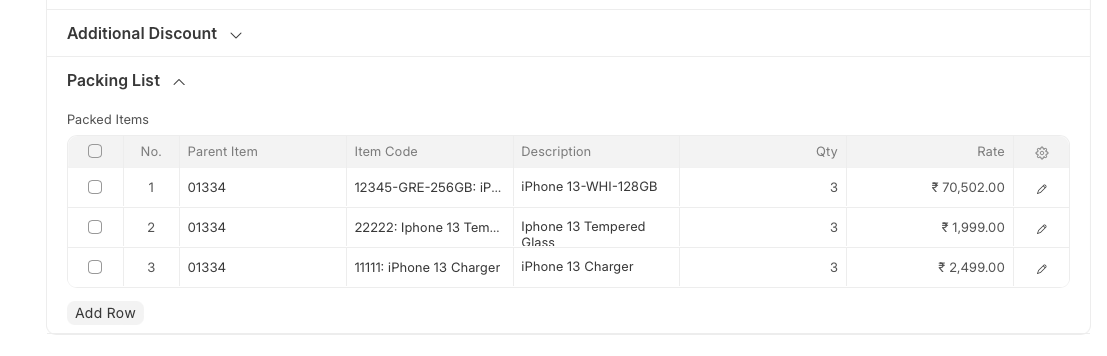
By default, the price of the set comes from the parent Item. To build the price from the rates of the child Items instead, select Calculate Product Bundle price based on child Item's rates in Selling Settings.
Use a bundle for an offer
You can use a Product Bundle for a "Buy one, get one free" offer:
- Create a non-stock parent Item for the offer, with the offer details in its description and image.
- Create a Product Bundle with the real product as the child Item and a Qty of 2.
Each sale of one offer Item now reduces the stock of the product by two.
Troubleshooting
| Message | Cause | Fix |
|---|---|---|
| Parent Item must not be a Stock Item | The parent Item has Maintain Stock selected. | Use a non-stock Item as the parent. |
| Child Item should not be a Product Bundle | A child Item is itself an active Product Bundle. | Add the child Items of that bundle directly. |
| This Product Bundle is linked with ... You will have to cancel these documents in order to delete this Product Bundle | You tried to delete a bundle that submitted transactions use. | Cancel those documents first, or disable the bundle. |