Plan deliveries with a Delivery Trip
A Delivery Trip groups the deliveries that one vehicle makes on one run. Each customer is a stop, with its address and its submitted Delivery Notes. You can calculate the arrival times, optimize the order of the stops, and email the customers.
Prerequisites
- Submitted Delivery Notes for the deliveries.
- A Driver and a Vehicle. You can create both from the Delivery Trip.
- Customer addresses for the stops.
- For arrival times and route optimization: a Google Maps API key in Google Settings, and a Driver Address. See Google Maps integration.
Create a Delivery Trip
- Open a submitted Delivery Note and select Create > Delivery Trip. Or create a new Delivery Trip from the Delivery Trip list.
- Select the Driver and the Vehicle.
- Set the Departure Time.
- To add stops from Delivery Notes, select Get stops from > Delivery Note and select the Delivery Notes. ERPNext adds one stop for each with the customer, the address, and the contact.
- To add a stop by hand, add a row in Delivery Stop, and select the Customer and the Address Name.
- Select Submit.
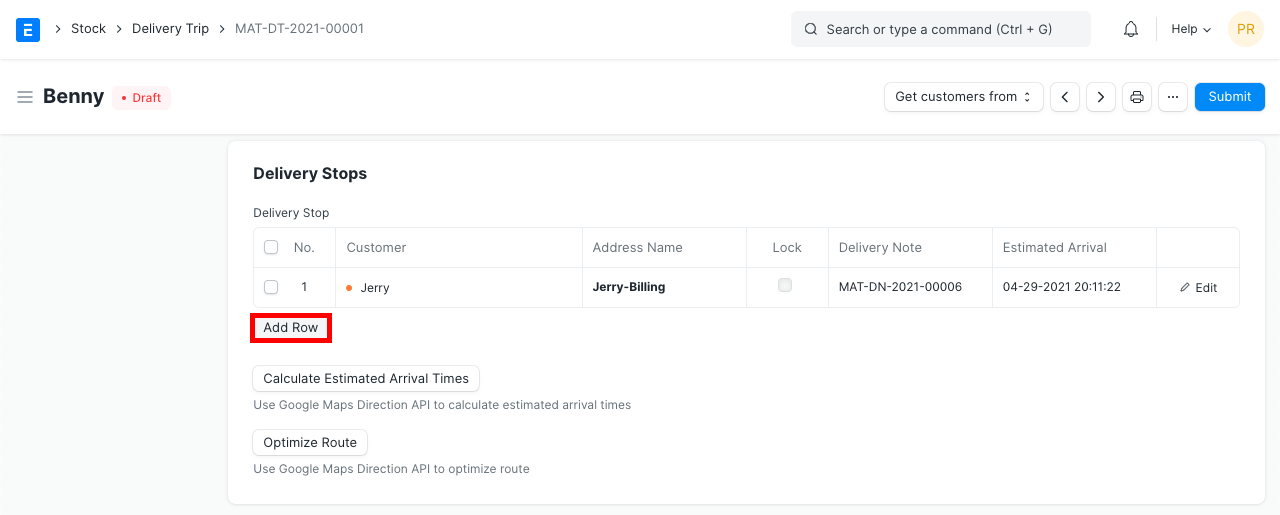
Calculate arrival times and optimize the route
These buttons appear after you save. They use the Google Maps Directions API and need a Driver Address.
- Calculate Estimated Arrival Times: fills Estimated Arrival and Distance for each stop, in the current order. ERPNext also fills Total Estimated Distance.
- Optimize Route: puts the stops in the shortest order. Select Locked on a stop to keep it in its place.
Notify customers
In a submitted Delivery Trip, select Notify Customers via Email. ERPNext emails each stop's contact with the expected arrival. Set the email template and the attachment in Delivery Settings, in Dispatch Notification Template and Dispatch Notification Attachment.
Track the trip
After you submit, select Visited on each stop that the driver reaches. The Status of the trip changes from Scheduled to In Transit and Completed.
To see the Delivery Notes of the trip, select View > Delivery Notes.