Create Item Variants
An Item Variant is one version of an Item that comes in several sizes, colors, or other options. For example, a T-shirt comes in Small, Medium, and Large, and in Red, Blue, and Green. A blue small T-shirt is one variant.
Variants hang off a template Item:
- The template holds the common details, such as the Item Group, description, image, prices, and taxes. A template cannot be used in transactions.
- Each variant is a full Item that you buy, sell, and stock. ERPNext creates it from the template and copies the template's fields to it.
Without variants, you would create and maintain each version as an unrelated Item.
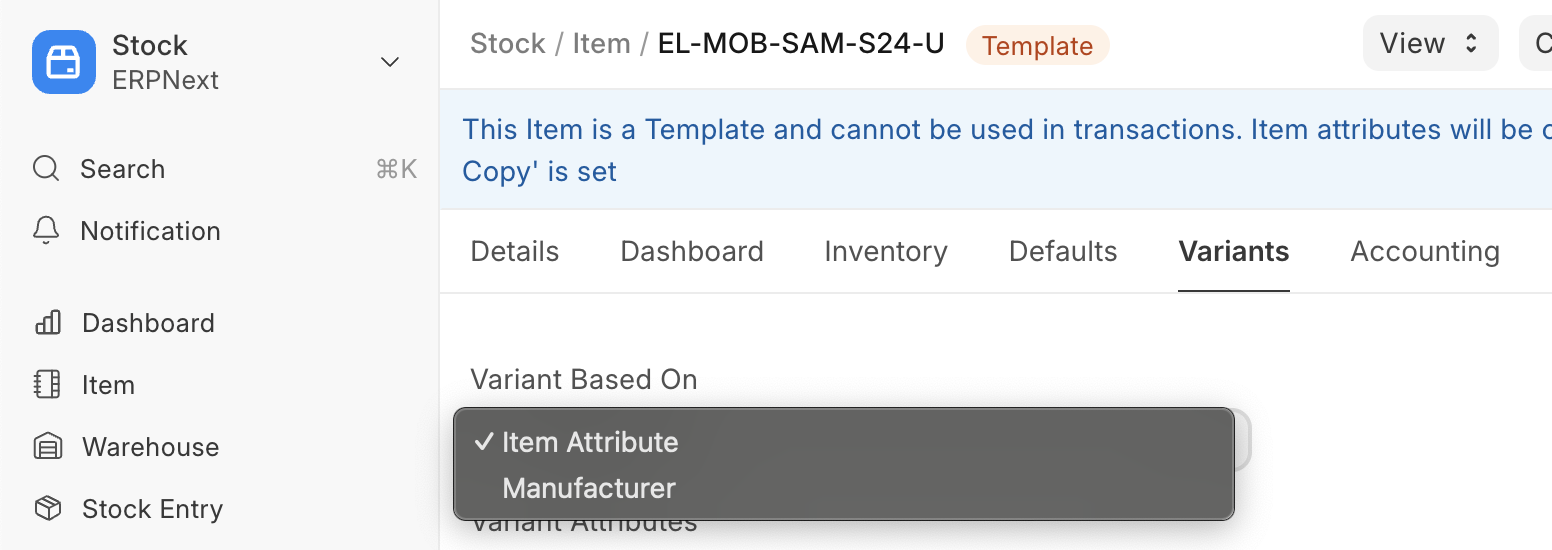
You can base variants on Item Attributes (such as Size and Color) or on Manufacturers (the same part from several makers).
Create Item Attributes
An Item Attribute is a property that variants differ by, such as Size, Color, or Length. Create the attributes before the template.
- Open the Item Attribute list and select Add Item Attribute.
- Enter the Attribute Name, for example
Size. - Enter the values:
- For text values, add rows to the Item Attribute Values table. Each row has an Attribute Value, such as
Small, and an Abbreviation, such asS. ERPNext adds the abbreviation to the Item Code of each variant. - For numbers, select Numeric Values and enter From Range, To Range, and Increment. For example, a cable length from 1 to 5 with an increment of 1 gives the values 1, 2, 3, 4, and 5.
- For text values, add rows to the Item Attribute Values table. Each row has an Attribute Value, such as
- Save the attribute.

To stop the use of an attribute, select Disabled.
Create the template
Decide whether an Item has variants when you create it. You cannot add variants to an Item that already has stock.
- Create an Item for the general product, for example
T-SHIRT. - In the Details tab, select Has Variants.
- In the Variants tab, set Variant Based On to Item Attribute.
- In the Variant Attributes table, add each attribute, for example Size and Color. For a numeric attribute, the range comes from the Item Attribute. You can narrow it here.
- Save the template.
ERPNext shows a note that the Item is a template and cannot be used in transactions.
Create variants from attributes
Open the template and select Create. Then select one of these:
- Single Variant: select one value for each attribute. ERPNext creates one variant.
- Multiple Variants: select several values for each attribute. ERPNext creates one variant for each combination. For example, Color Red and Green with Size Small, Medium, and Large gives 6 variants. The button shows the number of variants it will make.
If the template has an image, you can select Create a variant with the template image.
ERPNext names each variant from the template code and the abbreviations. For example, T-SHIRT with Color RED and Size S gives the variant T-SHIRT-RED-S. For a numeric attribute, ERPNext adds the value instead of an abbreviation.
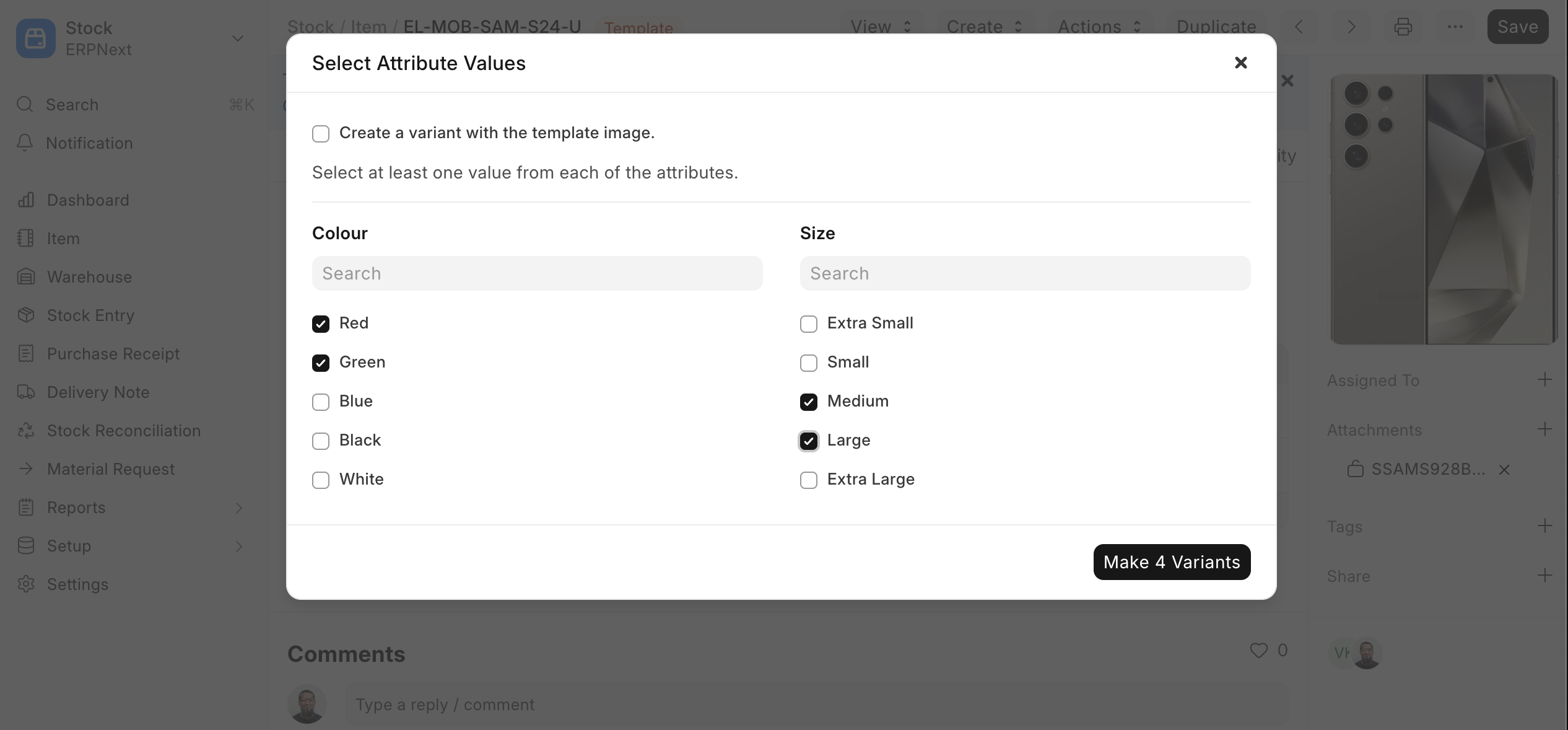
To see all variants of a template, select View > Show Variants. View > Variant Details Report shows the variants with their attributes.
Create variants from manufacturers
Use this when the same part comes from several manufacturers under different part numbers.
- Create the template with Has Variants selected, and set Variant Based On to Manufacturer.
- Save the template, then select Create > Variant.
- Select the Manufacturer, and optionally enter the Manufacturer Part Number.
ERPNext names the variant from the template, the manufacturer, and the part number, for example SCREWDRIVER - ACME - SD100. It also creates an Item Manufacturer for the variant.
Keep variants in sync with the template
When you save a template, ERPNext copies its fields to all variants. The Item Variant Settings decide which fields:
- On a template, select View > Item Variant Settings, or open Item Variant Settings from the search bar.
- In the Copy Fields to Variant table, remove the fields that each variant keeps for itself, such as the description or the barcode.
- Set these options as needed:
- Do not update variants on save: copy fields only when a variant is created, not on each save of the template.
- Allow Rename Attribute Value: allow renaming a value in an Item Attribute.
- Allow Variant UOM to be different from Template UOM: allow a variant to have its own Default Unit of Measure.
- Save the settings.
The taxes and the auto re-order rows of a template also apply to its variants, unless a variant has its own rows.
Troubleshooting
| Message | Cause | Fix |
|---|---|---|
| Variant Based On cannot be changed | The template already has variants. | Create a new template if you need the other basis. |
| Attribute table is mandatory | Has Variants is selected but the Variant Attributes table is empty. | Add at least one attribute. |
| Cannot change Variant properties after stock transaction. You will have to make a new Item to do this. | You changed Has Variants or Variant Of on an Item that has stock transactions. | Create a new Item, and move the stock to it. |
| Item has variants. | You tried to clear Has Variants on a template that has variants. | Delete or disable the variants first. |