Reconcile stock with a physical count
A Stock Reconciliation sets the quantity and the valuation rate of an Item in a warehouse to the values that you enter. Use it after a physical stock count, when the stock in ERPNext does not match the stock on the shelves. You can also use it to correct the valuation rate of stock.
ERPNext compares the new values with the current values and posts only the difference. With perpetual inventory, it posts the change in stock value to the Difference Account.
Prerequisites
- The Items have Maintain Stock selected.
- A physical count of the stock, per Item and warehouse.
Choose a purpose
| Purpose | Use it to | Default Difference Account |
|---|---|---|
| Stock Reconciliation | Correct stock after a physical count | The Stock Adjustment Account of the Company |
| Opening Stock | Enter stock balances when you start with ERPNext | An account of the type Temporary, such as Temporary Opening |
| Adjustment Entry | Settle differences that the stock value comparison finds, without reposting closed periods | The Stock Adjustment Account of the Company |
To enter opening stock, see Enter opening stock. ERPNext creates an Adjustment Entry from the Stock Valuation Comparison report, and you cannot edit its rows.
Reconcile stock after a count
- Open the Stock Reconciliation list and select New.
- In Purpose, select Stock Reconciliation.
- Optional: select Edit Posting Date and Time to post the count on the date it was made.
- Optional: set the Default Warehouse. ERPNext copies it into each row.
- In the Items table, add each Item and its Warehouse. ERPNext shows the Current Qty and the Current Valuation Rate.
- Enter the counted Quantity. Change the Valuation Rate only if the value of the stock is also wrong.
- Check the Difference Account and the Cost Center.
- Submit the Stock Reconciliation. ERPNext sets the stock to the new values and posts the difference.
ERPNext removes rows that have no change in quantity or valuation rate when you save.
WARNING
A Stock Reconciliation sets an absolute quantity on its posting date and time. If you post it on an earlier date, transactions after that date are revalued from the new balance.
Fetch all Items in a warehouse
To count a whole warehouse, fetch its Items instead of adding them one by one.
- Select Fetch Items from Warehouse.
- Select the Warehouse. Optional: select an Item Code, or select Ignore Empty Stock to skip Items with no stock.
- ERPNext adds a row for each Item, with its quantity and valuation rate on the posting date and time.
- Change the rows that differ from your count.
Upload many Items from a spreadsheet
- Above the Items table, select Download to get a template in CSV format.
- Fill in one row for each Item. Enter the Item Code and the Warehouse exactly as they are in ERPNext. In the quantity column, enter the stock level that you want, not the difference. Do not change the column headers.
- Select Upload and choose the file.
- Check the rows, then save and submit.
- Check the new balances in the Stock Ledger report.
Count stock with a barcode scanner
If your Items have barcodes, you can scan the stock as you count it.
- Set the Default Warehouse.
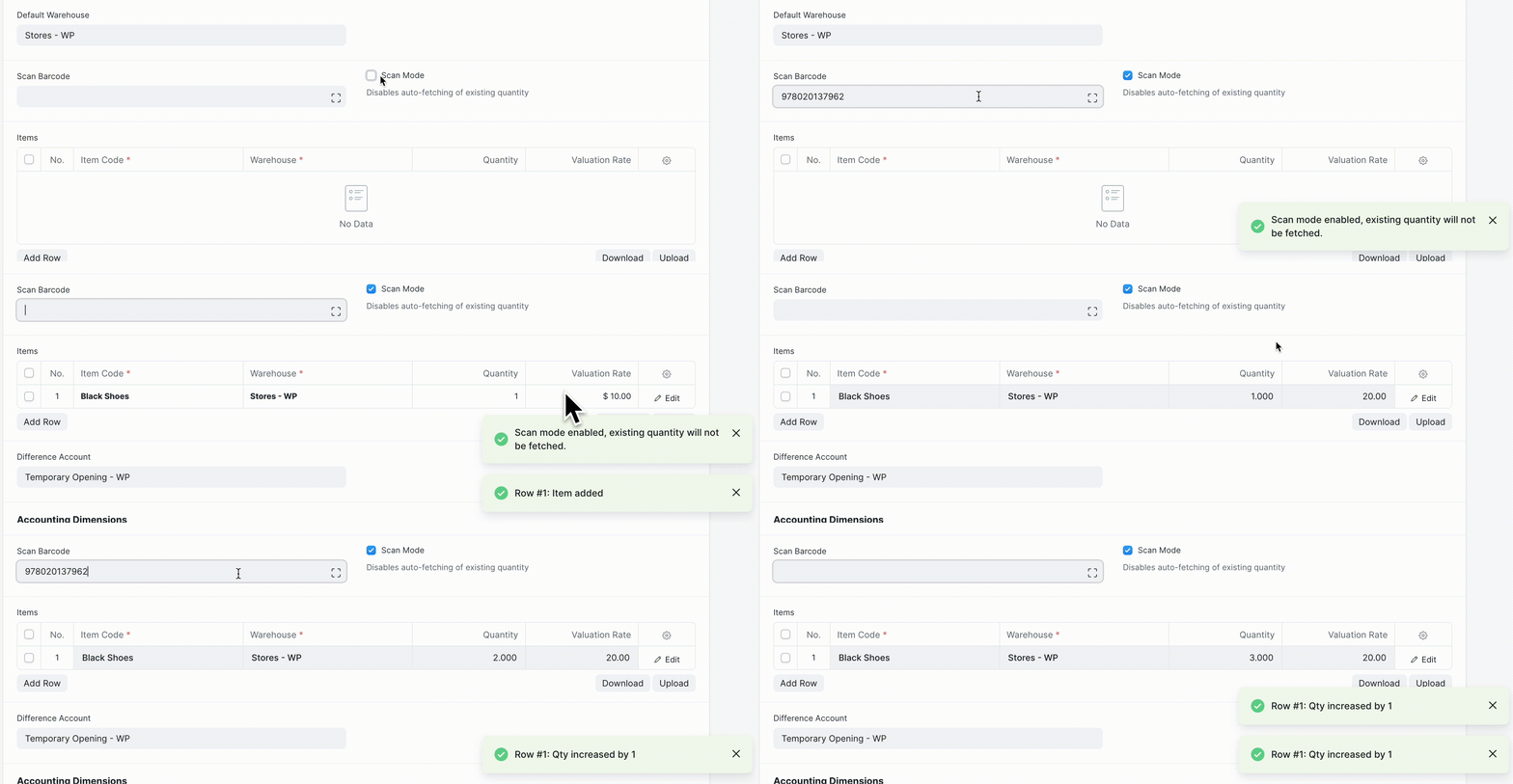
- Select Scan Mode. ERPNext no longer fetches the current quantity. Each scan adds 1 to the quantity of the Item.
- Place the cursor in Scan Barcode and scan each unit. ERPNext adds or updates the rows as you scan.
Reconcile serialized and batched Items
For Items with serial numbers or batches, each row records the serial numbers or batches in a Serial and Batch Bundle. Use one of these ways:
- Use Serial No / Batch Fields: select it in the row, then enter the Serial No or the Batch No. ERPNext creates the bundle for you.
- Add Serial / Batch No: select it in the row and pick the serial numbers or batches with their quantities and rates.
Then choose what to reconcile with Reconcile All Serial Nos / Batches:
| Setting | Effect | Example |
|---|---|---|
| Selected | The bundle is the complete new stock of the Item in the warehouse. ERPNext removes every serial number or batch that is not in the bundle. | You have 10 batches and want to keep 1. Add that 1 batch. ERPNext removes the other 9. |
| Cleared | ERPNext changes only the serial numbers or batches in the bundle. The others stay as they are. | You have 10 batches and want to change the rate of 2. Add those 2 batches with the new rate. |
After you save, ERPNext shows the stock before the change in Current Serial / Batch Bundle.
Troubleshooting
Difference Account must be a Asset/Liability type account
Cause: the purpose is Opening Stock, or no stock transactions exist yet, and the Difference Account is an income or expense account.
Fix: select a balance sheet account, such as Temporary Opening.