Set up units of measure
A unit of measure (UOM) is the unit that you count an Item in, such as Nos, Kg, Litre, Meter, Box, or Carton. ERPNext comes with many UOMs. You can add more for your business.
Each Item has one Default Unit of Measure, its stock unit. ERPNext keeps all stock quantities in that unit. You can buy, sell, or move the Item in other units if the Item has a conversion factor for them.
Create a UOM
- Open the UOM list and select Add UOM.
- Enter the UOM Name, for example
Pallet. - Optional: enter a Symbol, a Description, a Category (such as Mass or Length), and a Common Code from the UN/CEFACT list.
- Select Must be Whole Number if the quantity in this unit cannot be a fraction. See the next section.
- Save the UOM.
To hide a UOM from selection, clear Enabled.
Stop fractional quantities
Some units cannot have decimals. You cannot sell 1.5 televisions or 3.7 computer sets. For such units, select Must be Whole Number in the UOM, for example in Nos.
When Must be Whole Number is selected, ERPNext stops a transaction with a fractional quantity in that unit and shows this message:
Row 1: Quantity (1.5) cannot be a fraction. To allow this, disable 'Must be Whole Number' in UOM Nos.
To fix the error, enter a whole quantity, or clear Must be Whole Number in the UOM if fractions are valid for it.

Store standard conversion factors
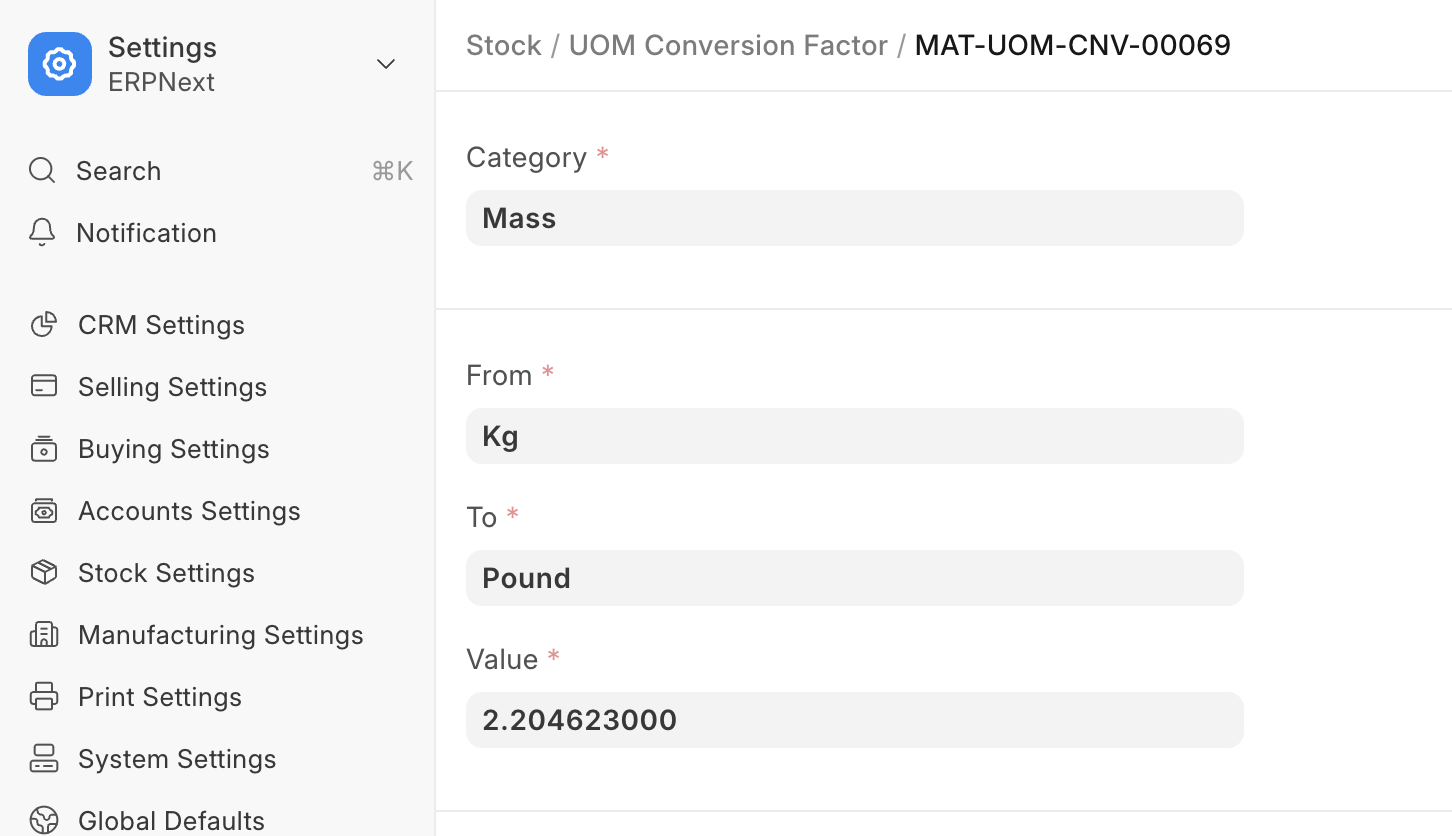
The UOM itself stores only the name. The conversion rate between two units is in a UOM Conversion Factor document. For example, 1 Kg is 2.20462 Pound.
- Open the UOM Conversion Factor list and select Add UOM Conversion Factor.
- Select the Category, for example Mass.
- Select the From and To units and enter the Value: how many To units make one From unit.
- Save.
When you add a unit to the UOM tab of an Item, ERPNext fills the Conversion Factor from these documents if it finds one.
Add units to an Item
Units such as Box or Carton depend on the Item: a box of screws and a box of pens hold different quantities. Set them on each Item:
- Open the Item and go to the UOM tab.
- In the UOM Conversion Details table, add a row with the UOM and the Conversion Factor: how many stock units are in one of this unit. For example, if the stock unit is Nos and 1 Box holds 500 Nos, enter Box with a factor of 500.
- Optional: in the Purchasing and Sales tabs, set Default Purchase Unit of Measure and Default Sales Unit of Measure.
- Save the Item.
In a transaction, you can now select Box in the UOM column. ERPNext converts the quantity to the stock unit with the conversion factor.
TIP
In Stock Settings, select Allow UOM with conversion rate defined in Item to allow only the units listed on the Item in sales and purchase transactions.
Related
- Create an Item
- Selling in different UOM
- Track Items with barcodes: a barcode can carry a UOM, such as one barcode for a unit and one for a box.