Add shipping charges with Shipping Rules
A Shipping Rule adds a shipping charge to the taxes table of a transaction. The charge can be:
- a fixed amount for every transaction, or
- an amount that depends on the net total or the net weight of the transaction, for example lower shipping for large orders.
You can limit a Shipping Rule to some countries.
Prerequisites
- An account for shipping charges in the chart of accounts, for example
Freight and Forwarding Charges. - For Net Weight: the weight of each Item is set in the Item.
Create a Shipping Rule
- Open the Shipping Rule list and select Add Shipping Rule.
- Enter the Shipping Rule Label, for example
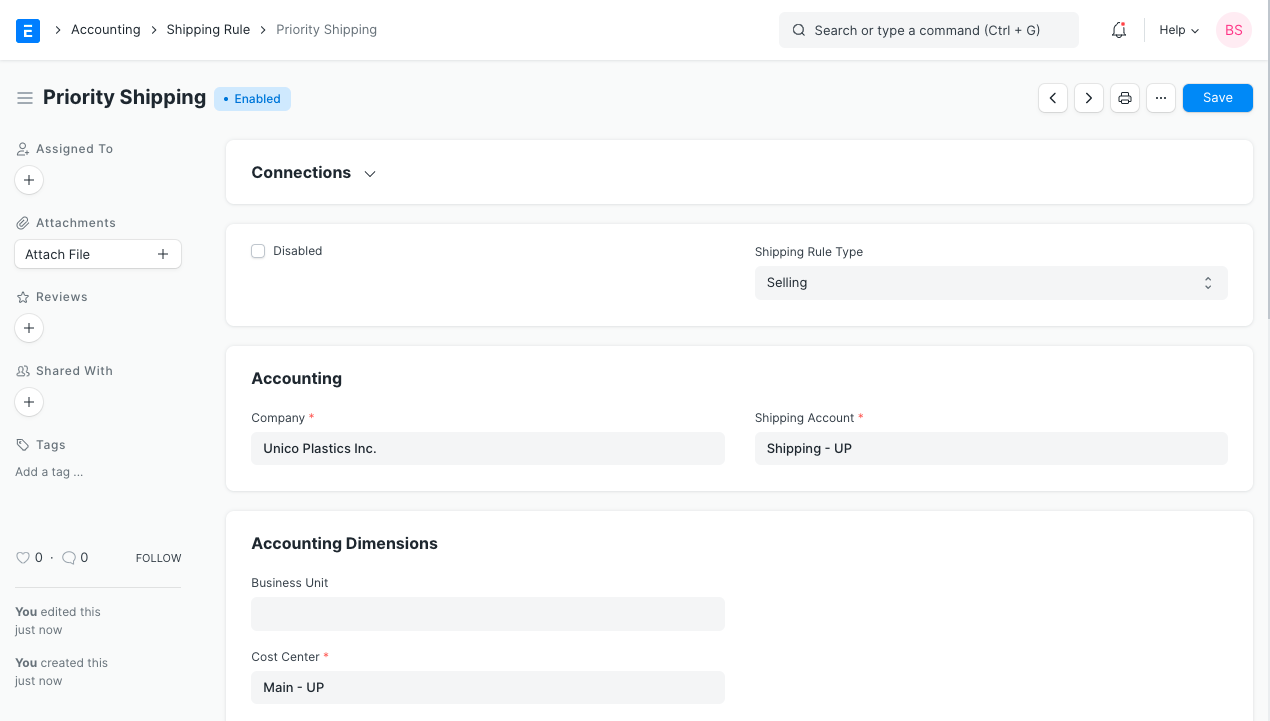
Next Day Shipping. This text becomes the description of the charge in the transaction. - Select the Shipping Rule Type: Selling or Buying.
- Select the Company and the Shipping Account. The account must belong to the company.
- Optionally, select the Cost Center and the Project for the charge.
- In Calculate Based On, select one method:
- Fixed (default): enter the Shipping Amount.
- Net Total or Net Weight: add the conditions. See Set charges by ranges.
- Optionally, add the countries under Valid for Countries. See Limit the rule to countries.
- Save the Shipping Rule.
Set charges by ranges
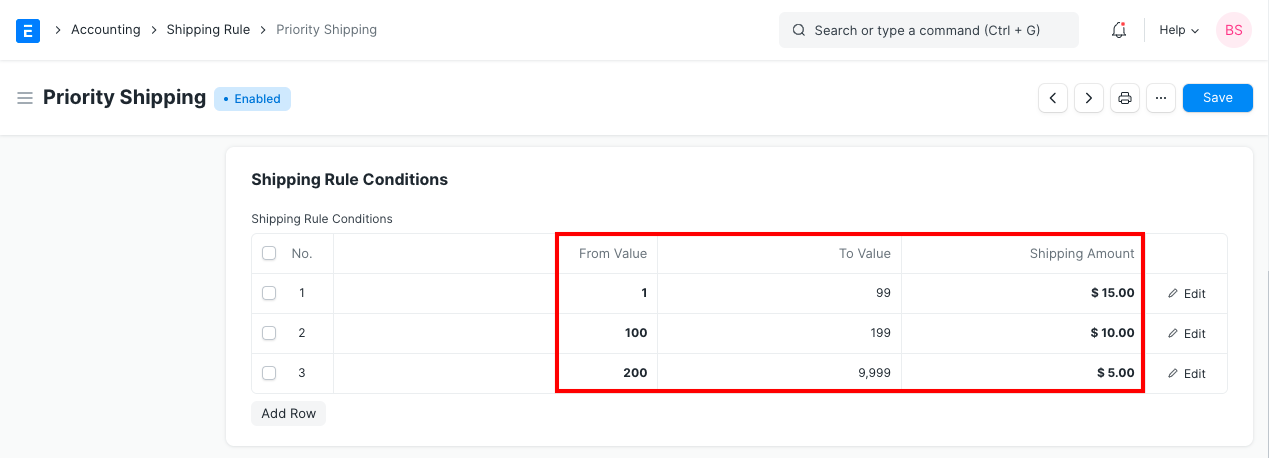
For Net Total or Net Weight, add one row to Shipping Rule Conditions for each range:
| Field | Description |
|---|---|
| From Value | The start of the range. |
| To Value | The end of the range. Leave it 0 or blank in one row only, for "this value and above". |
| Shipping Amount | The charge for a transaction in this range. |
The ranges cannot overlap, and From Value must be lower than To Value. ERPNext uses the net total in the company currency, or the total net weight of the Items. If the value is in no range, the charge is 0.
Example: from 0 to 1,000 the charge is 100; from 1,000.01 to 5,000 it is 50; from 5,000.01 with no end it is 0.
Limit the rule to countries
By default, a Shipping Rule applies in all countries. If you add countries to Valid for Countries, ERPNext checks the country of the shipping address in the transaction. If the country is not in the list, ERPNext stops with an error.
Apply a Shipping Rule to a transaction
- In a sales transaction, such as a Quotation, Sales Order, or Sales Invoice, or a purchase transaction, select the Shipping Rule.
- ERPNext adds a row with the charge type Actual to the taxes table, with the shipping account and amount. When the totals change, ERPNext updates the amount.
If the transaction is in another currency, ERPNext converts the shipping amount from the company currency. In a purchase transaction with stock Items, the charge is added to the valuation of the Items.
Troubleshooting
| Message | Cause | Fix |
|---|---|---|
Shipping Account <account> does not belong to Company <company> | The account is for another company. | Select an account of the same company. |
From value must be less than to value in row <n> | A condition row has From Value equal to or above To Value. | Correct the range. |
| There can only be one Shipping Rule Condition with 0 or blank value for "To Value" | More than one row has no To Value. | Set To Value on all rows except the last range. |
| Overlapping conditions found between | Two ranges overlap. | Change the ranges so that they do not overlap. |
| Shipping Address does not have country, which is required for this Shipping Rule | The rule has countries, and the shipping address has no country. | Add the country to the address. |
Shipping rule not applicable for country <country> in Shipping Address | The shipping country is not in Valid for Countries. | Select another Shipping Rule, or add the country to the rule. |
| Shipping rule only applicable for Selling | A Selling rule is used in a purchase transaction. | Select a rule with the matching Shipping Rule Type. |