Reserve Items for a party
A Party Specific Item rule reserves Items for one party. The party can be a Customer, a Customer Group, a Supplier, or a Supplier Group. After you reserve an Item for a party, other parties of the same kind cannot use it in their transactions. The party with the reservation can still use all Items that are not reserved for someone else.
INFO
This page describes version 16. In version 15, a rule limited the party to only the Items in its rules.
When to use it
- You sell an Item to one customer only, such as a custom-made or private-label product.
- Only one supplier is approved to supply an Item, such as a sole distributor.
- You sell an Item Group or a Brand only through one customer group, such as a dealer network.
- You want to stop users from adding a reserved Item to another party's transaction by mistake.
How the rules work
A rule has two parts: the party that gets the reservation, and the Items that the rule reserves, chosen by Item, Item Group, or Brand.
ERPNext applies the rules in two places:
- Item selection: the Item field in a transaction does not offer Items that are reserved for other parties.
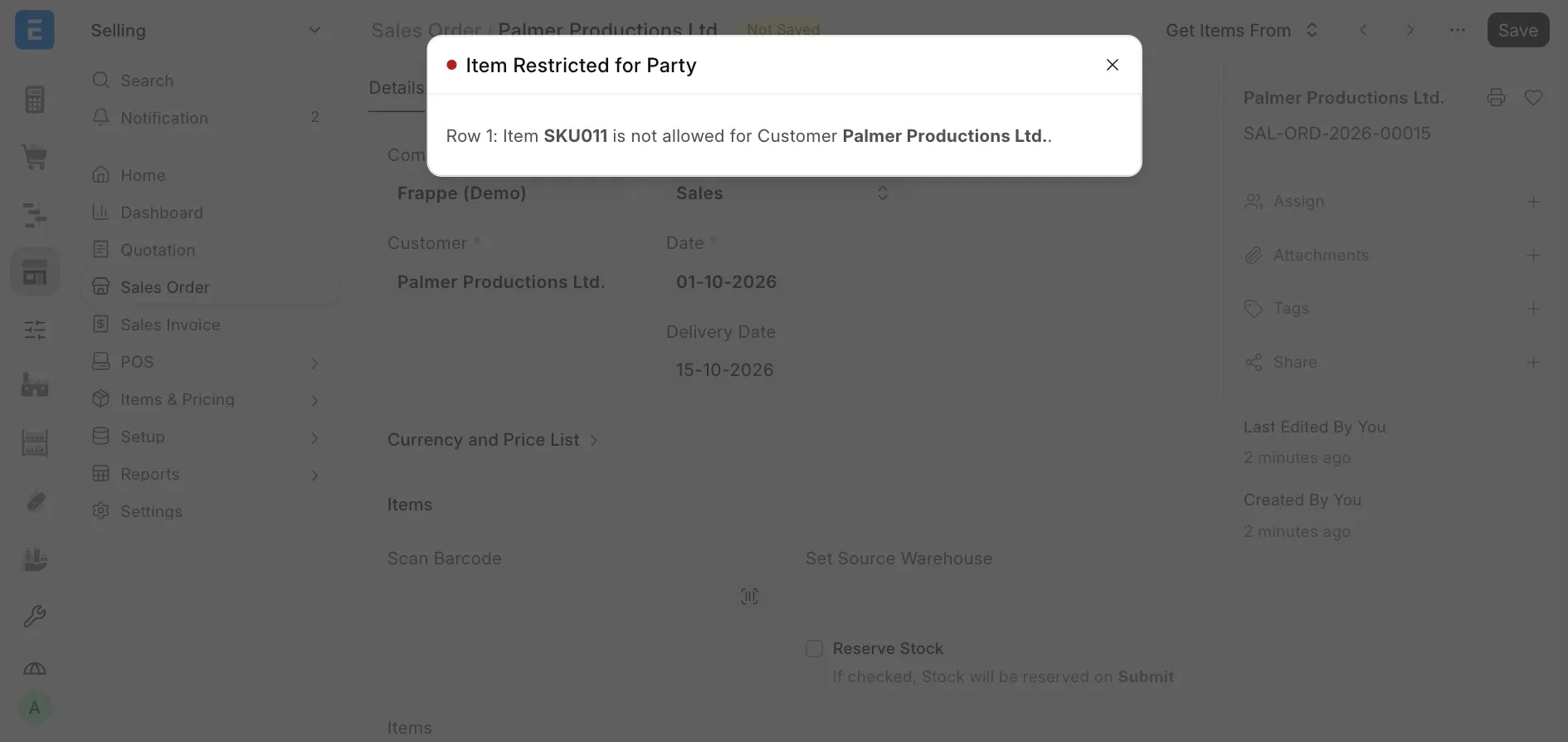
- Save: if a transaction has an Item that is reserved for another party, ERPNext stops the save with the error "Item Restricted for Party".
The rules follow these principles:
- A party can use the Items reserved for it and all Items that no rule reserves.
- A party cannot use an Item that a rule reserves for another party.
- If rules reserve the same Item for two or more parties, all of these parties can use it. The rules can use different bases, such as a Brand rule for one party and an Item rule for another.
- A rule for an Item Group also covers all sub-groups of that group.
- A rule for a Customer Group covers the customers whose Customer Group is that group. A rule for a Supplier Group works the same way for suppliers.
- Customer and Customer Group rules apply only to sales transactions: Quotation, Sales Order, Delivery Note, and Sales Invoice.
- Supplier and Supplier Group rules apply only to purchase transactions: Supplier Quotation, Purchase Order, Purchase Receipt, and Purchase Invoice.
- A return can always return the Items of its original document, even if a rule now reserves them for another party.
Create a rule
- Open the Party Specific Item list and select Add Party Specific Item.
- Select the Party Type: Customer, Customer Group, Supplier, or Supplier Group.
- Select the Party Name. For a group, the list shows only groups that are not parent groups.
- Select Restrict Items Based On: Item, Item Group, or Brand.
- Select the matching value in Based On Value.
- Save the rule.
To reserve the same Item for more than one party, create one rule for each party. ERPNext does not allow two rules with the same party and the same value.
After you save a rule, test it in a sales or purchase transaction.
Example
Only the customer West View Software Ltd. can buy the Item SKU011 (Smart TV). Create a rule with these values:
| Field | Value |
|---|---|
| Party Type | Customer |
| Party Name | West View Software Ltd. |
| Restrict Items Based On | Item |
| Based On Value | SKU011 |
If no other rules exist, the result is:
| Party | Can use SKU011 | Can use other Items |
|---|---|---|
| West View Software Ltd. | Yes | Yes |
| Other customers | No | Yes |
| Suppliers | Yes | Yes |
If another customer, such as Palmer Productions Ltd., saves a transaction with SKU011, ERPNext shows the error "Row 1: Item SKU011 is not allowed for Customer Palmer Productions Ltd.". To let a second customer buy SKU011, create the same rule for that customer. To let a whole group of customers buy it, create the rule for their Customer Group.
Choose the basis of a rule
- Use Item to reserve one specific Item.
- Use Item Group to reserve a full product category, including its sub-groups.
- Use Brand when the reservation follows a brand-level agreement.
- Use a Customer Group or Supplier Group rule when many parties share the same reservation.