Set inventory accounts for warehouses and items
With perpetual inventory, ERPNext posts the value of stock to an inventory account: an asset account with Account Type set to Stock. You choose this account in one of two ways:
- Warehouse-wise (the default): each warehouse posts to its own account, or to the account of its parent warehouse.
- Item-wise: each item posts to its own account, whatever the warehouse.
A company uses one way or the other, not both.
When you create a company, ERPNext creates an account named Stock In Hand under Assets > Current Assets > Stock Assets, and sets it as the Default Inventory Account of the company.
Prerequisites
- The inventory accounts exist in the chart of accounts, under Stock Assets, with Account Type set to Stock. You can add more accounts under Stock Assets if you need them.
- Enable Perpetual Inventory is selected in the Company. See How perpetual inventory works.
Set warehouse-wise inventory accounts
- Open the Warehouse list and open a warehouse.
- In Account, select the inventory account for this warehouse.
- Save the warehouse.
If the Account field of a warehouse is empty, ERPNext looks for the account in this order:
- The Account of the parent warehouse, then up the warehouse tree.
- The Default Inventory Account in the Company.
To post all warehouses to one account, leave Account empty in every warehouse and set the Default Inventory Account in the Company.
TIP
Set the account on a group warehouse to give all its child warehouses the same account. You then see a separate stock balance for each group in the general ledger.
Set item-wise inventory accounts
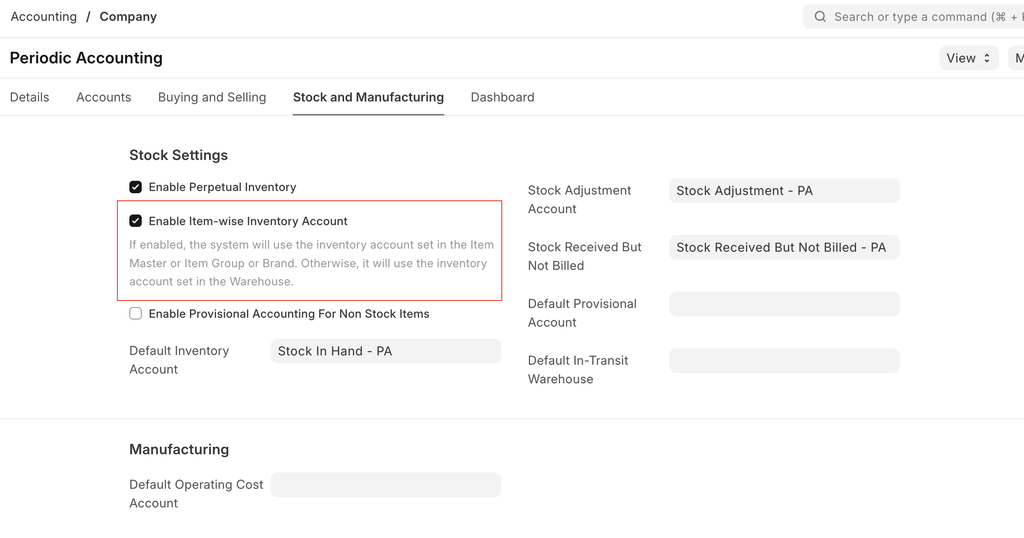
- Open the Company and select Enable Item-wise Inventory Account.
- Open the Item. In the Item Defaults table, select the Default Inventory Account for the company.
- To give many items the same account, set Default Inventory Account in the Item Defaults table of the Item Group or the Brand instead.