Set up ERPNext for a services company
Service companies, such as software firms, agencies, consultants, and certification providers, sell work instead of goods. In ERPNext, you set up services as Items that do not maintain stock. You can then invoice a service without a Delivery Note or a warehouse.
Prerequisites
- A company with its chart of accounts and currency.
- A Customer for each client.
- Income accounts, taxes, payment terms, and cost centers for your accounting.
- A decision on how you bill: a fixed fee, a recurring amount, milestones, or time and expenses.
Create a service Item
- Open the Item list and select Add Item.
- Enter an Item Code and an Item Name that describe the service.
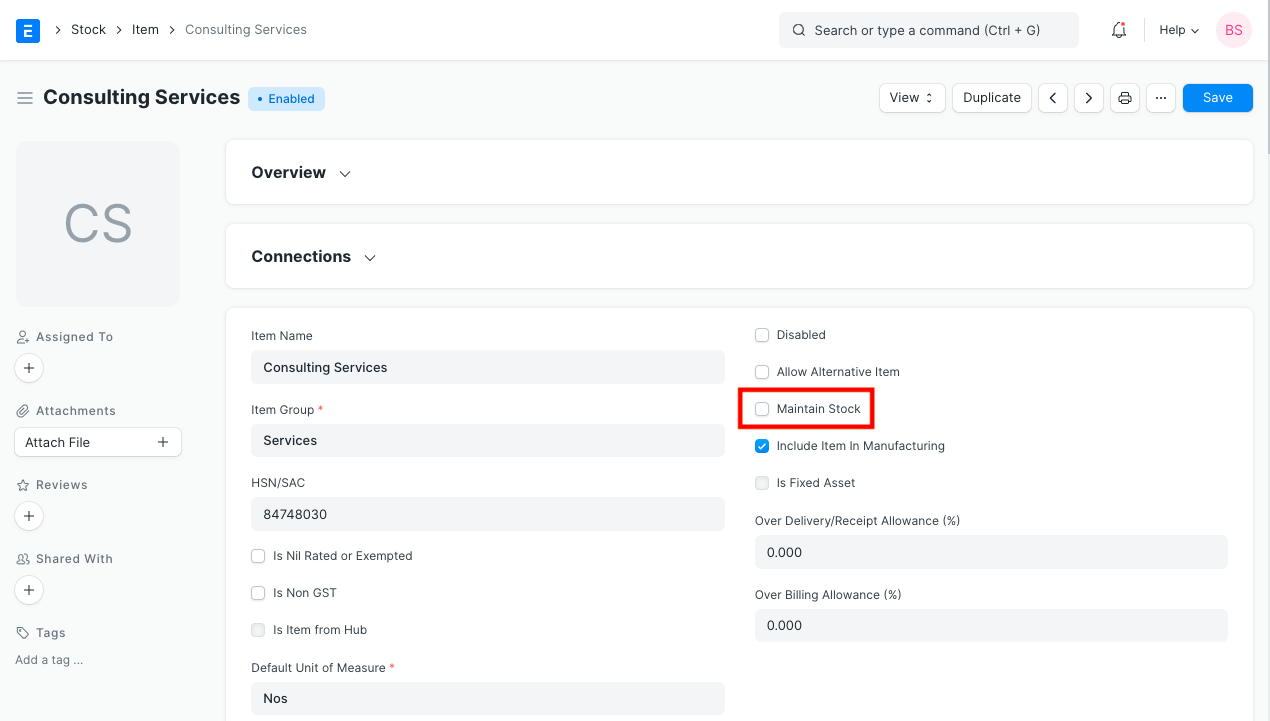
- Clear Maintain Stock.
- Select an Item Group and a unit of measure, such as Nos or Hour.
- If your setup needs it, select the income account in the accounting defaults of the Item.
- Save.
A service Item needs no warehouse and creates no stock ledger entries. You can still use quantities, rates, taxes, and accounting dimensions.
Sell and invoice a service
The usual flow is:
Quotation → Sales Order → Sales Invoice → Payment Entry
The Quotation is optional when the client has already confirmed the work. You can also create a Sales Invoice directly when you do not need an order.
Complete a Sales Order without a Delivery Note
- Create a Sales Order and select the Customer.
- In Order Type, select Maintenance.
- Select Skip Delivery Note.
- Add the service Item, the quantity, the rate, the taxes, and the payment terms.
- Save and submit the Sales Order.
- Select Create > Sales Invoice.
- Check and submit the Sales Invoice.
When the Sales Invoice bills the full quantity of the order, ERPNext sets the Sales Order status to Completed. A partial invoice leaves the order open until you bill the rest or close the order.
If the order also contains goods that leave a warehouse, use the normal Delivery Note flow.
Track the work with projects and timesheets
- Create a Project when the service has tasks, milestones, a budget, or a delivery period. Link the Sales Order and the later documents to the project to see its revenue and costs together.
- Use Timesheets to record billable and non-billable hours. You can invoice time from timesheets instead of a fixed quantity.
- Use Issues for customer support, service level agreements for response times, and maintenance schedules for planned work.
Track equipment as assets
Record laptops, servers, furniture, and test equipment as Assets. Keep them apart from the service Items that you sell. Use stock Items only when you need stock quantities and warehouse movements.
Show users only what they need
Many service companies do not use Manufacturing or Stock. Give each user only the roles for their work, and remove Stock and Manufacturing roles from users who do not need them. See Limit the modules a user sees.
Hiding a workspace does not protect data. Use role permissions to decide who can read, create, submit, cancel, or amend each document. Test with a user who has the same roles, not as an administrator.
Troubleshooting
ERPNext asks for a warehouse for a service Item
Open the Item and check that Maintain Stock is clear. Check that the order row has the service Item, not a stock Item with a similar name.
Skip Delivery Note is not visible
Set Order Type to Maintenance. The check box appears only for this order type.
The Sales Order is not Completed after invoicing
Check that Skip Delivery Note is selected and that a submitted Sales Invoice bills the full quantity. A draft or partial invoice does not complete the order.