Search with the awesomebar
The awesomebar is the search field at the top of every ERPNext page. It is the fastest way to open a list, a report, a settings page, or a new document. You do not need to know which workspace or menu holds it.
Open a list, a report, or a new document
- Select the search field at the top of the page, or press Ctrl+K.
- Type the name of what you want, for example
Sales Invoice. - Use the arrow keys to move to a result, and press Enter to open it.
For Sales Invoice, the results include the Sales Invoice list, a new Sales Invoice, and the reports that match the name.
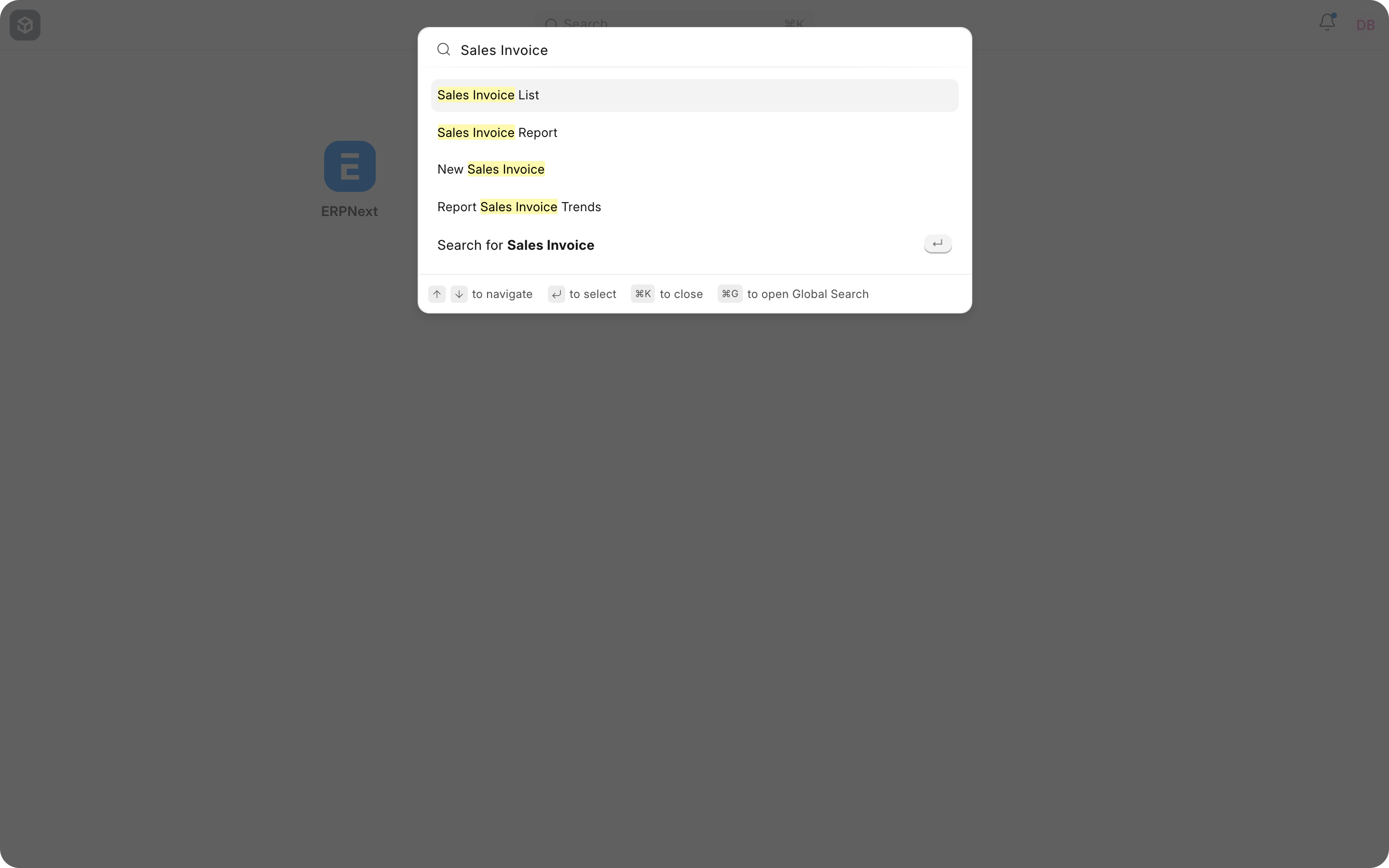
Types of results
| Result | What it opens |
|---|---|
| List | All documents of one kind, for example the Sales Invoice list. |
| New | A new, empty form, for example a new Sales Invoice. |
| Report | A report with a matching name. |
| Page or workspace | A settings page, a tool, or a module workspace. |
| Search for | A search for the text across all your documents. |
Search across all documents
When the direct results do not show the document that you need, select the Search for result. ERPNext searches the text in the documents that it indexes. You can also press Ctrl+G to open this search directly.
The search shows only the documents that you have permission to read.
TIP
Press Shift+/ to see all keyboard shortcuts.
Troubleshooting
A list or a report does not appear in the results
You need a role that can read that list or report. Ask your System Manager to check your roles. See About users and permissions.
A document is not found
Search for a distinctive part of its name or ID. If it still does not appear, open the list and use filters. Not every kind of document is included in the global search.