Publish items in the webshop
A Website Item holds the website information of an Item: its name on the website, images, description, stock warehouse, and more. An item is published when it has a Website Item.
INFO
Website Item comes with the webshop app.
Prerequisites
- The Item.
- In Webshop Settings: the Company, Price List, and Default Customer Group.
Publish an item
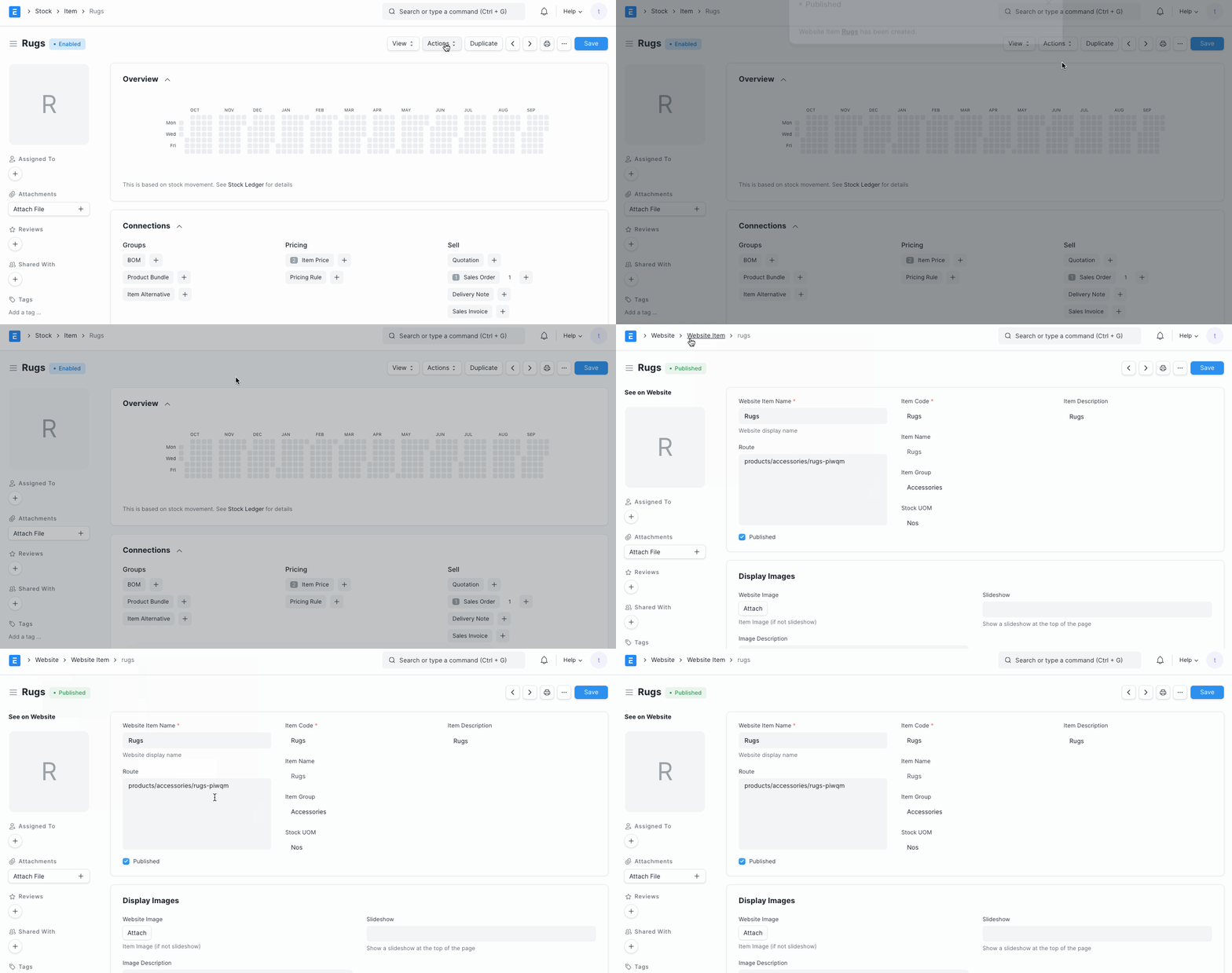
- Open the Item.
- Select Actions > Publish in Website. ERPNext creates the Website Item.
The item now appears at /all-products. To open its page, select See on Website in the Website Item.
Add a price
- Create an Item Price for the item in the price list of Webshop Settings.
- Optional: create a Pricing Rule with a discount. The webshop then shows the old price struck through next to the new price.
Edit the Website Item
| Section | Fields |
|---|---|
| General | Website Item Name (the title on the website), Route (created for you), Published (clear it to take the item down) |
| Display images | Website Image (copied from the Item), Slideshow (shown instead of the image), Image Description (the alt text) |
| Stock information | Website Warehouse (the stock that the webshop shows), On Backorder (shows "Available on backorder" instead of the stock status) |
| Display information | Short Website Description (shown in the list view, HTML allowed), Website Description (the full description; the Item description is the fallback), Website Specifications (shown under Product Details) |
| Search and SEO | Ranking (a higher rank shows higher in the listing), Set Meta Tags, Website Item Groups (more item groups whose pages show the item) |
| Advanced display content | A section of custom Bootstrap markup on the item page |
WARNING
If an item maintains stock and has no Website Warehouse, the webshop shows it as out of stock.
To copy common specifications, add them to the Item Group, and select Copy From Item Group in the Website Item.
Show more information in tabs
- In Display Additional Information, select Add Section with Tabs.
- In the Tabs table, add a label and HTML content for each tab.
The first tab is Product Details, with the website specifications. Your tabs follow it.
Show offers
Customers can only use a coupon code if they know it. To advertise an offer on the item page:
- In the Offers section, add a row.
- Enter a short Offer Title (one or two words), an Offer Subtitle (one sentence), and the Offer Description.
Recommend related items
- In Webshop Settings, select Enable Recommendations.
- In the Recommended Items section of the Website Item, add the items to recommend. They show on the item page.