Selling in ERPNext
The Selling area records what you sell, to whom, and at what price. It covers the order-to-cash cycle: from an offer to a customer, to the order, the delivery, the invoice, and the payment.
The sales cycle
A full sale in ERPNext uses up to five documents. You create each document from the one before it, so Items, quantities, rates, and references carry forward.
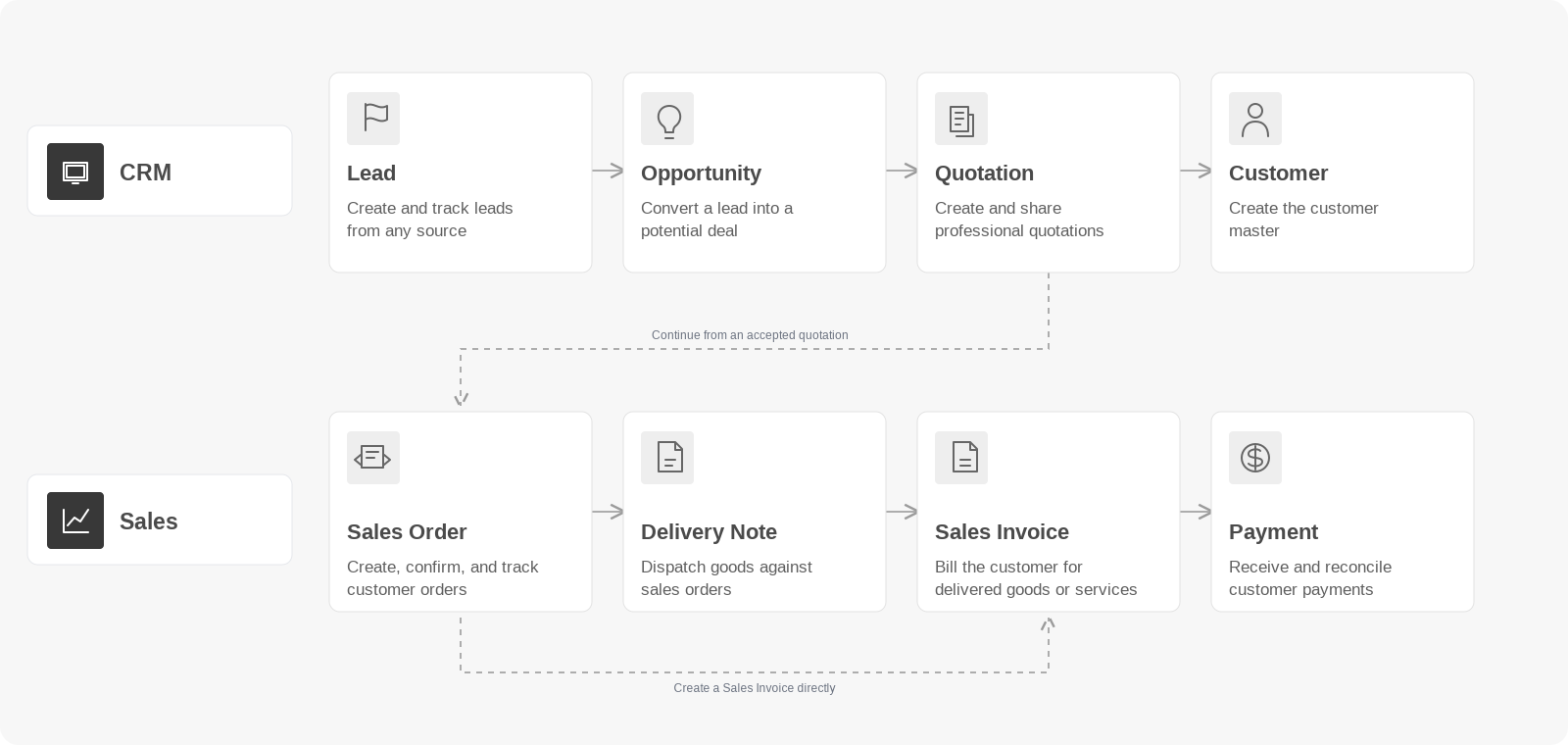
| Step | Document | What it records |
|---|---|---|
| 1 | Quotation | Your offer: Items, prices, taxes, and validity. |
| 2 | Sales Order | The customer's confirmed order. |
| 3 | Delivery Note | The goods that left your warehouse. ERPNext updates stock. |
| 4 | Sales Invoice | The bill. ERPNext posts income, tax, and the receivable to the ledger. |
| 5 | Payment Entry | The payment from the customer. |
Only the Sales Invoice and the Payment Entry are needed to record a sale in the accounts. A Sales Order records a commitment, but it does not change stock or the ledger.
Choose a sales cycle
Use the shortest cycle that still gives your team the control it needs.
| Cycle | Documents | Best for |
|---|---|---|
| Standard goods sale | Quotation (optional), Sales Order, Delivery Note, Sales Invoice, Payment Entry | Distributors, wholesalers, and manufacturers that pick and ship stock |
| Direct invoice with stock update | Sales Invoice with Update Stock selected, Payment Entry | Retail counters and cash-and-carry sales |
| Service sale | Quotation (optional), Sales Order, Sales Invoice, Payment Entry | Consulting, maintenance, and project work with non-stock Items |
| Drop-shipped sale | Sales Order, Purchase Order, Sales Invoice, Purchase Invoice | Goods that your supplier ships directly to the customer |
| Point of sale | POS Invoice or Sales Invoice from the POS screen | Shops and counters with a cashier |
Notes on each cycle:
- Standard goods sale: the Sales Order tracks what remains to deliver and bill, so you can deliver and bill in parts. See Deliver and bill a sales order in parts.
- Direct invoice with stock update: one document reduces stock and bills the customer. You lose the order commitment, stock reservation, and the pending-delivery list.
- Service sale: clear Maintain Stock on the service Items. For a Maintenance order, select Skip Delivery Note so that the order completes when it is billed. See Create a maintenance sales order.
- Drop-shipped sale: no stock moves through your warehouse. See Drop ship an order.
- Point of sale: see Point of Sale.
When you create the next document from its source (for example, Create > Delivery Note on a Sales Order), ERPNext links the two and updates the delivered and billed percentages. A document that you create directly starts a separate chain.
To make a Sales Order or Delivery Note mandatory before an invoice, see Selling Settings.
What you set up first
Before you create sales documents, set up these masters:
- Customers, with their addresses and contacts.
- Items that you sell.
- A selling Price List and Item Prices.
- Sales Taxes and Charges Templates and payment terms.
- Selling Settings for defaults and validations.
You can add more controls later, for example customer groups, territories, credit limits, sales persons, and pricing rules.
How Selling connects to other areas
- CRM: a Lead or an Opportunity can become a Quotation. See CRM.
- Stock: a Delivery Note, or a Sales Invoice with Update Stock selected, removes Items from a warehouse.
- Accounting: a Sales Invoice books income, tax, and the amount the customer owes.
- Buying and Manufacturing: from a Sales Order, you can create a Purchase Order, a Material Request, a Work Order, or a Production Plan.