Restrict a user to specific documents
A role gives access to all documents of a kind. For example, a Sales User can see every Quotation and Sales Order. A user permission limits that access to the documents linked to specific records, for example one company or one territory.
User permissions work through link fields. A user permission for Territory "Europe" limits the user to Customers, Quotations, Sales Orders, and other documents whose Territory is "Europe".
Common uses:
- A user sees only the data of one company.
- A sales user sees only the customers and orders of their territory.
Prerequisites
- The System Manager role, or a role with the Set User Permissions right.
Create a user permission
- Open the User Permission list and select Add User Permission. Or open the user and select Permissions > Set User Permissions.
- In User, select the user.
- In Allow, select the kind of record, for example Company.
- In For Value, select the record, for example your company.
- Optional: select Is Default to use this value by default on the user's new documents. A user can have one default value for each kind of record.
- Save.
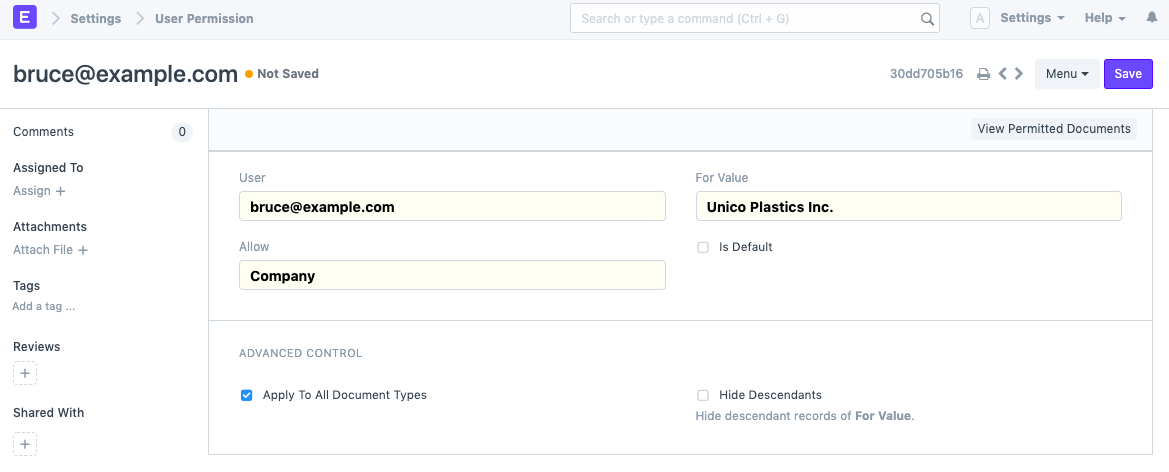
Limit where the user permission applies
By default, a user permission applies to every kind of document that links to the record. In the Advanced Control section:
- Apply To All Document Types: clear it, then select one document in Applicable For. The restriction then applies only there. For example, the user sees only the Sales Orders of the company, but other documents are not limited by it.
- Hide Descendants: appears when Allow is a tree, such as Company or Territory. A user permission on a parent also gives access to its children. Select Hide Descendants to give access to the parent only. For example, a user of a parent company then cannot see its subsidiary.
Let everyone see one field's documents
To stop user permissions from applying to one field, open Customize Form, select the document, open the field, and select Ignore User Permissions. For example, select it on the Company field of Asset so that all users see all assets.
Documents with an empty link
A user has a user permission on Company. Which documents with an empty Company field can the user see? By default, ERPNext shows them. With Apply Strict User Permissions in System Settings, ERPNext hides them.
Let managers see their team's documents
INFO
Expense Claim, Leave Application, and Appraisal are in the Frappe HR app.
In the Employee record, Reports to sets the manager of each employee, and builds the hierarchy. When an Employee is linked to a user with Create User Permission selected, ERPNext creates a user permission on that Employee. The manager then sees their own documents and the documents of the employees who report to them, such as Expense Claims and Leave Applications.
If a manager cannot see a team member's documents, check that Reports to of the team member is the manager's Employee record.
Check the result
Open the Permitted Documents For User report, or open the user and select Permissions > View Permitted Documents. Select the User and the document to see which documents the user can open. Select Show Permissions to see the read, write, and submit rights.
If a document is missing from the report, check the roles of the user first.