Export data
You can export data from ERPNext in two ways:
- From the report view of a list, for the columns and filters that you see.
- With the Data Export tool, for any fields of a document, in a file that you can import again.
Prerequisites
- The Export permission on the document.
Export from the report view
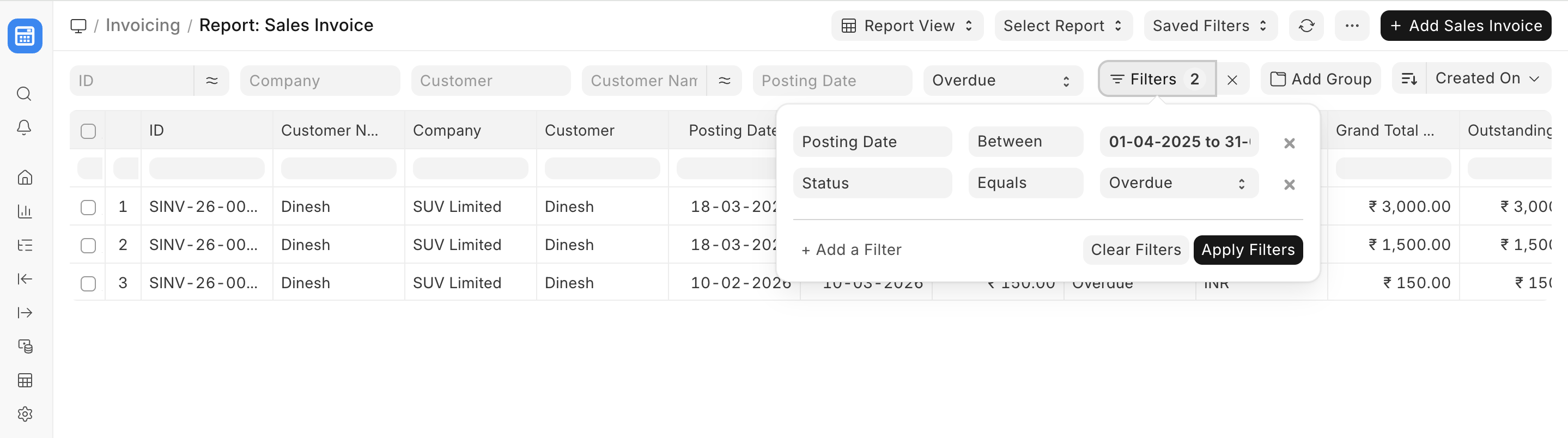
Use this to export, for example, the Sales Invoices of one fiscal year.
- Open the list, for example the Sales Invoice list.
- Switch to the Report view.
- Add filters, for example Posting Date between the first and last day of the fiscal year.
- Select Pick Columns in the menu to choose the columns.
- Open the menu and select Export. Choose the file type.
Export with Data Export
- Open Data Export.
- In Select Doctype, select the document, for example Customer.
- In File Type, select CSV or Excel.
- Optional: select Export without main header to export only the data rows, without header notes and column descriptions.
- Select the fields to export. Mandatory fields are marked in red.
- Optional: add filters, for example Territory equals
Asia. - Select Export.
You can edit the file and load it back with Data Import.